




Design your custom LinkedIn banners and backgrounds

Your LinkedIn banner or background is one of the first things people notice when they visit your profile. It’s a powerful visual opportunity to show off your personality, promote your brand, or highlight your business. With a custom LinkedIn banner design, you can stand out from the crowd and make a memorable impression.

Try free

15-day free trial, no credit card required!

You’re in good company

Join millions of users across thousands of global organizations who use CorelDRAW.

Telefonica
Unilever
Daimler
Petrobas
Abbott
Glencore
Pfizer
Telefonica
Unilever
Daimler
Petrobas
Abbott
Glencore
Pfizer

How to create LinkedIn banners and backgrounds with CorelDRAW Go

CorelDRAW Go has the tools you need to create a high-quality LinkedIn background that reflects your personal or professional brand. With easy-to-edit templates, flexible vector design tools, and a powerful creative toolkit, designing a standout banner is fast and fun—whether you're job hunting, building your business, or growing your personal brand.

It’s also an effortless way to improve your LinkedIn banner branding, helping your profile look more cohesive and professional. Here's how:

Upload and open your photo in CorelDRAW

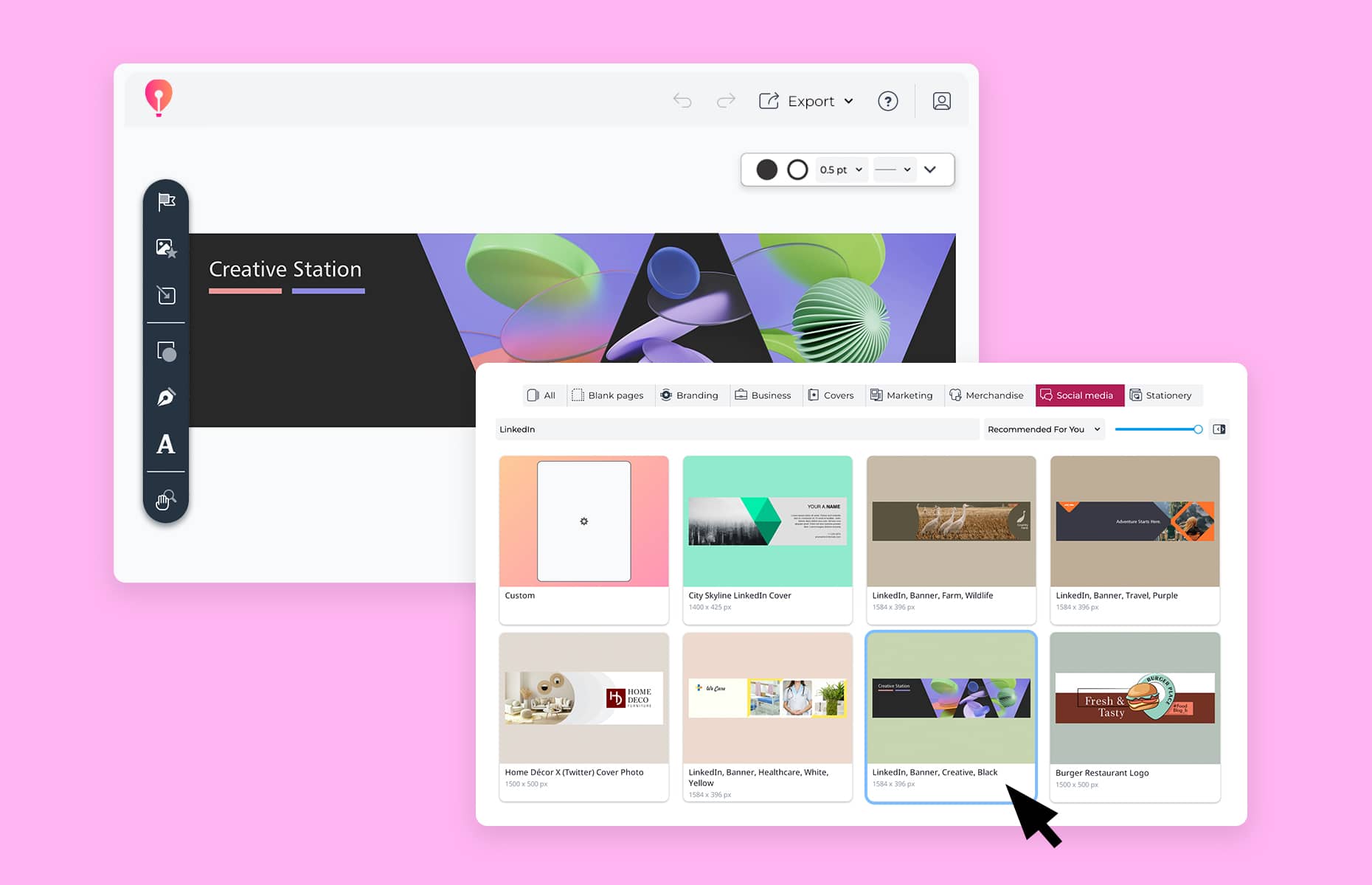
1. Start your project by choosing a template

Open CorelDRAW Go and start a new project. You can begin from scratch or upload your own images to get started with your LinkedIn background design.

Need inspiration? Choose from CorelDRAW Go’s library of LinkedIn banner templates and personalize them to match your style.

Edit and crop your image

2. Customize your banner to fit your vision

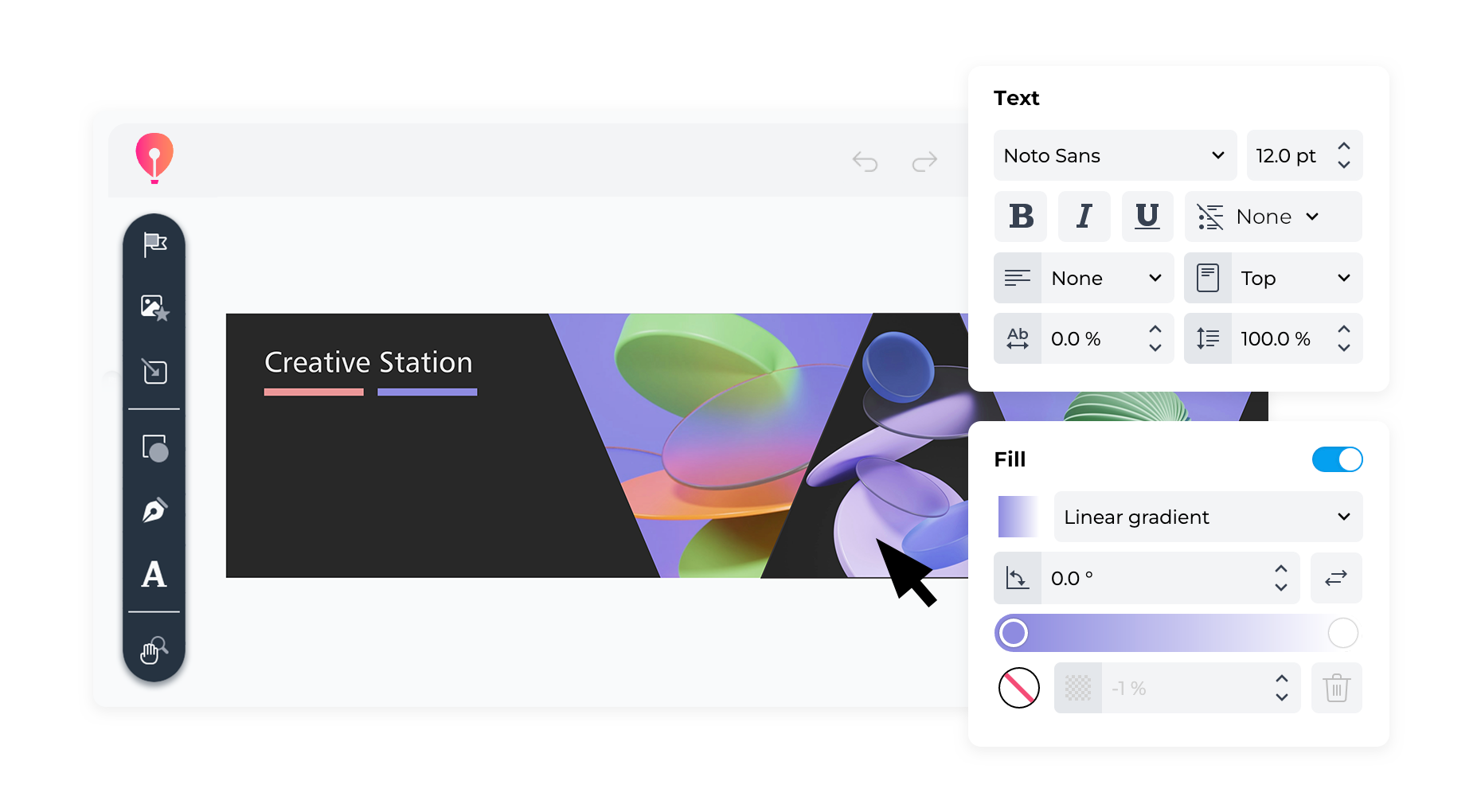
Edit photos, add graphic elements, adjust text, switch up the layout, and fine-tune your LinkedIn banner graphics until it’s exactly what you envisioned.

With CorelDRAW Go, you can easily create a LinkedIn branding background that aligns perfectly with your personal or company branding, helping your profile stand out with consistent, professional visuals.

Upload and share your cropped image

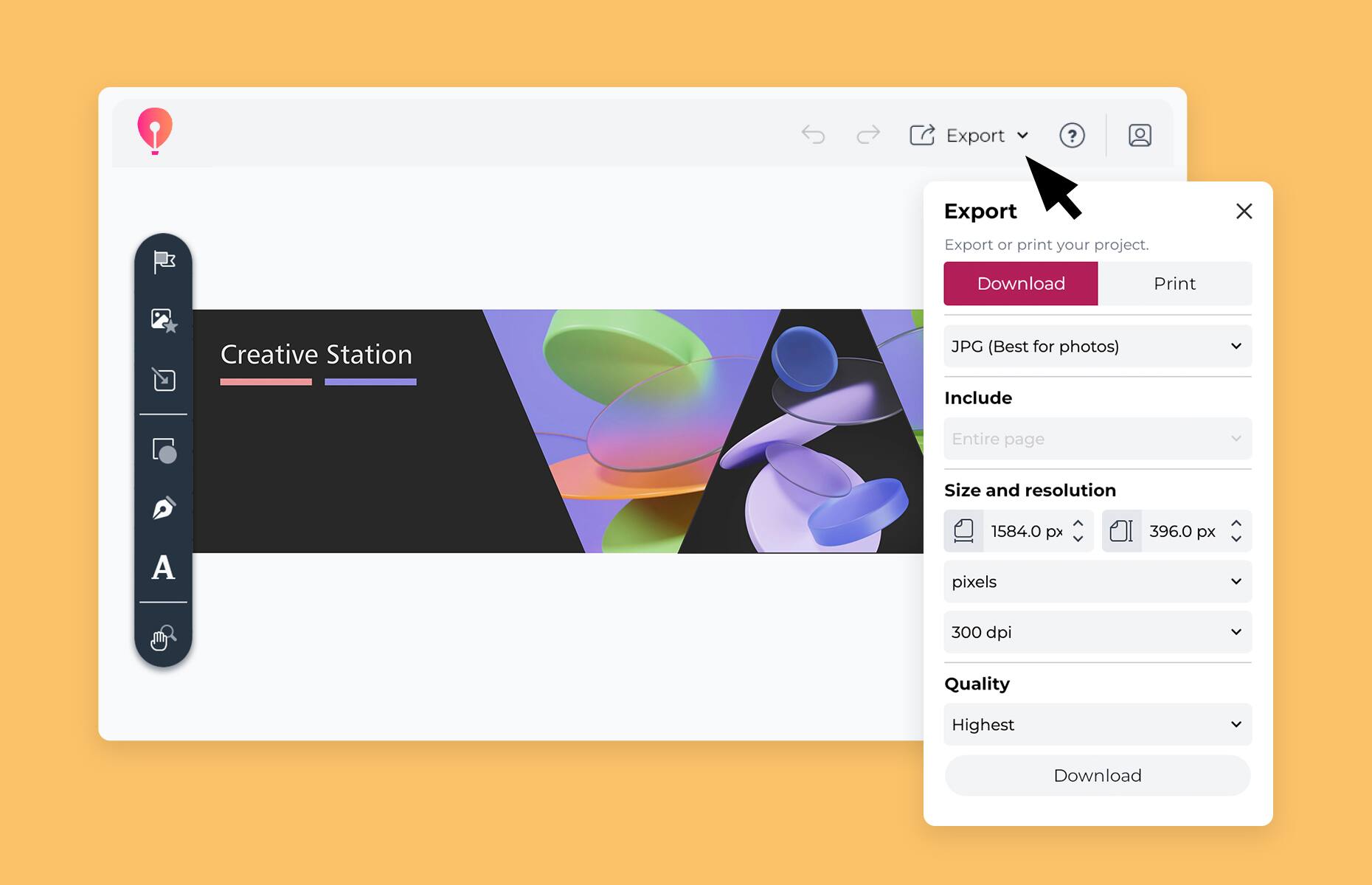
3. Export and upload your cover photo

When your design is ready, download it from CorelDRAW Go using the export preset settings optimized for LinkedIn. Then, simply upload it to your LinkedIn profile to make a polished first impression.

See what other people are saying about CorelDRAW

“CorelDRAW Go shows just how far web apps have come. It’s essentially a full graphic design toolkit that runs in your web browser.”

- Creative Bloq

See more

"Creating and editing vector objects online with CorelDRAW Go gives real creative freedom."

- Ivanberg Moreira, Designer and Content Creator

See more

Explore fully editable LinkedIn banner templates

Every design needs a starting point.

CorelDRAW Go offers a wide range of editable LinkedIn banner templates you can tailor to your needs—change colors, swap images, add logos, and more.

Add fonts, shapes, and artistic effects to craft a unique, eye-catching header that elevates your profile.

Show off your images on LinkedIn

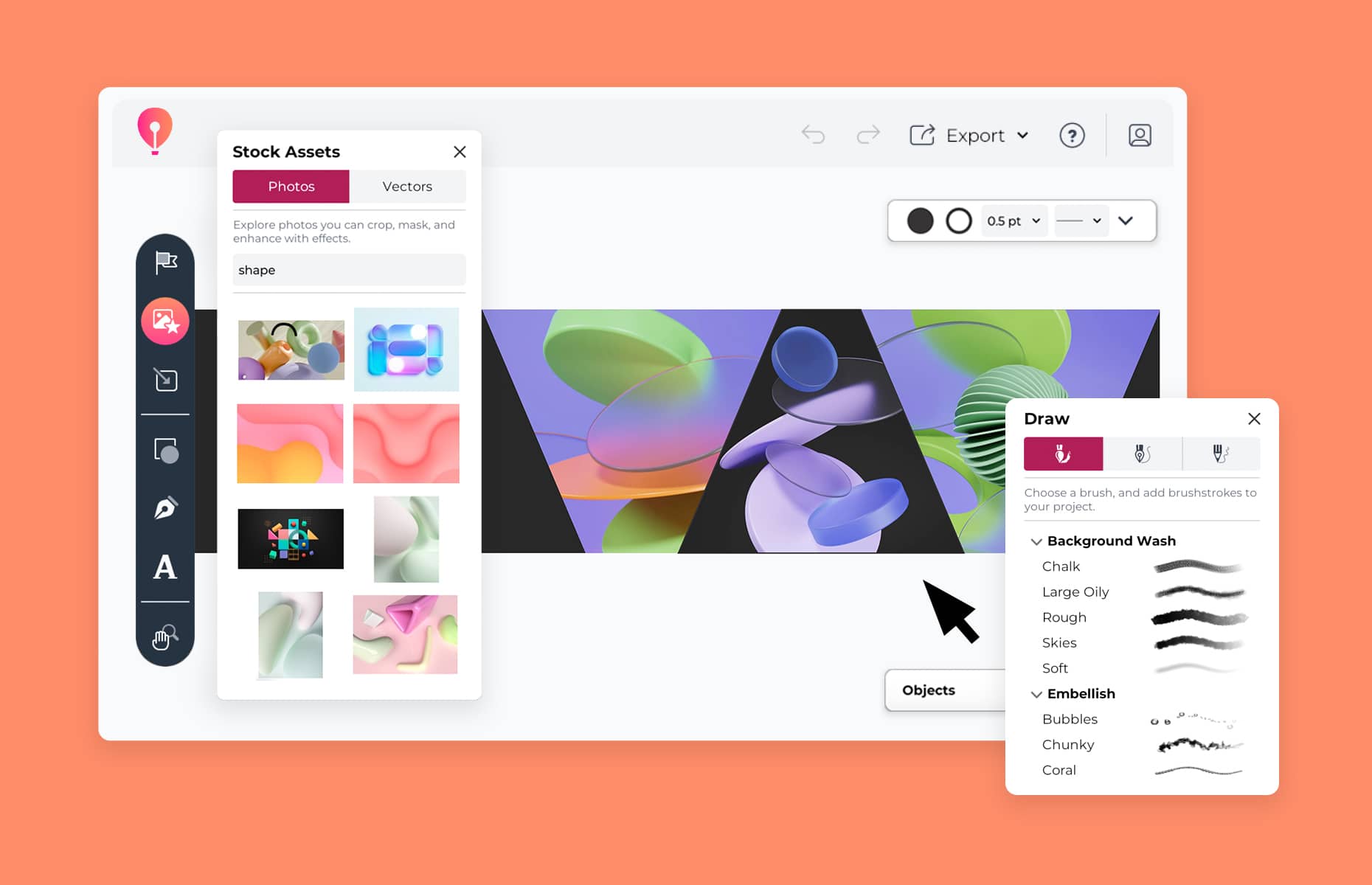
Use your own photos or artwork in CorelDRAW Go and enhance them with built-in image editing tools.

Add brush strokes, shadows, gradients, text, and other effects to create unique LinkedIn background graphics or an eye-catching LinkedIn banner that could boost engagement and profile visibility.

Export and add to your LinkedIn account

Once your design is polished, it's easy to export it in the correct LinkedIn format with CorelDRAW Go using the default settings that are optimized for LinkedIn.

LinkedIn banner and background FAQs

Have questions about making LinkedIn banner ideas come to life in CorelDRAW Go? Find answers here.

Absolutely. Start from a blank canvas, use a template, or upload your own photos—CorelDRAW Go makes the process quick and easy.

Does CorelDRAW Go have built-in LinkedIn banner templates?

It does! CorelDRAW Go includes a wide selection of professionally designed, fully editable templates to help you get started quickly and inspire your next LinkedIn background idea.

You can customize every element—images, text, colors, and layout—to match your brand.

Want to see how it works? Check out this guide to learn how to edit templates.

Can I create my own LinkedIn banner template in CorelDRAW Go?

Yes, you can! CorelDRAW Go’s LinkedIn banner template library includes blank templates that allow you to design your own from scratch.

Create a layout that suits your brand, save it, and reuse it anytime to maintain a consistent professional look.

What's a good size for a LinkedIn banner or background?

LinkedIn recommends a banner image size of 1584 pixels wide by 396 pixels tall, using a 4:1 aspect ratio.

CorelDRAW Go’s LinkedIn banner templates are pre-sized to these exact dimensions, so your design will look crisp and perfectly formatted from the moment you begin.

Discover even more

Photo effects

Remove background

Crop image

Show off your brand and attract more positive attention with professional LinkedIn banners and backgrounds.

Try free

15-day free trial, no credit card required!