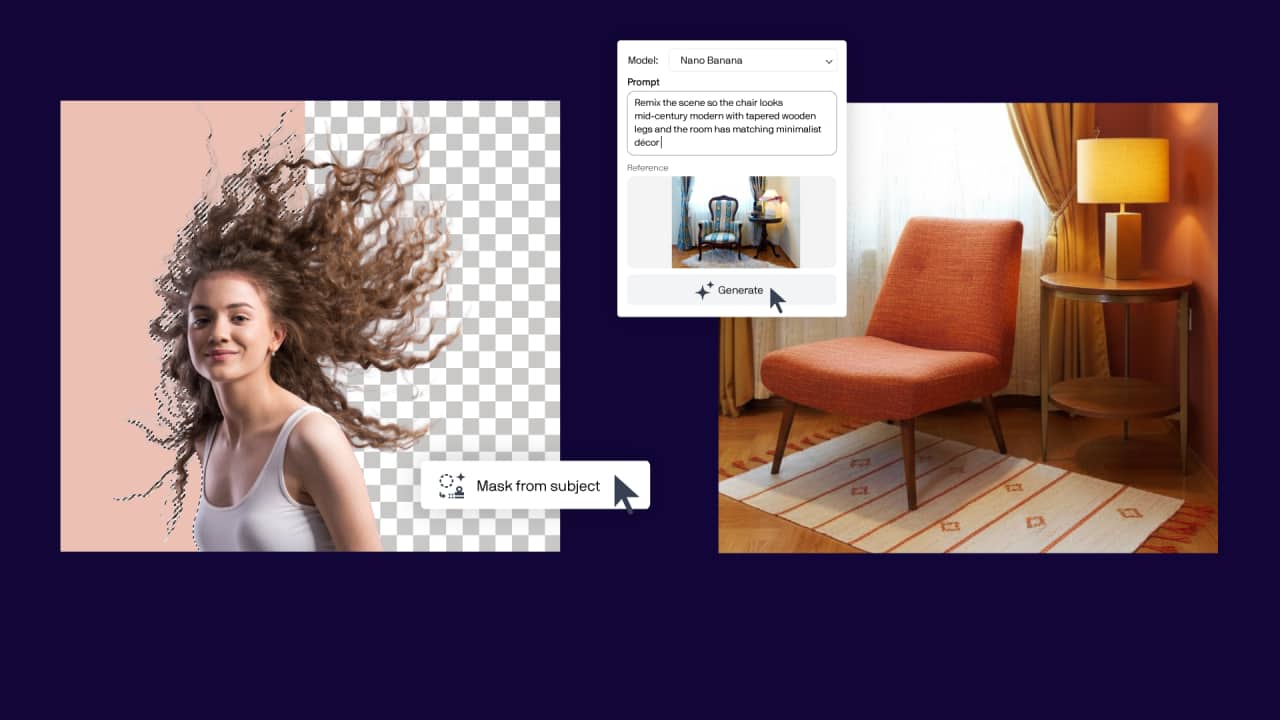
Create original visuals with AI Generate
AI Generate is a prompt-based image creation docker in CorelDRAW and Corel PHOTO-PAINT. It allows you to generate and modify images using descriptive text prompts.
You can:
- Create original images from scratch
- Explore stylistic variations
- Generate logo concepts and visual directions
- Modify existing images using prompts
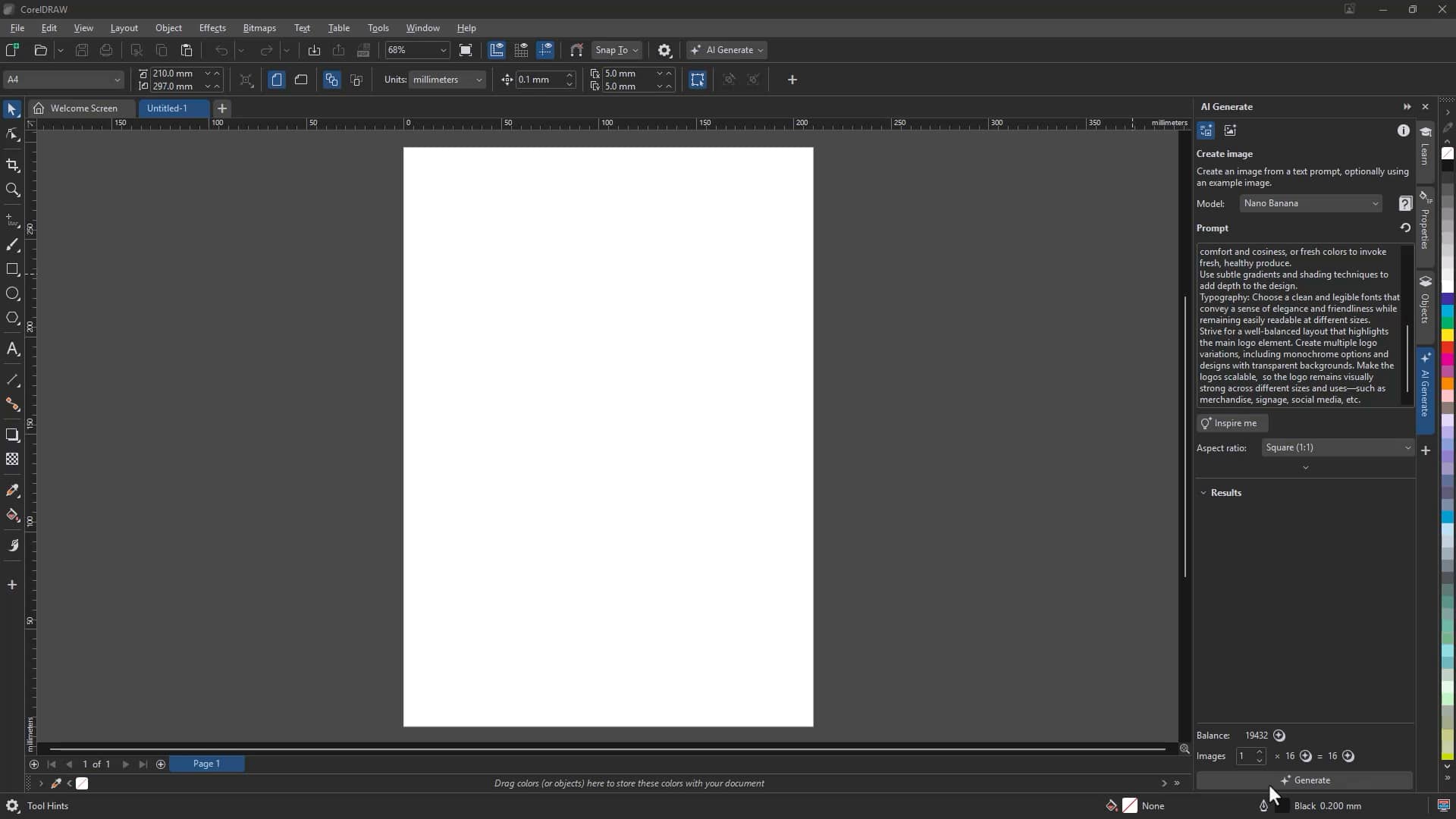
To generate a new image:
- Open the AI Generate docker
- Click Create Image
- Choose an AI model
- Select an aspect ratio
- Enter a detailed prompt
- Optional: Apply a style preset or color palette
- Click Generate
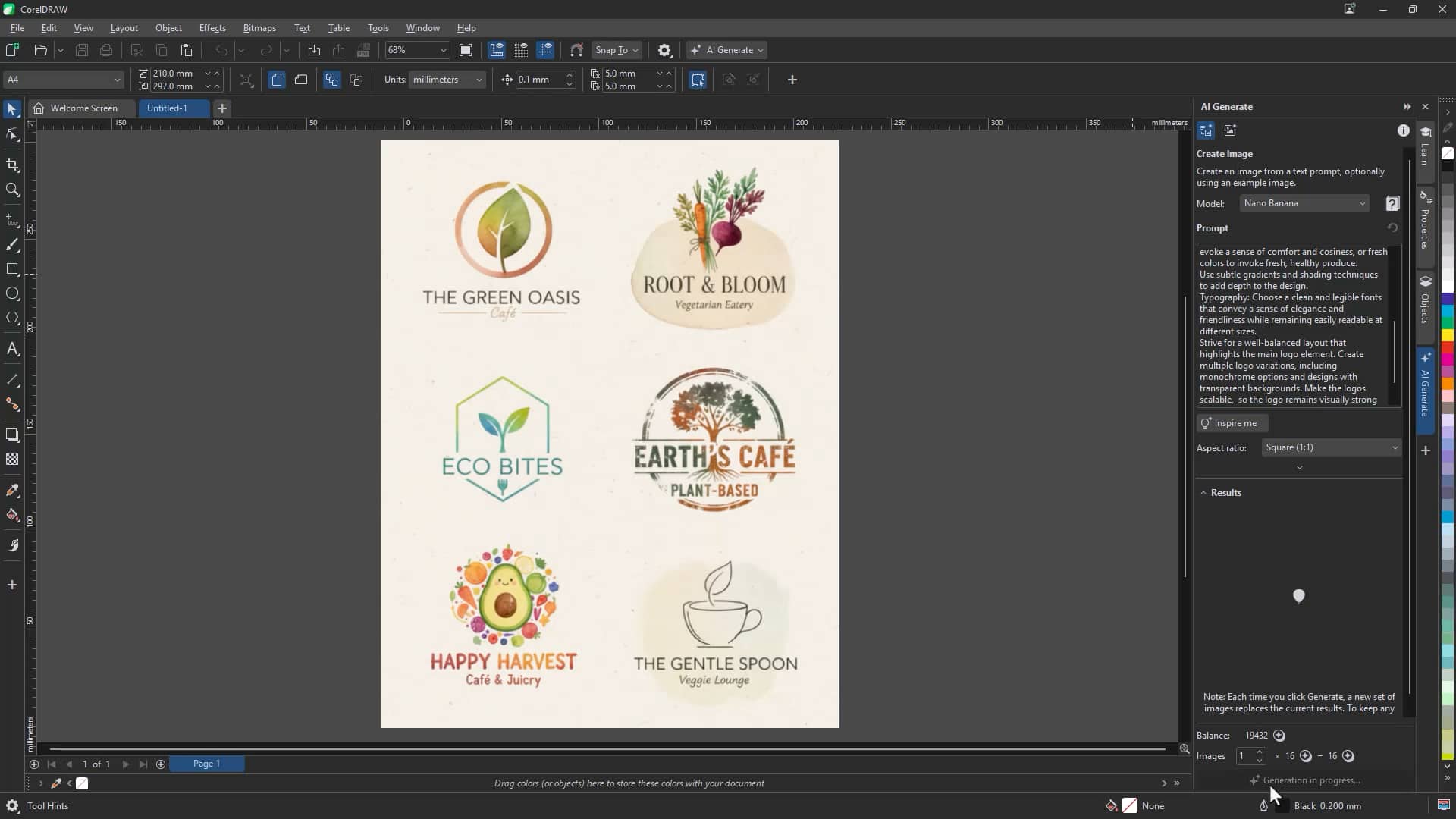
More specific prompts produce more targeted results. You can explore layout direction, color themes, typography ideas, or scalable logo concepts suitable for digital and print use.
Try AI Generate nowModify bitmaps with Remix Image
AI Remix Image allows you to transform an existing design while preserving its key elements.
This is especially useful for:
- Creating product mockups
- Adapting artwork for different environments
- Extending or enhancing sketches
- Updating campaign visuals
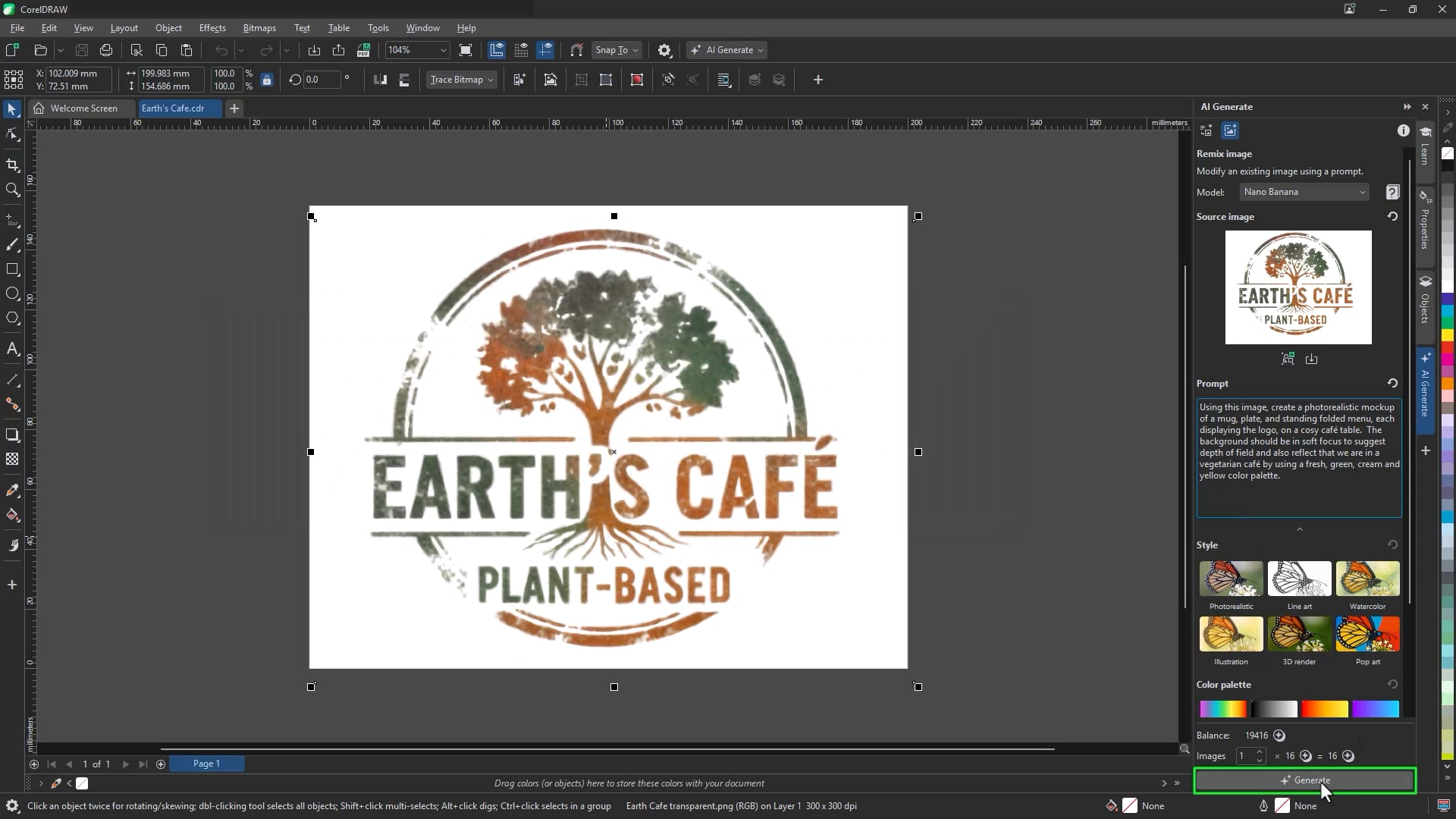
To remix an image:
- Open the AI Generate docker
- Click Remix Image
- Load your artwork into the Source image field
- Enter a prompt describing how you want the image modified
- Choose an AI model
- Click Generate
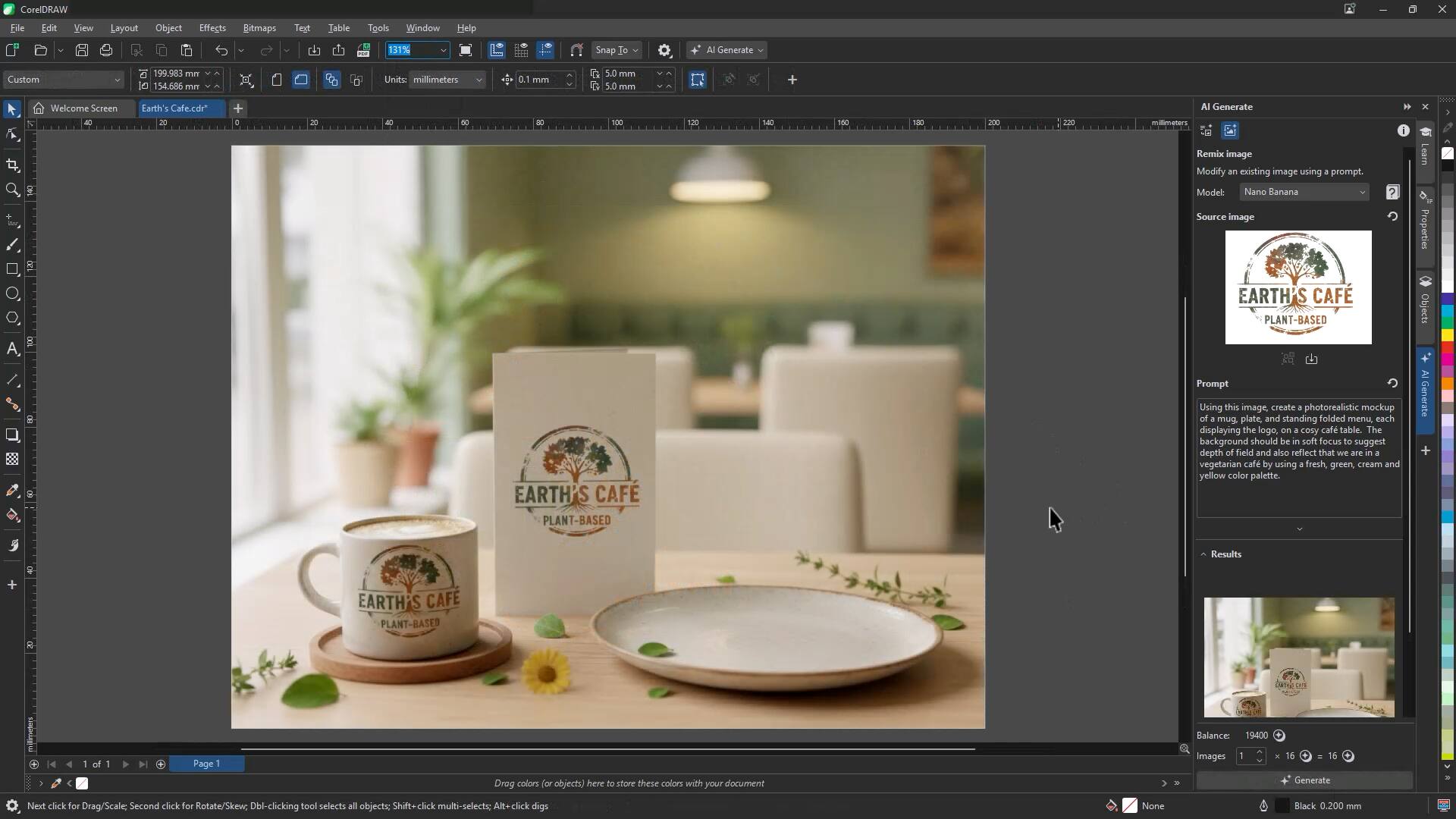
Remix helps you quickly visualize real-world applications without building complex scenes manually.
Remove backgrounds instantly
Isolating subjects is essential for clean compositions and flexible layouts.
CorelDRAW and Corel PHOTO-PAINT include AI Remove Background, which automatically detects the main subject and removes the surrounding background.
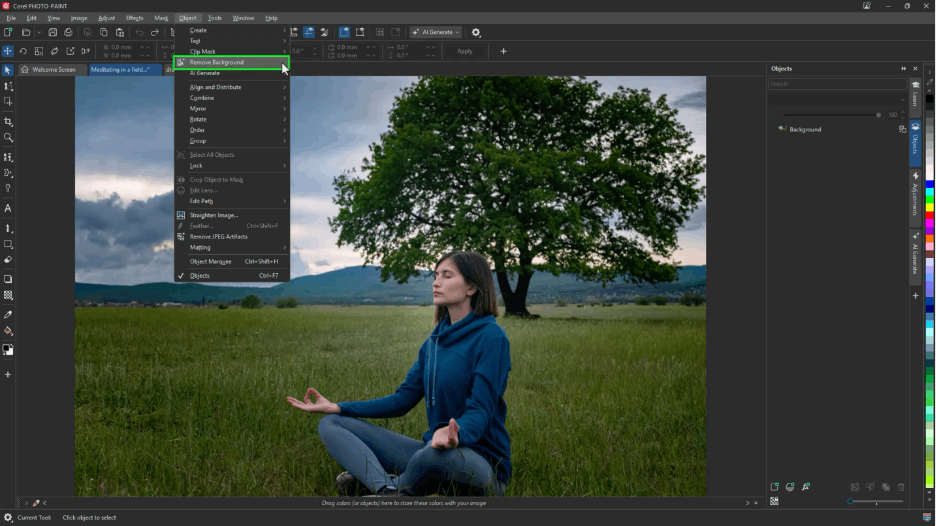
To remove a background:
- Select the image
- Click the Remove Background icon on the Property bar,
or - Go to Bitmaps > Remove Background
In layered documents, you can also right-click an object or layer and select Remove Background.
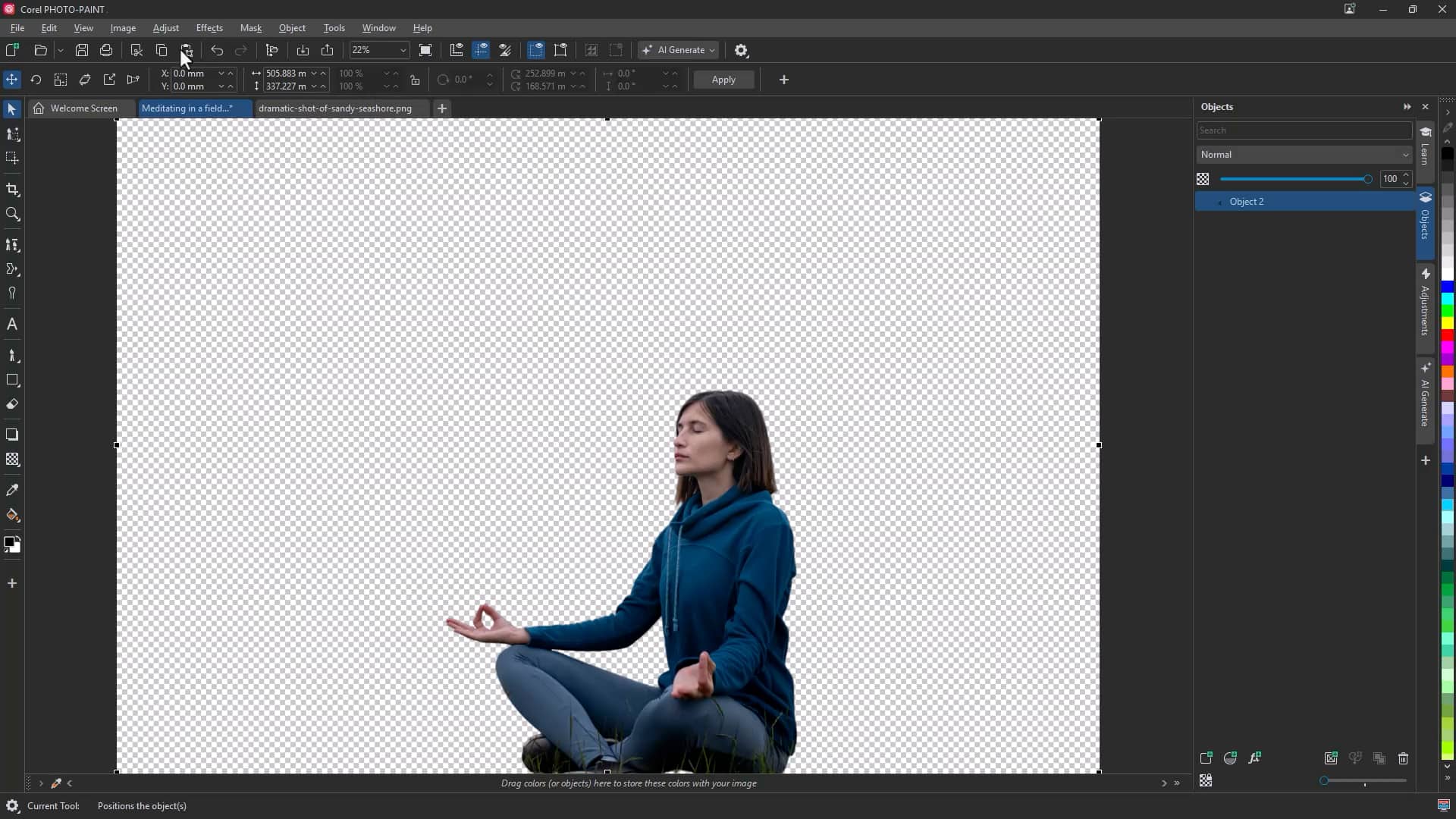
This eliminates the need for time-consuming manual edge refinement.
Try Remove background nowAutomatically select subjects in Corel PHOTO-PAINT
Selecting detailed subjects—especially hair, fur, or intricate edges—often requires multiple tools and careful refinement.
The Mask from Subject command in Corel PHOTO-PAINT automatically detects and masks the main subject using AI.
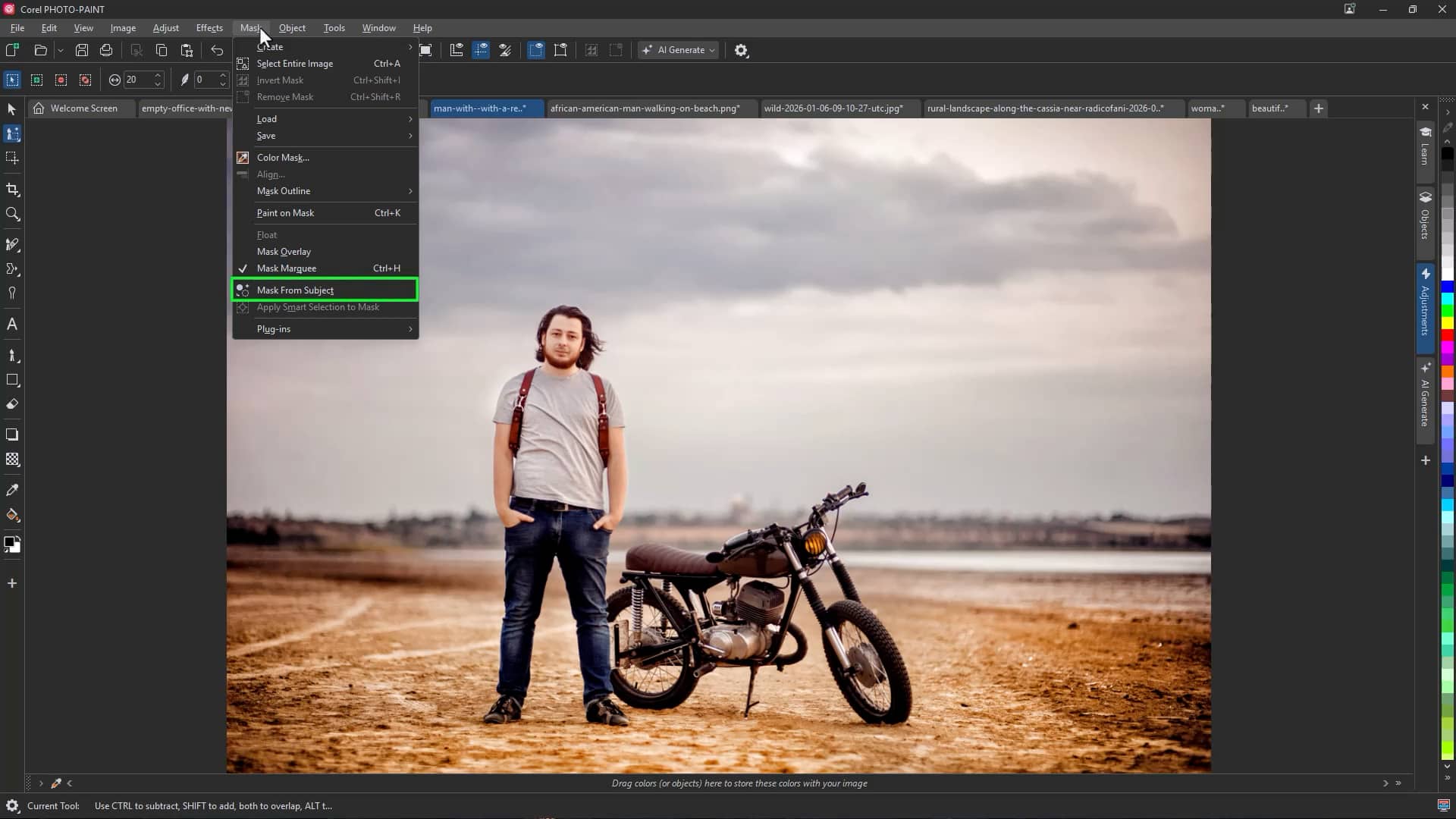
To create a subject mask:
- Open the image in Corel PHOTO-PAINT
- Click Mask > Mask from Subject
- Enable Mask Overlay to preview the selection
- Apply adjustments or copy the subject to a new background
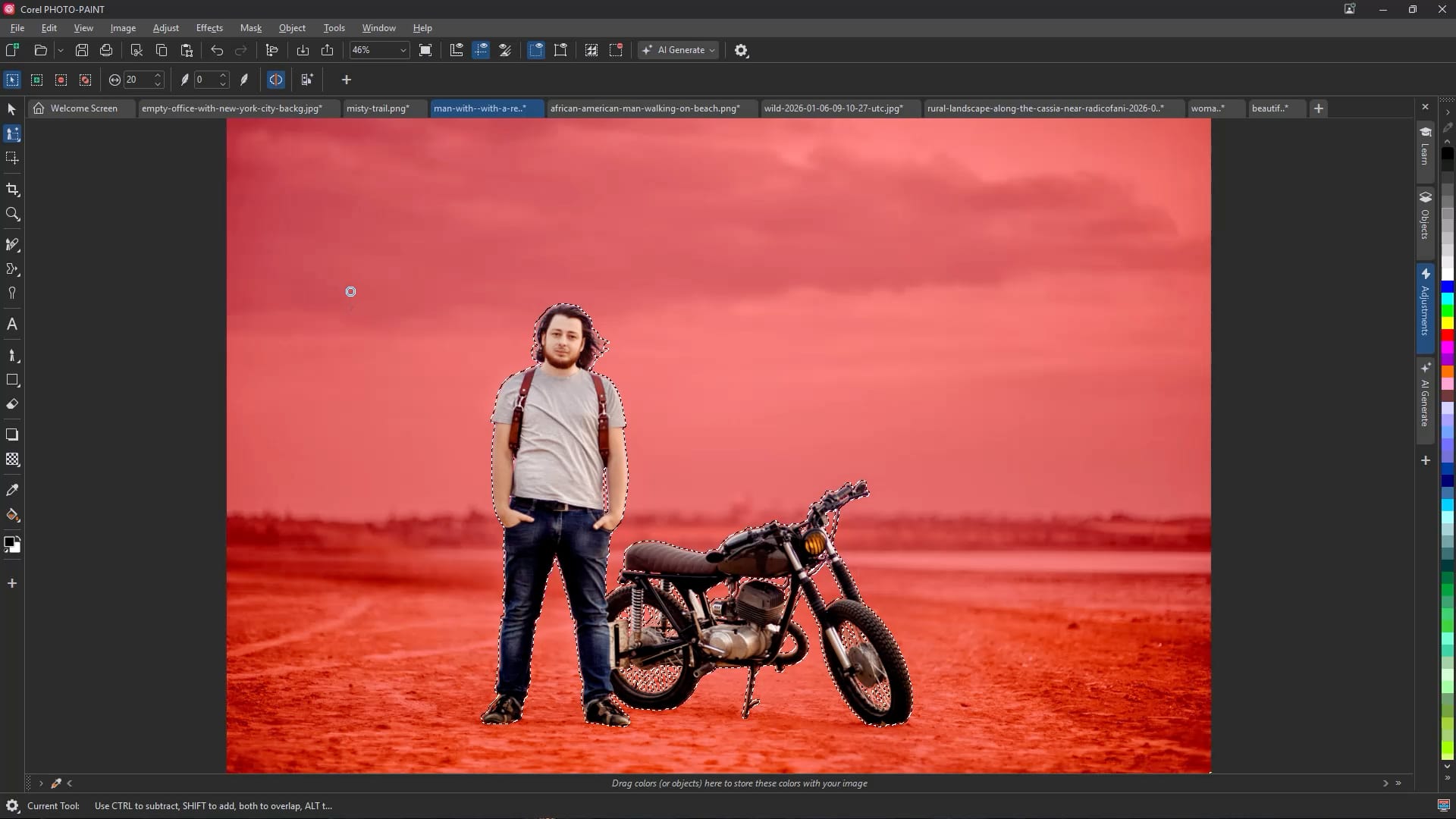
Once masked, you can:
- Apply color grading or tonal adjustments
- Convert to black and white
- Add creative effects
- Replace or modify backgrounds
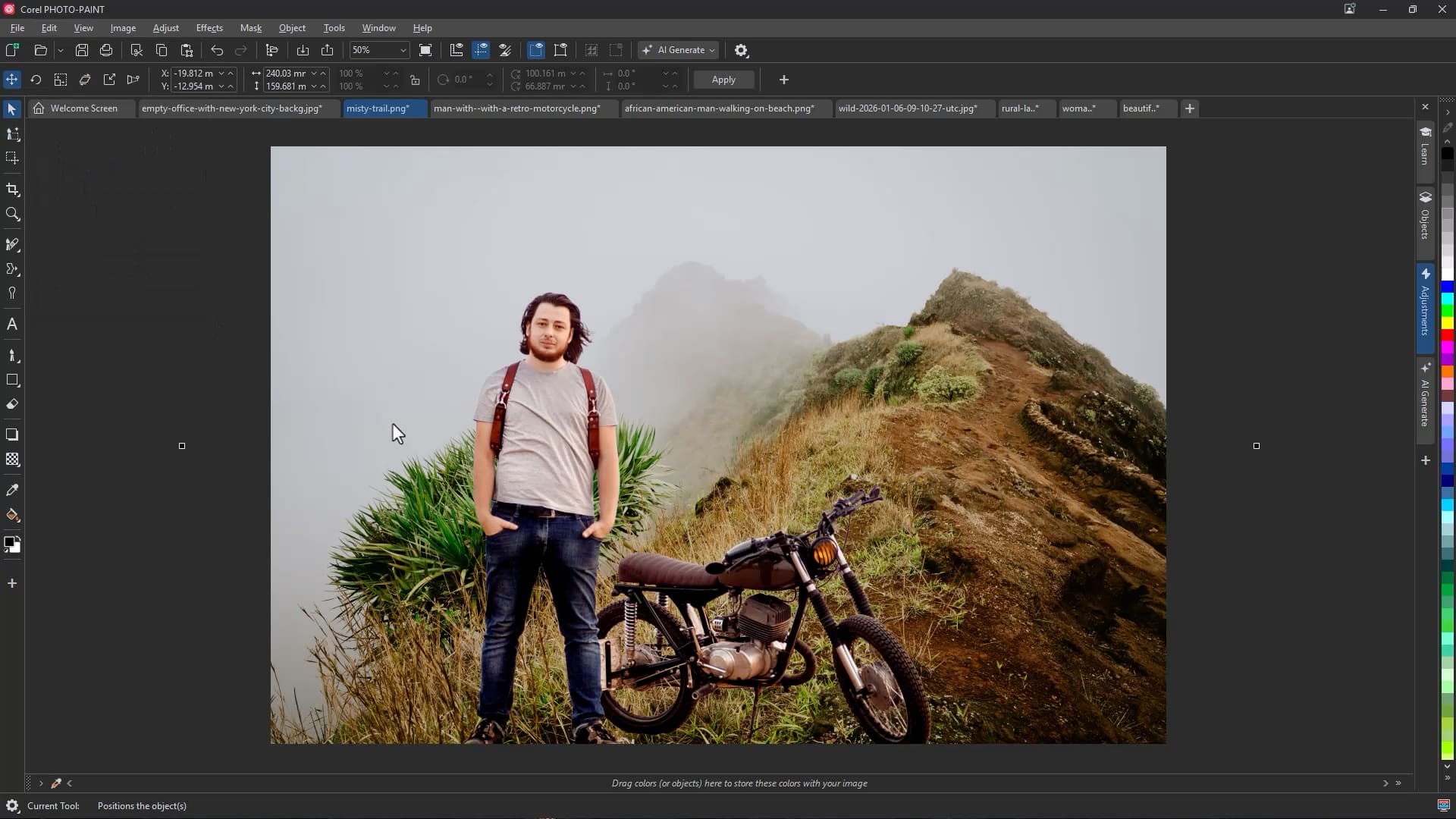
This allows for precise edits without affecting the entire image.
AI upsampling and JPEG artifact removal in PowerTRACE
Some AI tools operate behind the scenes to improve trace quality before vectorization begins.
In PowerTRACE, AI-driven upsampling and JPEG artifact removal analyze and enhance bitmap images before converting them to vectors.
Why this matters
Low-resolution or compressed images often contain:
- Pixelation
- Compression artifacts
- Color banding
- Jagged edges
These issues can negatively affect trace results.
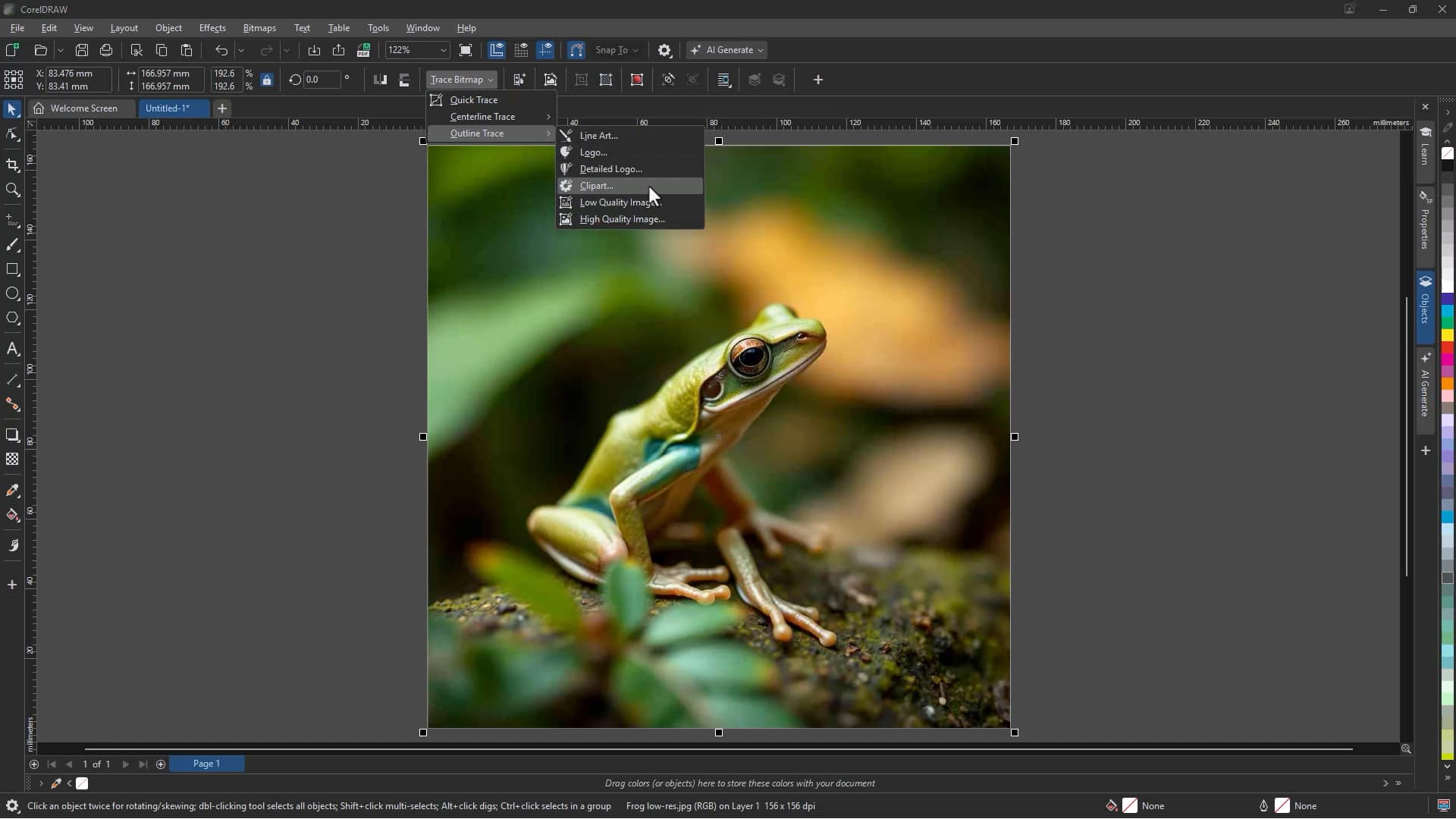
To improve trace quality:
- Select the bitmap image
- Click Trace Bitmap > Outline Trace
- Review the initial trace result
- Switch to the Adjustments tab
- Enable Photorealistic if appropriate
- Check Remove JPEG Artifacts
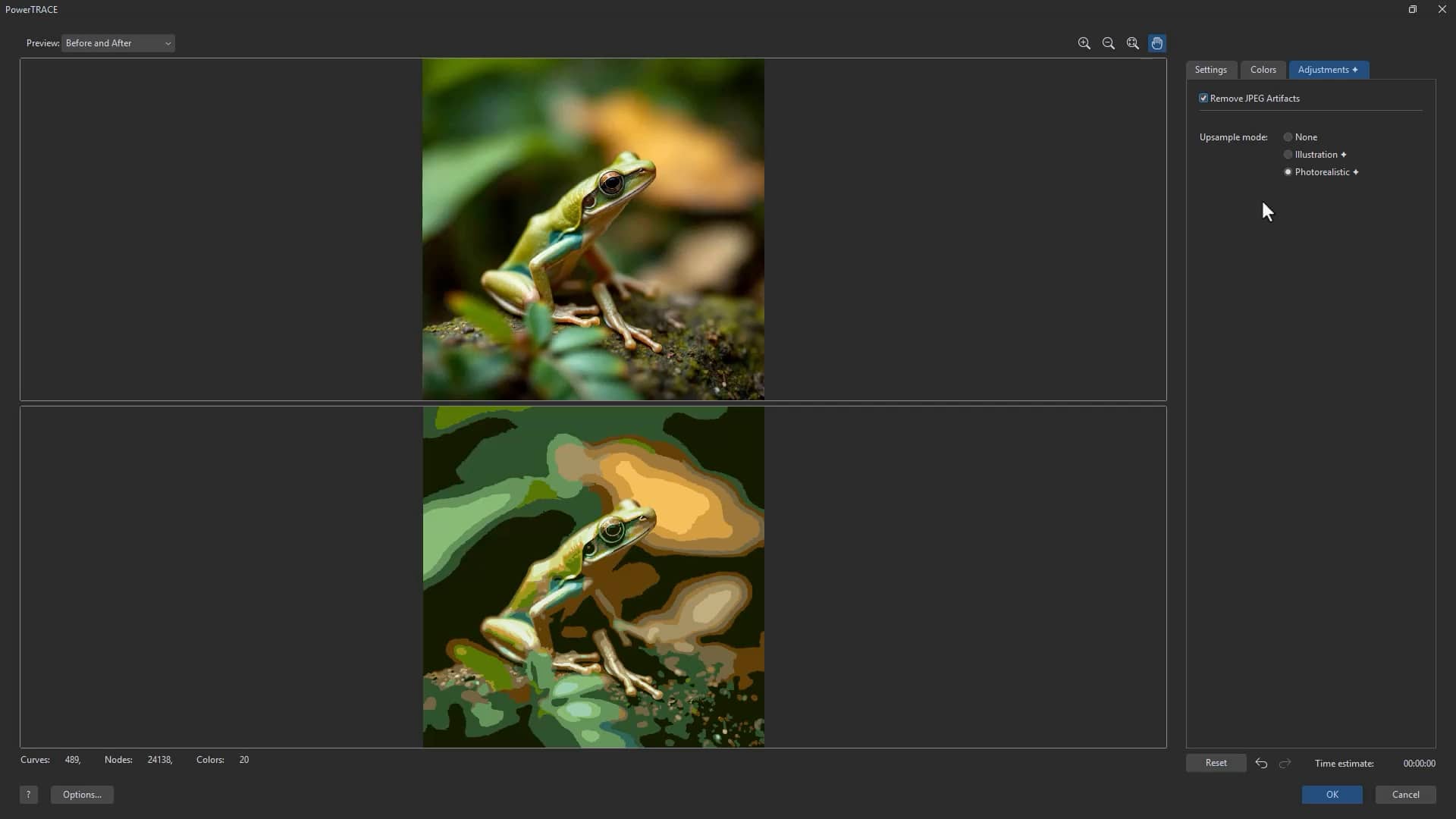
With artifact removal enabled, traces typically show:
- Smoother edges
- Fewer unwanted shapes
- Reduced noise
- Cleaner vector results
This reduces manual cleanup after tracing.
Try PowerTRACE nowAI tools that support professional workflows
Across CorelDRAW Graphics Suite, AI tools are designed to assist common production tasks without changing how you work.
They help you:
- Generate visual concepts
- Create mockups quickly
- Remove backgrounds and isolate subjects
- Improve trace results from imperfect source material
- Reduce repetitive manual editing
Whether you are building concepts, refining photography, or preparing artwork for output, these AI tools improve your workflow and keep you in full control of the final result.