Watch this video to learn how to use and edit common shapes and text or follow the written instructions below.
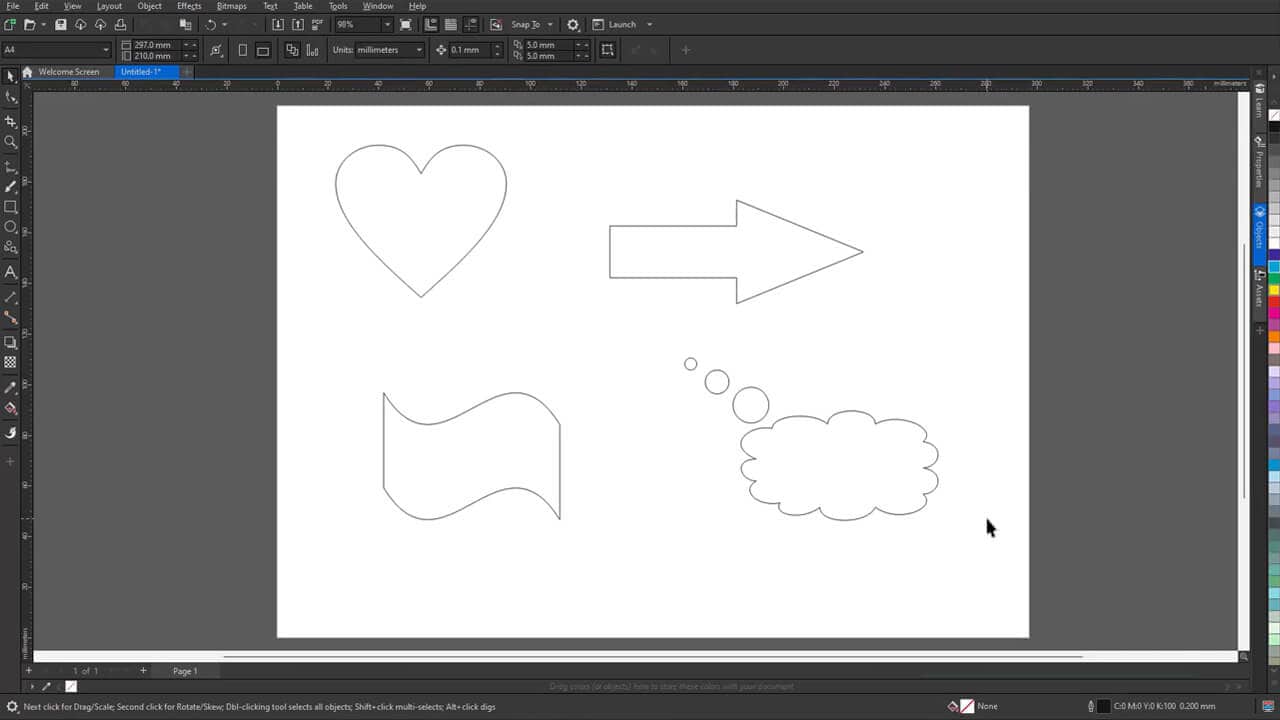
1. Draw a predefined shape
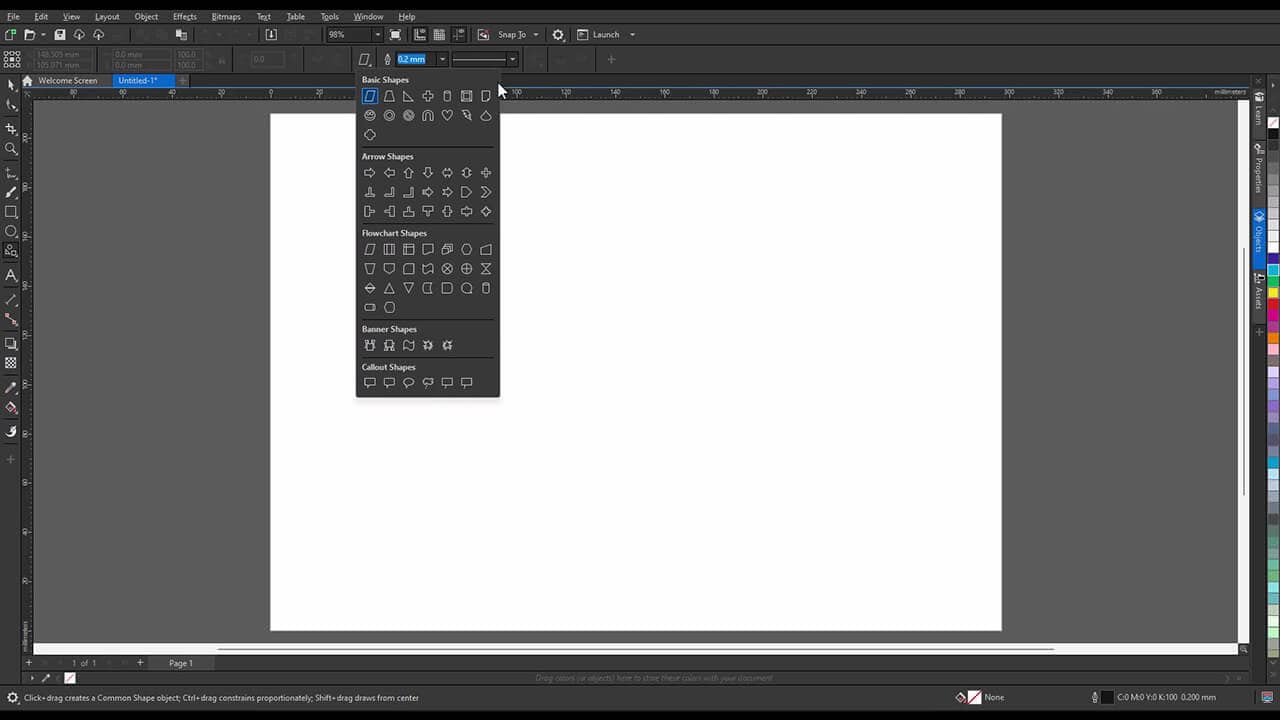
Choose a shape from the Common Shapes collection, then drag to draw it on the page. You'll find basic shapes, arrows, banners, callouts, and flowchart symbols.
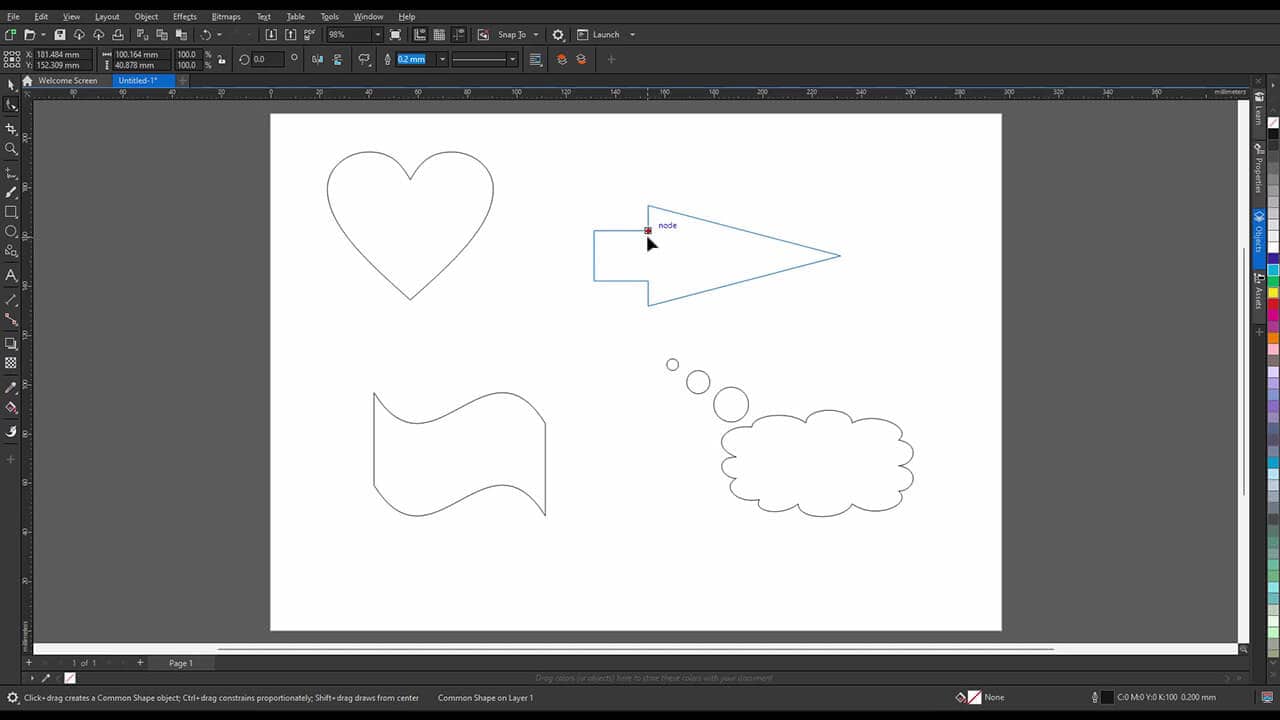
2. Adjust shapes with glyphs
Basic shapes, arrows, banners, and callouts include diamond-shaped handles called glyphs. Drag a glyph with the Shape tool to apply changes like rounded corners or adjusted proportions.
- Right-angle, heart, lightning bolt, explosion, and flowchart shapes don't have glyphs
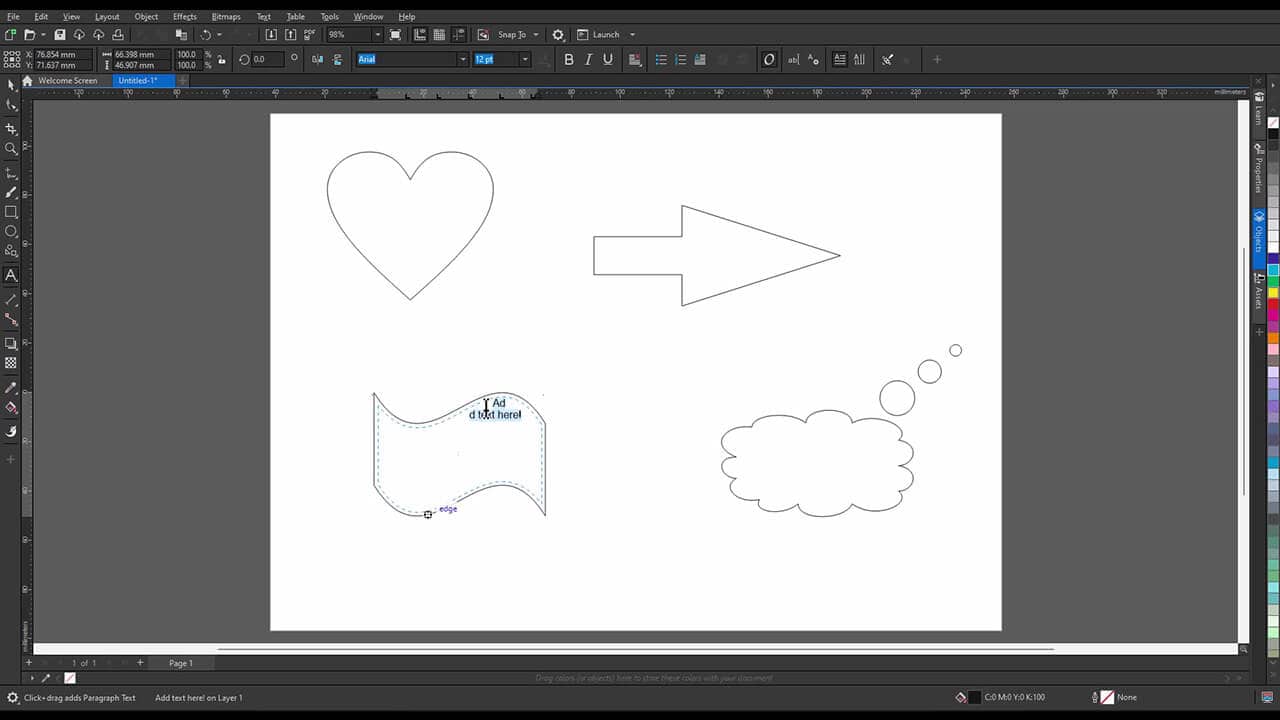
3. Add text to a shape
Select the Text tool and position your cursor inside the shape's outline. Click when you see a text cursor. Type your text, then choose a font and format it.
4. Convert shapes to curves for more control
For more extensive editing than glyphs allow, convert your shape to curves. This gives you full node-by-node control with the Shape tool.
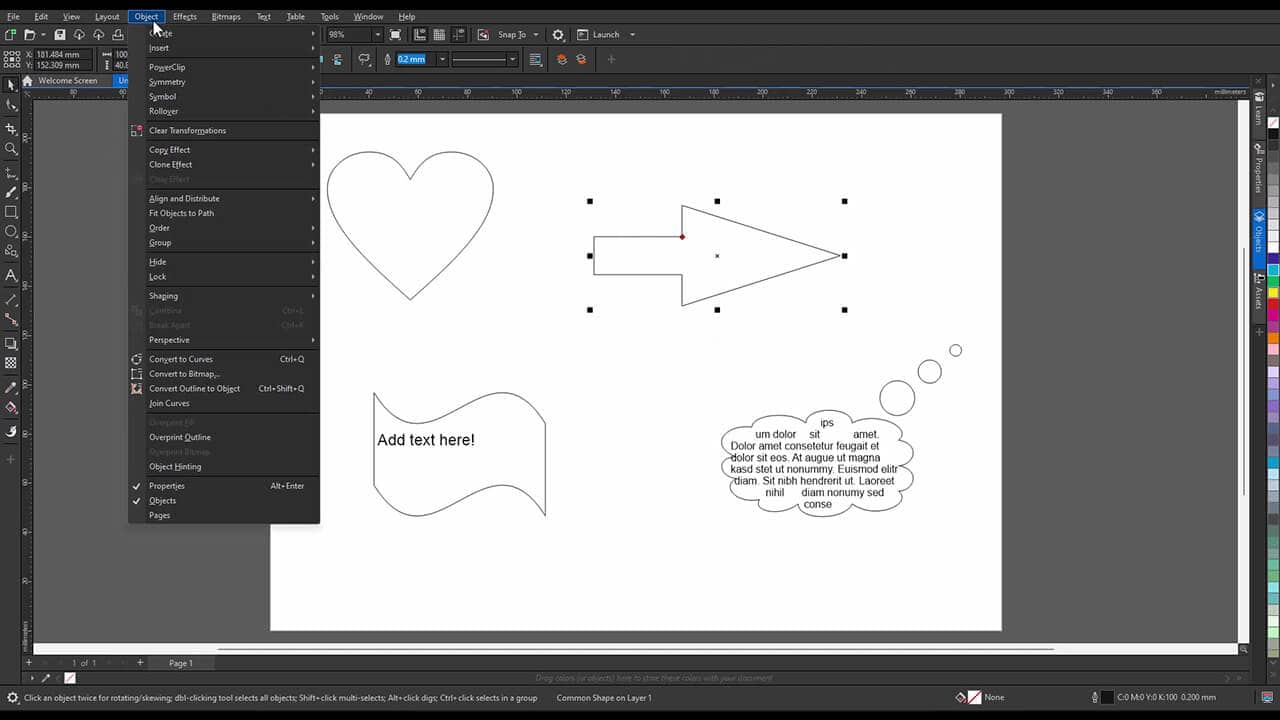
From quick flowchart symbols to labeled callouts, the Common Shapes collection helps you build recognizable design elements quickly instead of drawing them from scratch.
Ready to build with common shapes?
Start your free trial of CorelDRAW Graphics Suite and put these shapes to work.