Watch this step-by-step tutorial to learn how to navigate the Welcome screen and use its key features, or follow the written instructions below.
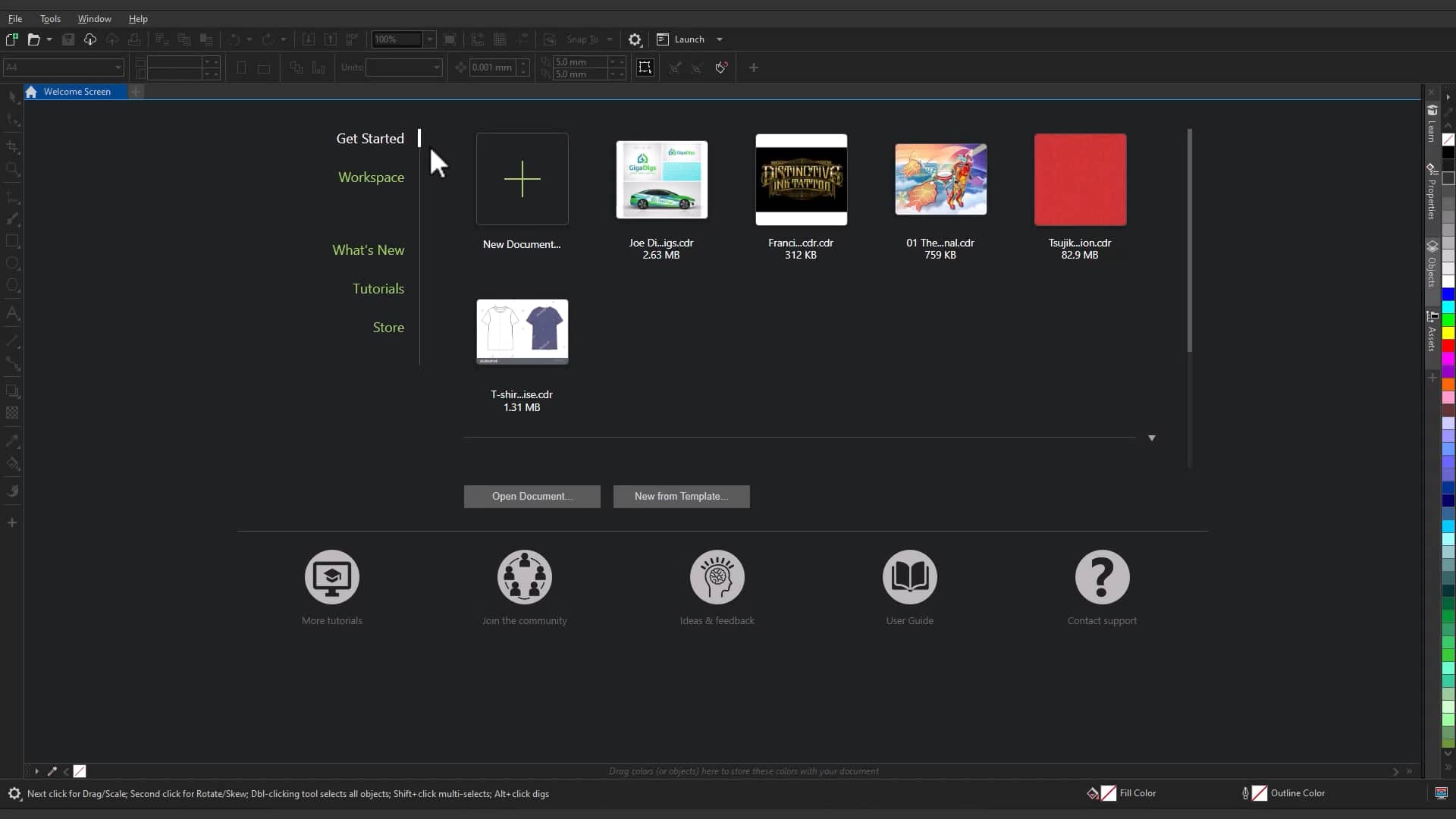
1. Open recent files
The Welcome screen displays a list of your recently opened documents, so you can quickly continue working where you left off.
- Click any file in the list to open it
- Access your most recent projects without browsing your system folders
2. Create a new document
To start a new project from the Welcome screen:
- Click New document
- Choose your page size, orientation, and other settings
- Click OK to open your new document
You can also start from a preset to match common design sizes.
3. Open existing files
The Welcome screen also gives you the option to open less recent documents. To open a file that isn’t listed in your recent documents:
- Click Open
- Browse to your file location
- Select the file and click Open
This lets you access any saved project directly from the Welcome screen.
4. Explore learning resources
The Welcome screen provides access to helpful learning content, including tutorials and tips.
Use this section to:
- Discover new features
- Learn techniques
- Improve your workflow
5. Access templates and presets
Templates help you start projects faster by providing predesigned layouts.
From the Welcome screen, you can:
- Browse available templates
- Open a template and customize it
- Use presets for common project types
This is especially useful when creating standardized designs like brochures, social media graphics, or print layouts.
6. Sign in to your account
The Welcome screen includes functionality for signing into your account. Signing in gives you access to additional features and content.
To sign in:
- Click the Sign in option
- Enter your account credentials
Once signed in, you can access cloud features, assets, and other resources.
7. Customize your startup experience
You can control how CorelDRAW opens when you launch the application.
On Windows
- Go to Tools > Options > Workspace > General
- Choose how you want CorelDRAW to start
On Mac
- Go to Preferences > CorelDRAW
- Choose how you want CorelDRAW to start
For example, you can choose to:
- Show the Welcome screen at startup
- Open directly to a new or existing document
Adjust these settings based on how you prefer to begin your work.
Start working in CorelDRAW
The Welcome screen is designed to help you quickly access your files, create new projects, and explore available resources.
Using it effectively can save time and streamline your workflow from the moment you launch CorelDRAW.
Customizing how you start helps you stay focused and get to work faster.
If you’re new to CorelDRAW, you can explore these features with a free trial.
Meet the expert: Sara Macdonald
Sara is a Product Marketing Manager for CorelDRAW, combining creativity with a technical and data-driven approach to storytelling. She's focused on connecting designers, marketers, and businesses with tools that empower them to create meaningful results. Analytical, curious, and results-oriented, Sara brings a strategic perspective to every project.