Watch this video to learn how to use these design-editing tools or follow the written instructions below.
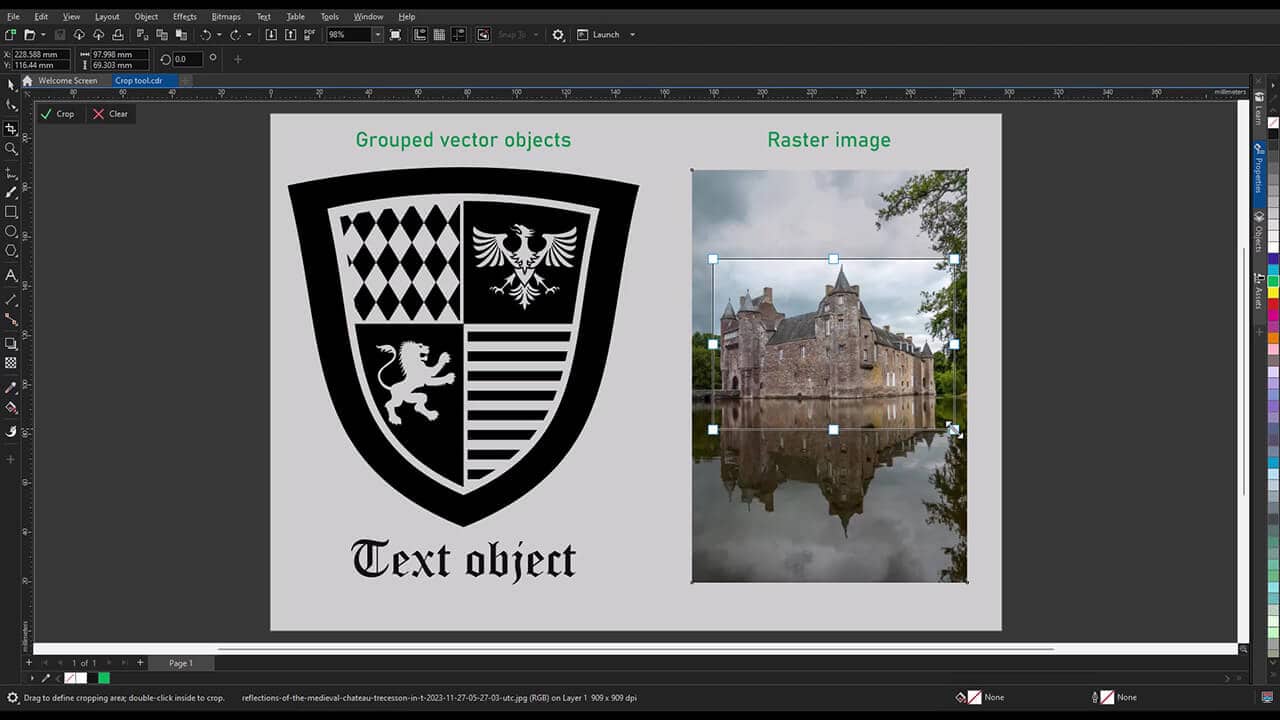
1. Crop bitmap, vector, and text objects
Drag the Crop tool over an area to keep what's inside and delete everything outside. Select an object first if you want to crop just that object without affecting the rest of the page.
- Click inside the cropping area and drag the rotation handles to rotate your selection before cropping
- Double-click inside the area or click Crop on the property bar to complete the cut
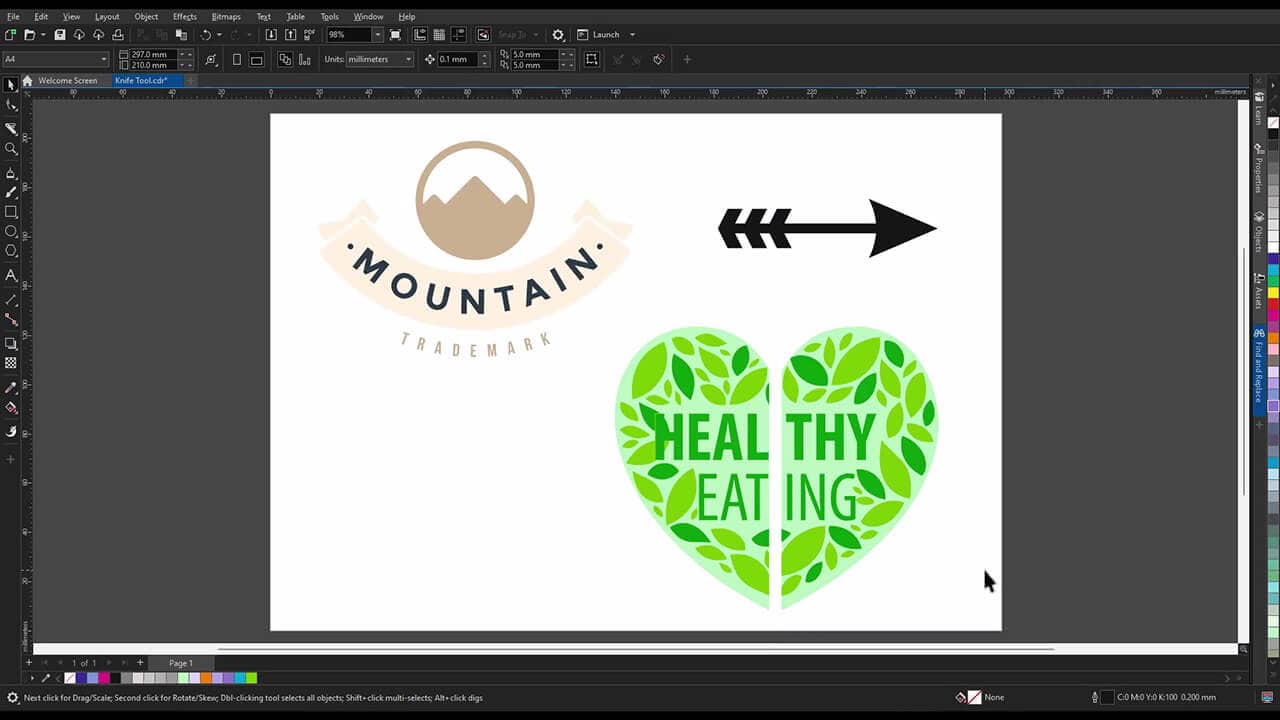
2. Split objects with the Knife tool
Cut in straight lines with 2-point line mode. Add curves as you cut with Bézier mode. Adjust your cut's smoothness with Freehand mode.
- Turn on Auto-close on Cut so the paths created by the split stay closed
- Set Cut Span to Gap or Overlap and enter a distance to leave space between the cut pieces or overlap them
- Choose whether outlines convert to objects or stay as outlines with arrowheads and other line cap decorations intact
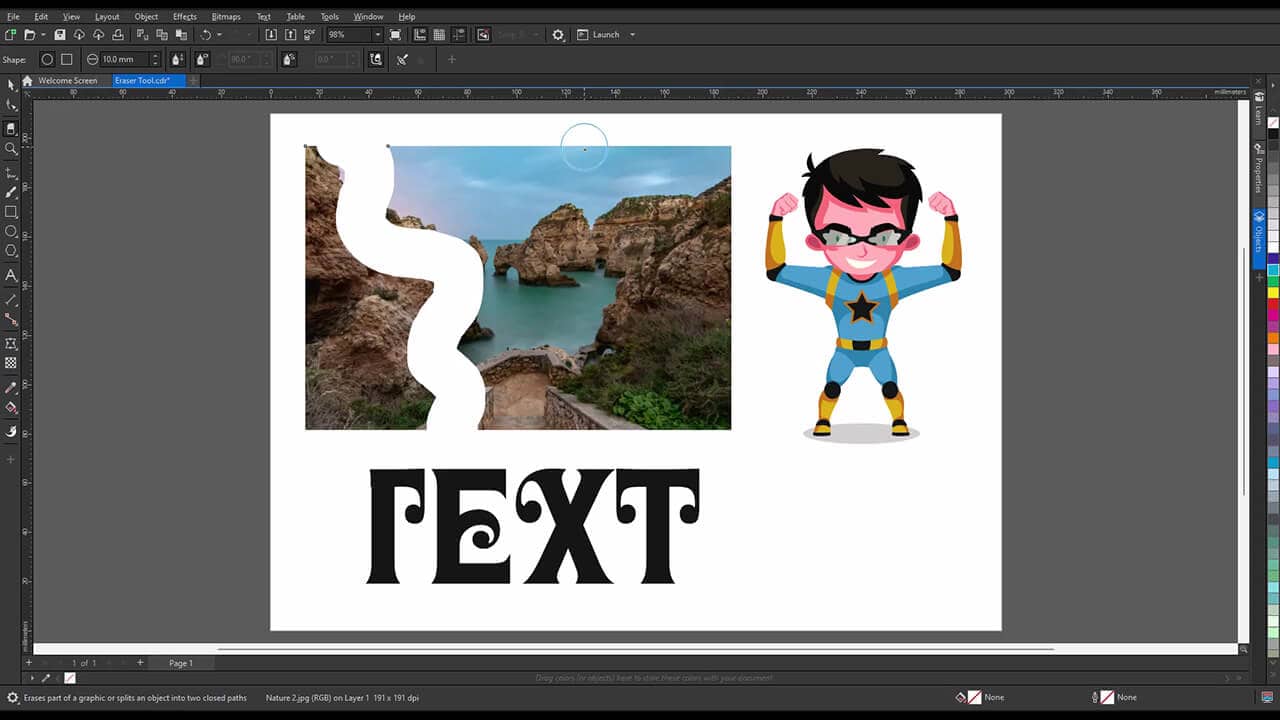
3. Erase areas or parts of objects
Deselect everything and drag the Eraser tool over an area to erase it entirely. You can also select an object first so your eraser only affects that object. Drag for a freehand path or click on either side of an object for a straight cut.
- Hold Shift and drag up or down to adjust the nib size
- Click the Eraser shape button on the property bar to toggle between a square and round nib
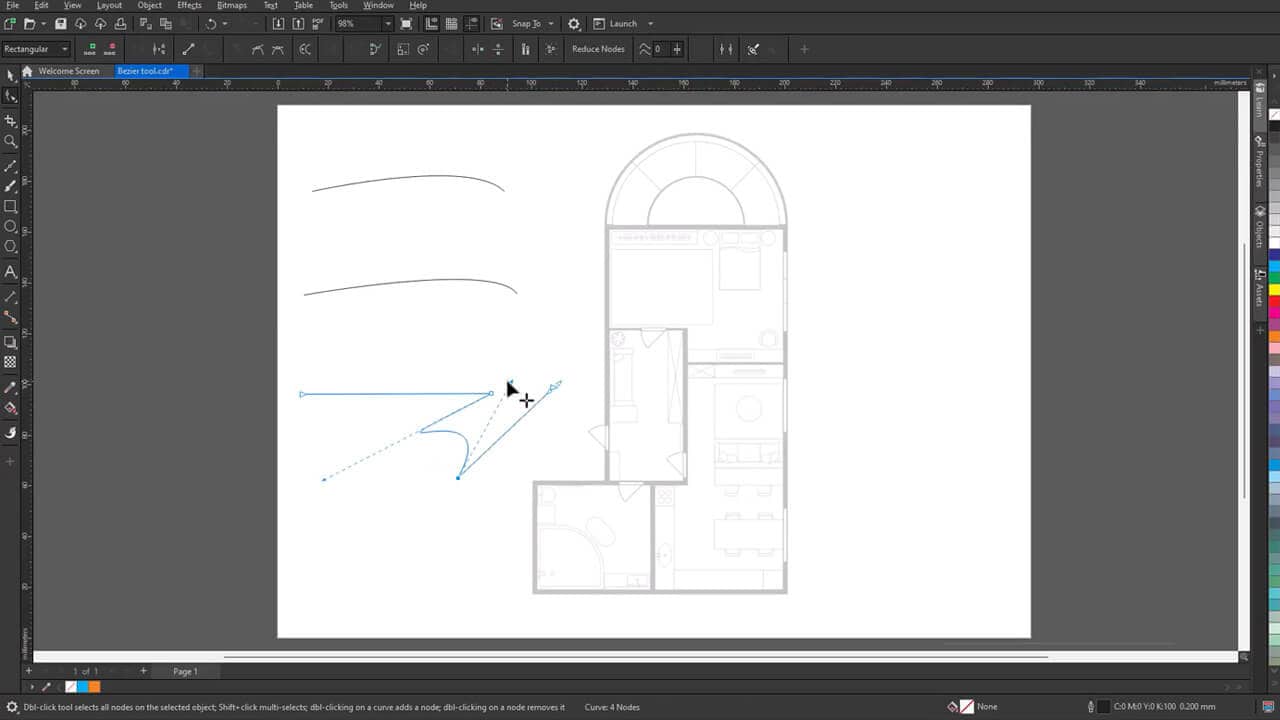
4. Reshape images with the Shape tool
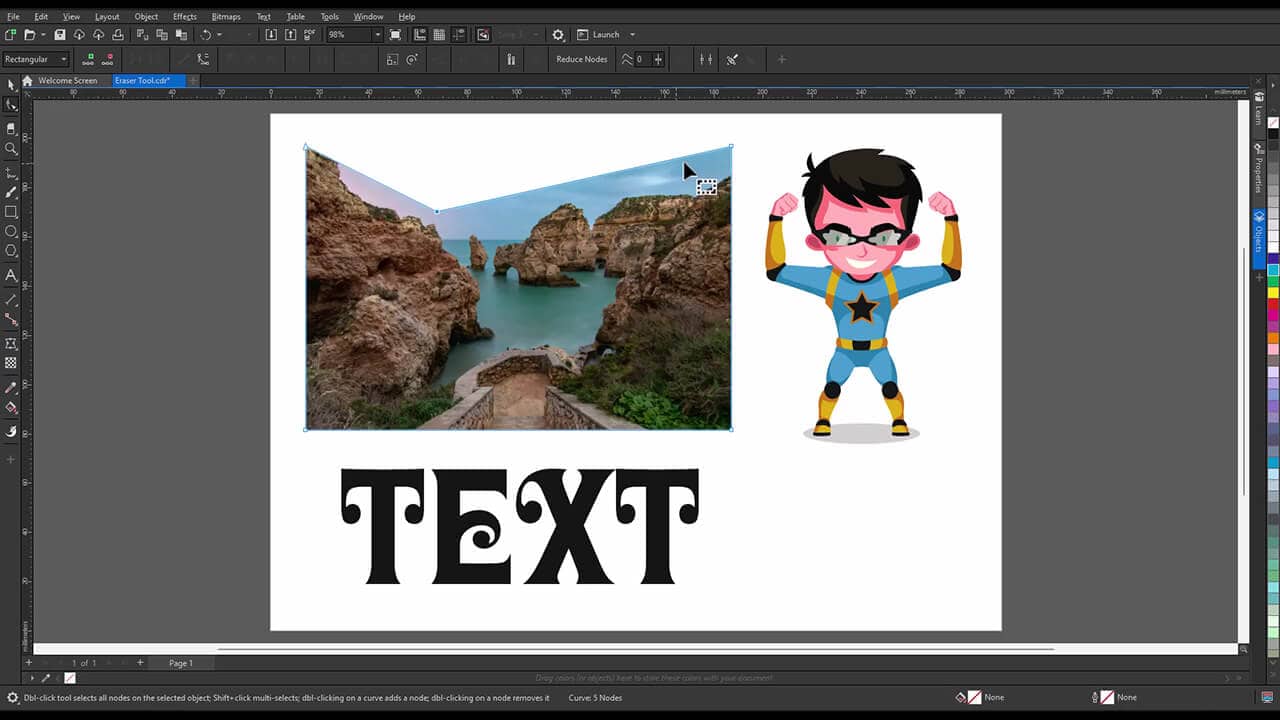
The Shape tool can modify an image by adding or removing nodes. If you want the original image back, select the whole image with the Shape tool and press Delete.
5. Delete overlapping line segments
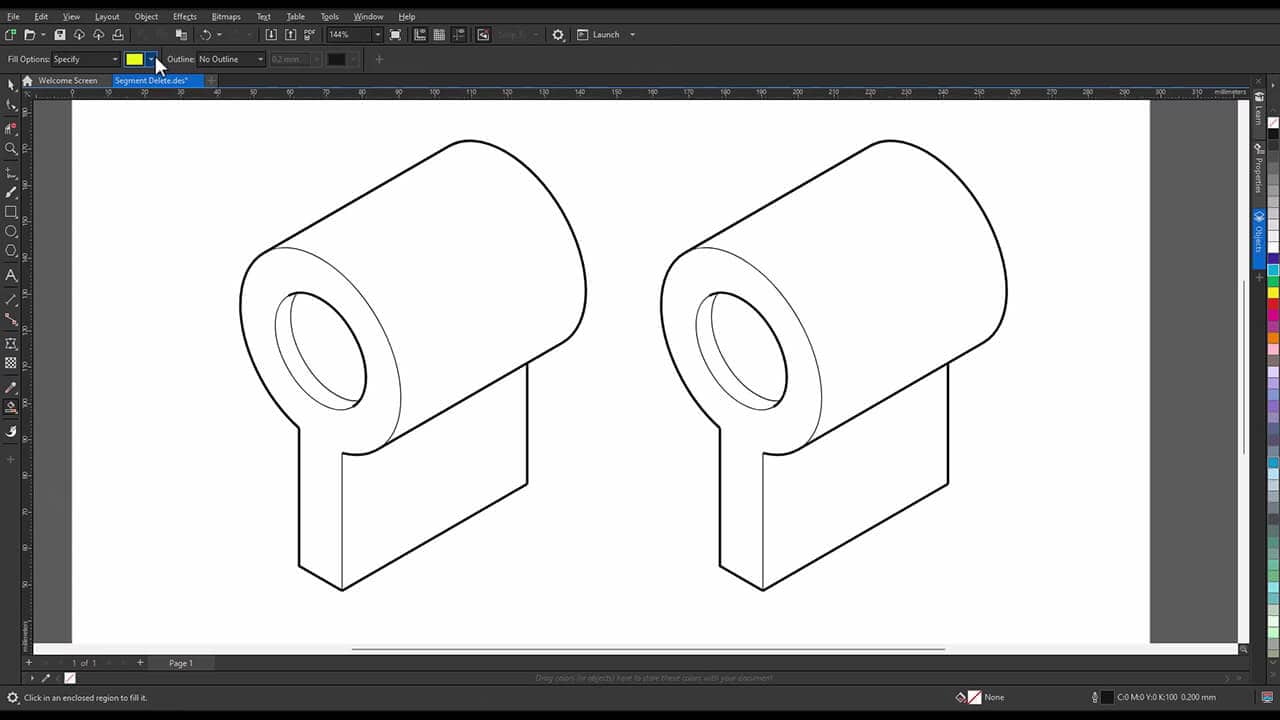
Use the Virtual Segment Delete tool to remove line segments where objects overlap. Move the pointer over the segment you want to remove, then click to delete it. The tool snaps upright when it's positioned correctly.
- Drag a marquee to delete multiple segments at once or hold Alt and drag to draw a curve that removes segments along its path
- Use the Smart Fill tool to fill any gaps left behind with color
- Hold Shift and click two overlapping end points to weld them back together or hold Alt+Shift and drag to marquee-select overlapping nodes
Whether you're trimming a bitmap, splitting a print-ready graphic, or cleaning up overlapping paths, these tools make precise edits quick and repeatable.
Ready to make precise edits?
Start your free trial of CorelDRAW Graphics Suite and put these tools to work.