Watch this tutorial to learn how to adjust and manage your CorelDRAW workspace, or follow the written instructions below.
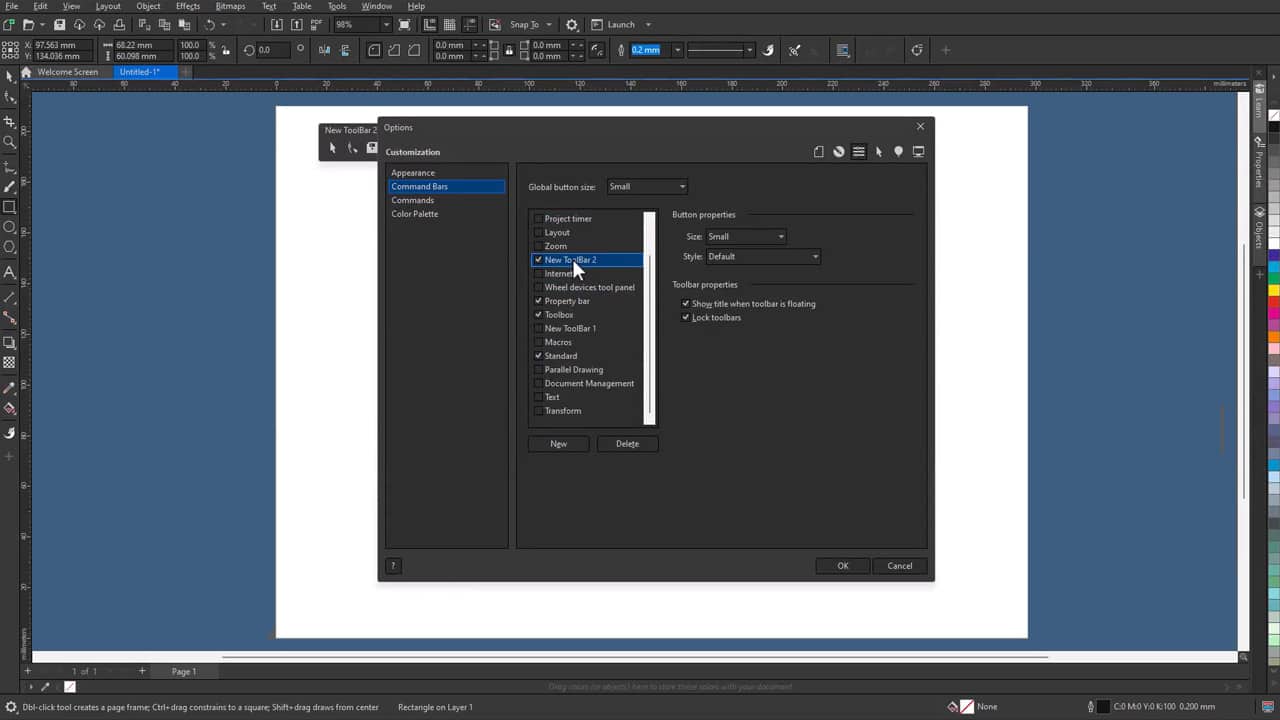
1. Open workspace customization settings
To begin customizing your workspace:
- Go to Tools > Options
- Navigate to Workspace
From here, you can access settings that control how the interface looks and behaves.
2. Show or hide interface elements
You can choose which elements appear in your workspace.
For example, you can:
- Show or hide toolbars
- Display or hide dockers
- Adjust visibility of interface components
This helps reduce clutter and keeps your workspace focused on the tools you need.
3. Move and arrange dockers
You can reposition dockers to suit your workflow.
To move a docker:
- Click and drag the docker title bar
- Dock it to a different side of the workspace or leave it floating
Arranging dockers allows you to keep the panels you use most frequently within easy reach.
4. Customize toolbars
You can modify toolbars to include the commands you use most often.
To customize a toolbar:
- Go to Tools > Customization
- Add or remove commands as needed
This helps you ensure your toolbars have what you need, so you aren’t searching through menus mid-project.
5. Create and manage workspaces
CorelDRAW allows you to create multiple workspaces for different tasks.
You can:
- Create a new workspace
- Switch between existing workspaces
- Reset a workspace to its default settings
This is useful if you work on different types of projects that require different tools and layouts.
6. Save your workspace settings
Once you’ve customized your workspace, you can save your settings for future use.
Saving your workspace ensures that your layout and preferences remain consistent across sessions.
7. Customize your workflow
Customizing your workspace gives you more control over how you work in CorelDRAW.
By organizing tools, panels, and commands to match your needs, you can improve efficiency and stay focused on your design tasks.
If you’re new to CorelDRAW, you can explore these features with a free trial.