Open AI Generate
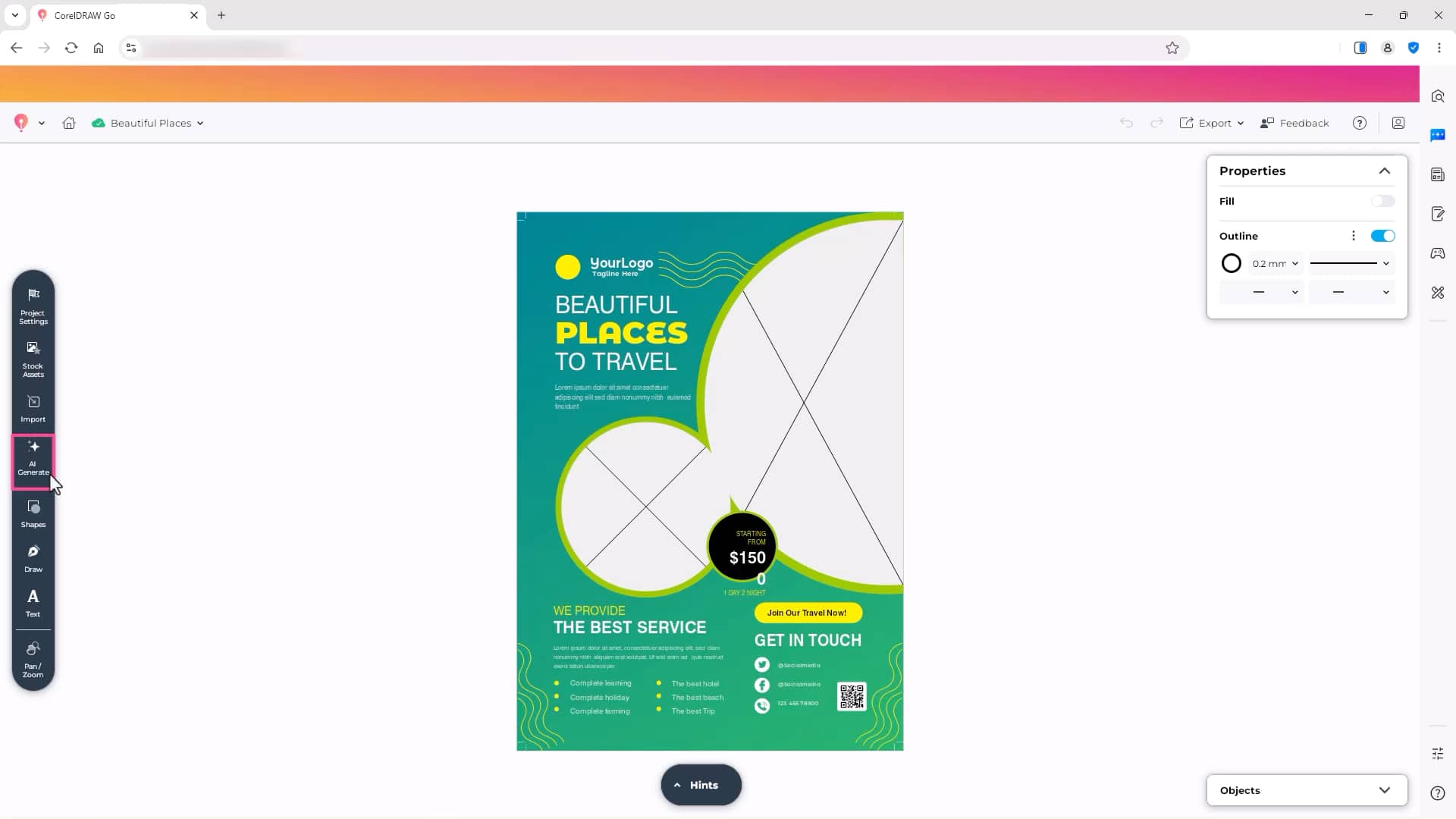
To access AI tools in CorelDRAW Go:
- Open your design
- Click the AI Generate button in the toolbar
- The AI Generate panel opens on the side of your workspace
From here, you can create new images or modify existing ones.
Generate an image from a text prompt
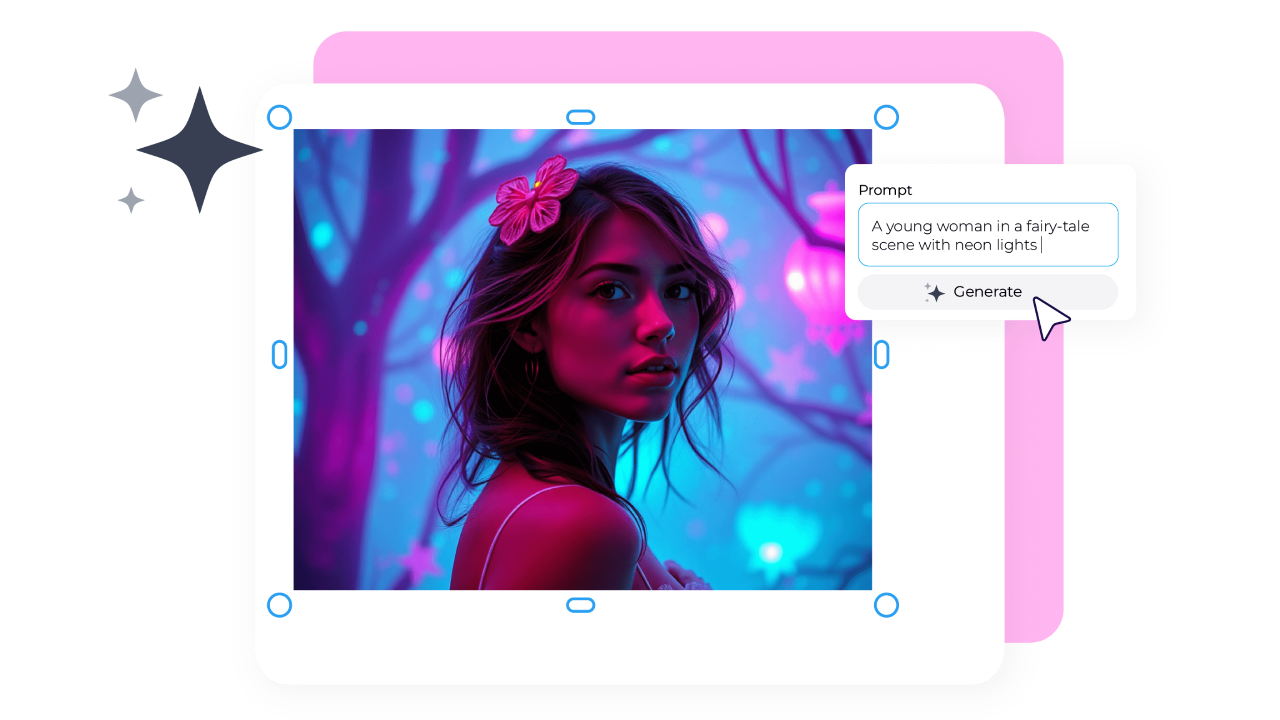
You can use AI Generate to replace imagery in templates, build new compositions, or explore creative directions.
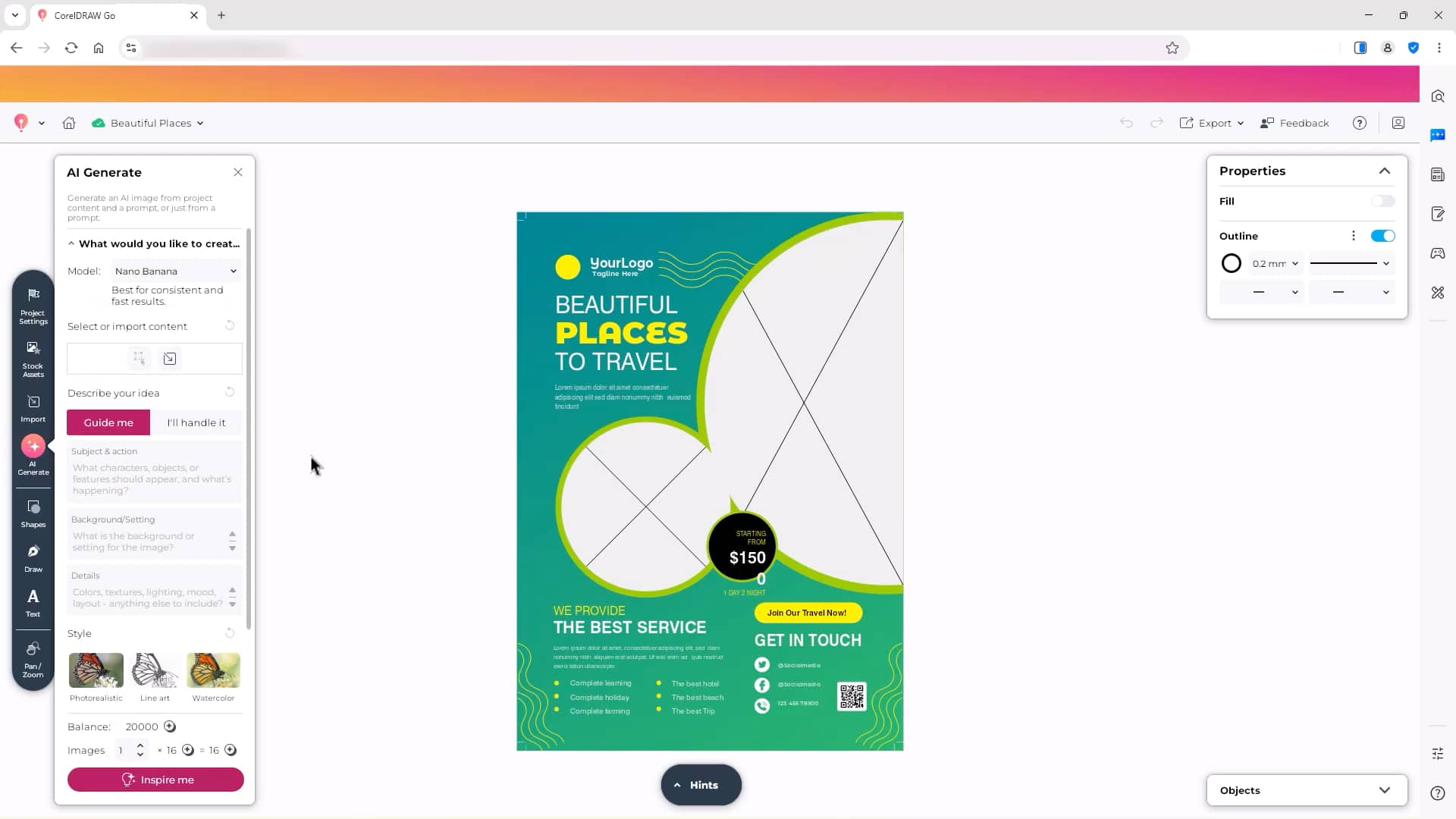
To generate a new image:
- Open the AI Generate panel
- Choose how you want to work:
- Select Guide me for step-by-step prompt building
- Select I’ll handle it to enter your own prompt
- Enter a detailed description of the image you want to create
- Optional: Click Inspire me for prompt examples
- Choose one of the available style options
- Select an AI model
- Click Generate
The more specific your prompt, the closer the result will match your vision. Including details about lighting, composition, mood, and subject placement improves results.
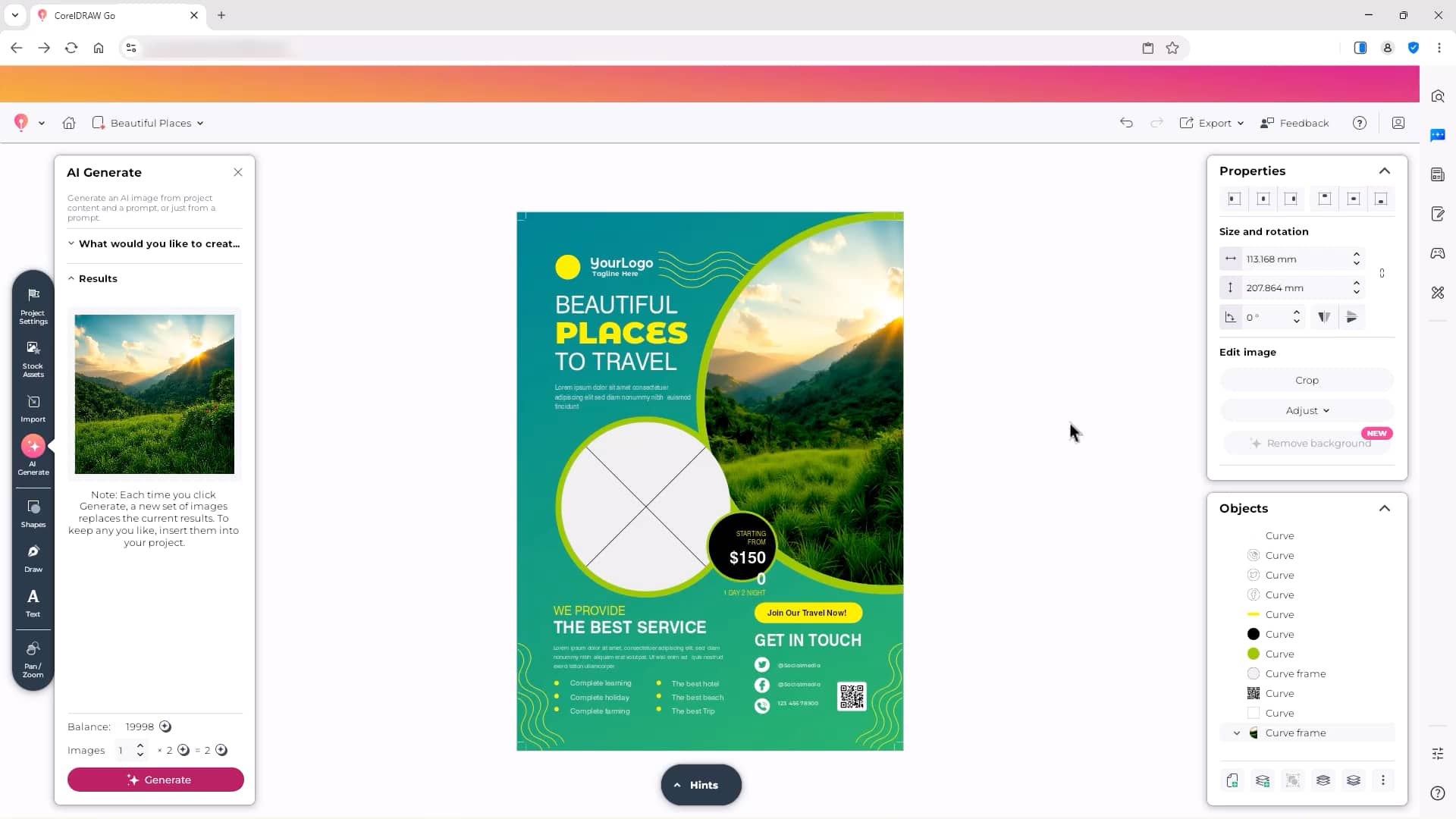
Once generated, insert the image into your design to replace or enhance existing visuals.
Choose the right AI model
Each AI model has different strengths. Some are optimized for speed, while others focus on detail or stylistic interpretation.
Before generating, review the model descriptions and select the one that best fits your intended result.
For example, you might choose:
- A fast model for rapid concept exploration
- A more detailed model for refined, photorealistic output
Remix existing images with AI
AI Generate can also transform images you import or already have in your document.
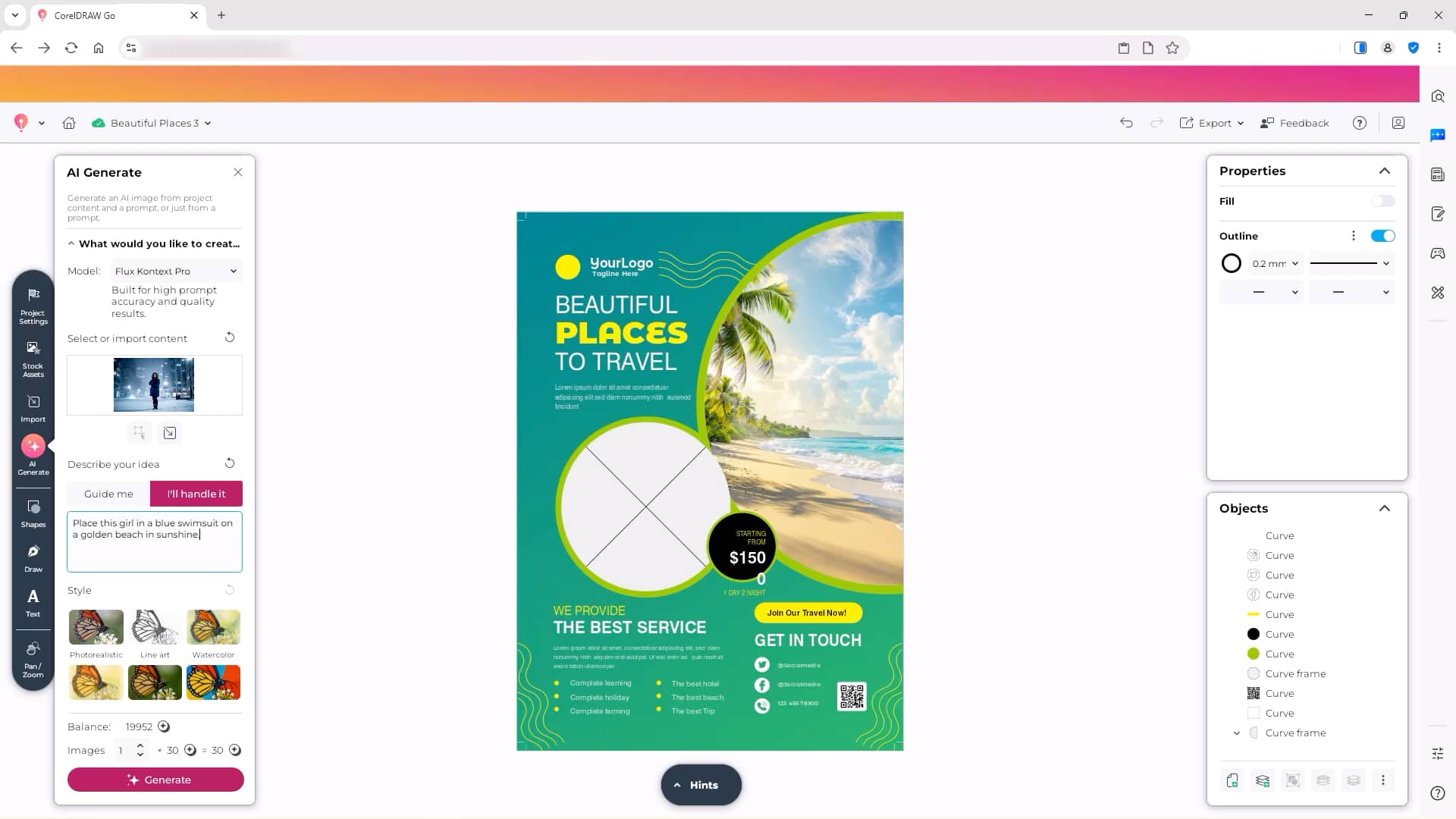
Instead of creating an image from scratch, you can:
- Click Add from document to use an existing design element
- Click Import image to upload a photo
You can then use prompts to:
- Replace backgrounds
- Remove subjects
- Adjust colors
- Change environments
- Extend or enhance compositions
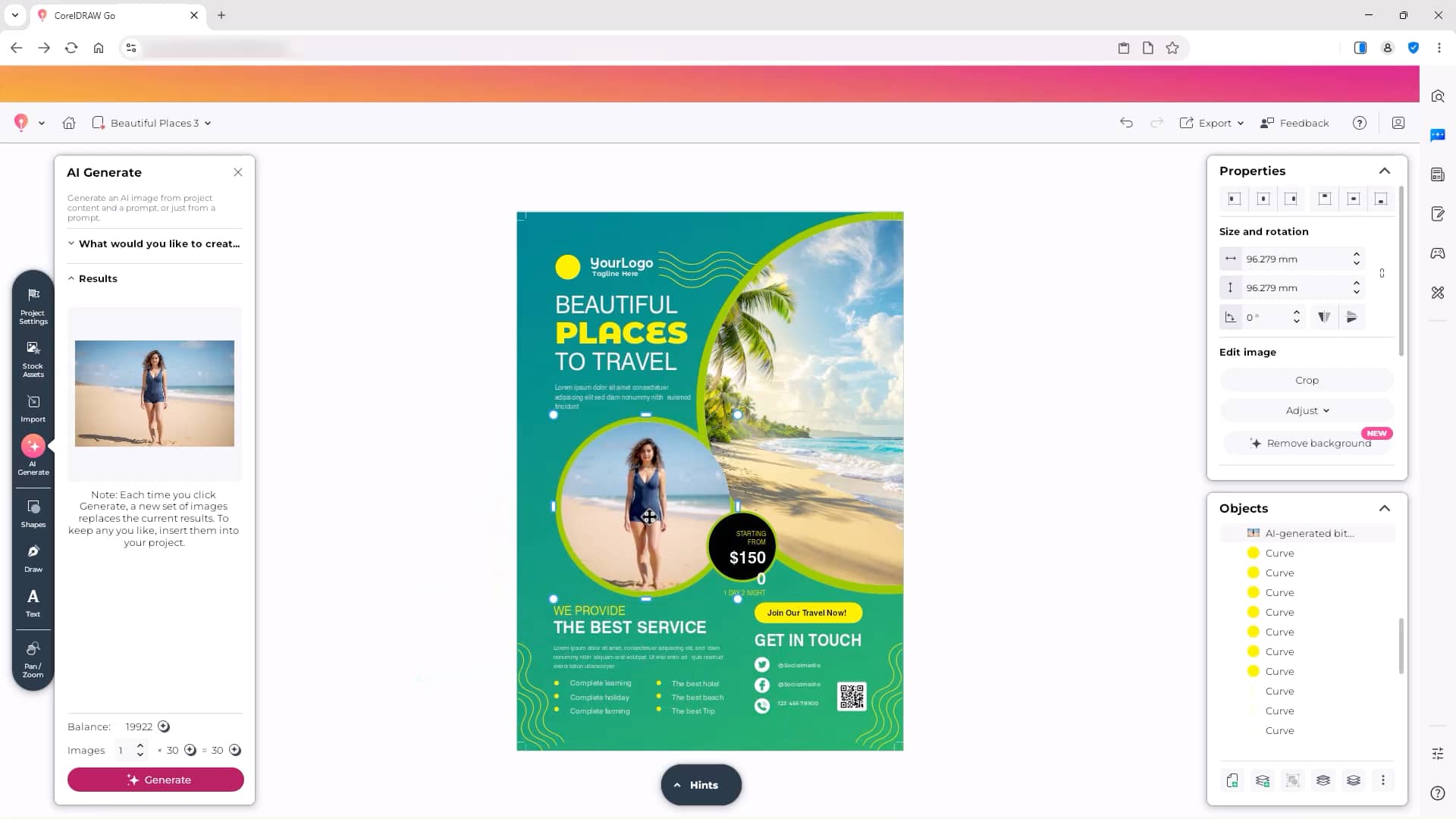
For example, you might:
- Remove the background from a hiker photo
- Place the subject into a dramatic alpine setting
- Preserve all subject details while updating the environment
This allows you to create composite visuals quickly without complex masking workflows.
Reset AI settings
If you want to start fresh before generating a new image, reset the AI Generate panel settings. This clears previous prompts and selections so you can begin with a clean configuration.
Understand AI credits
Each time you generate or remix an image using an AI model, credits are consumed.
CorelDRAW Go subscribers receive 1,000 AI credits per month.
If you run out of credits:
- The Generate button changes to Purchase Credits
- You can purchase additional credits through your account.
For more details about credits and purchasing options, refer to CorelDRAW Go Help.
Explore ideas faster
AI Generate in CorelDRAW Go enables you to:
- Replace imagery in templates instantly
- Create eye-catching graphics for social media posts
- Add unique artwork to posters, flyers, and invitations
- Change a photo background to match a theme or season
- Try different creative styles without starting over
By combining prompt-based image creation with familiar layout tools, CorelDRAW Go makes it easy to explore new ideas while staying focused on your design.
Try CorelDRAW Go now