
Watch our step-by-step tutorial on using the AI background removal tool in CorelDRAW Go on YouTube, or follow the written instructions below.
Step 1: Open CorelDRAW Go
First things first. Launch CorelDRAW Go in your browser and open the design file you want to edit. You can select a template to start, open an existing project by navigating to your My projects section from the home screen, or start a new project from scratch.
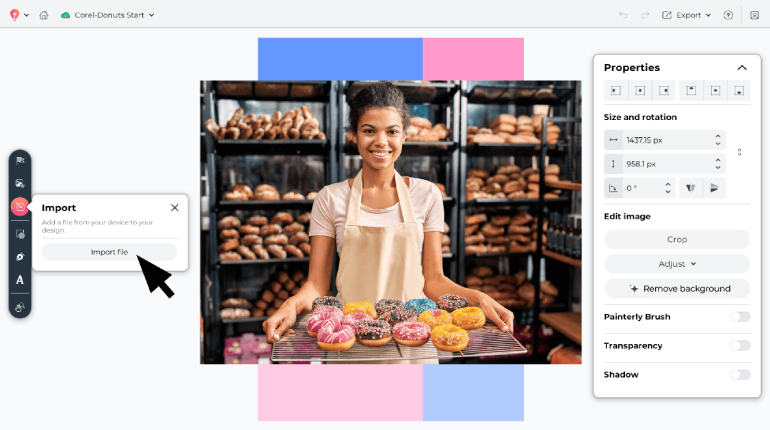
Step 2: Add your image to your canvas
You can upload an image to add to your canvas from your device, or choose a royalty-free stock photo from the library. Place the image where you want it to appear in your layout.

Step 3: Remove your photo’s background
Select your image on the canvas and click Remove background in the Properties menu. CorelDRAW Go’s AI will automatically detect your photo’s subject and remove the background—no tracing or masking required.
The background remover will keep edges and fine lines like hair and soft outlines clear, so they fit naturally into your design.
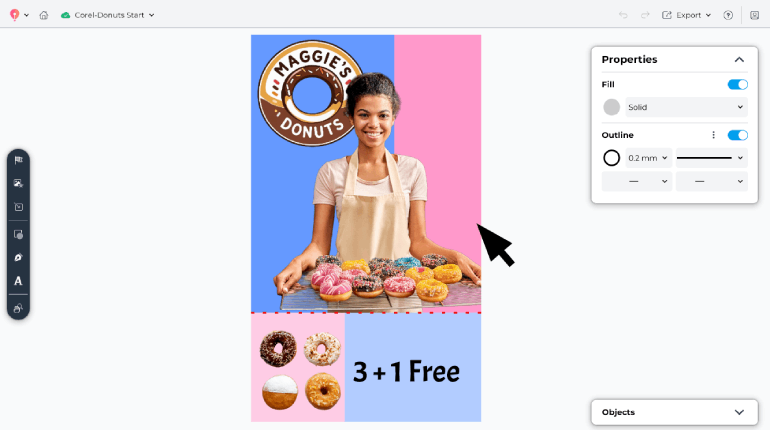
Combining your photo and design
With the background removed, you can build out the rest of your project as planned. Add text, shapes, or additional images—you can even remove the background from other images, too.
When you’re finished, save and export your project, or share it directly from CorelDRAW Go.
With AI background removal in CorelDRAW Go, you can transform any photo into a professional, ready-to-use asset in just a few clicks.
Background remover FAQs
Have questions about using the AI background remover in CorelDRAW Go? We’ve got answers for you here.
Can I use background removal on any photo?
Yes. You can upload your own images or choose from the stock image library in CorelDRAW Go. The tool works best when there’s a clear subject in the photo.
How accurate is the AI with tricky details like hair or fur?
The background remover is designed to detect fine edges and complex details automatically.
Do I need any design experience to use this tool?
Not at all. Background removal is completely automatic—one click is often all it takes. The interface is simple and beginner-friendly.
What file types can I save my cutouts as?
You can save your image with a transparent background (PNG) or place the cutout directly into your CorelDRAW Go project.
Can I replace the background after removing it?
Yes. Once the background is removed, you can place your subject on a solid color, a gradient, or another image to create custom designs.
Bring focus back to your designs
With AI background removal in CorelDRAW Go, it only takes a click to transform your photos into professional assets. Master marketing graphics, polish product shots, snap up social media attention—and save time on top of it all—with the AI background removal tool in CorelDRAW Go.
Try CorelDRAW Go now