Watch this tutorial to master layers to help you organize multi-page documents easily or follow the written instructions below.
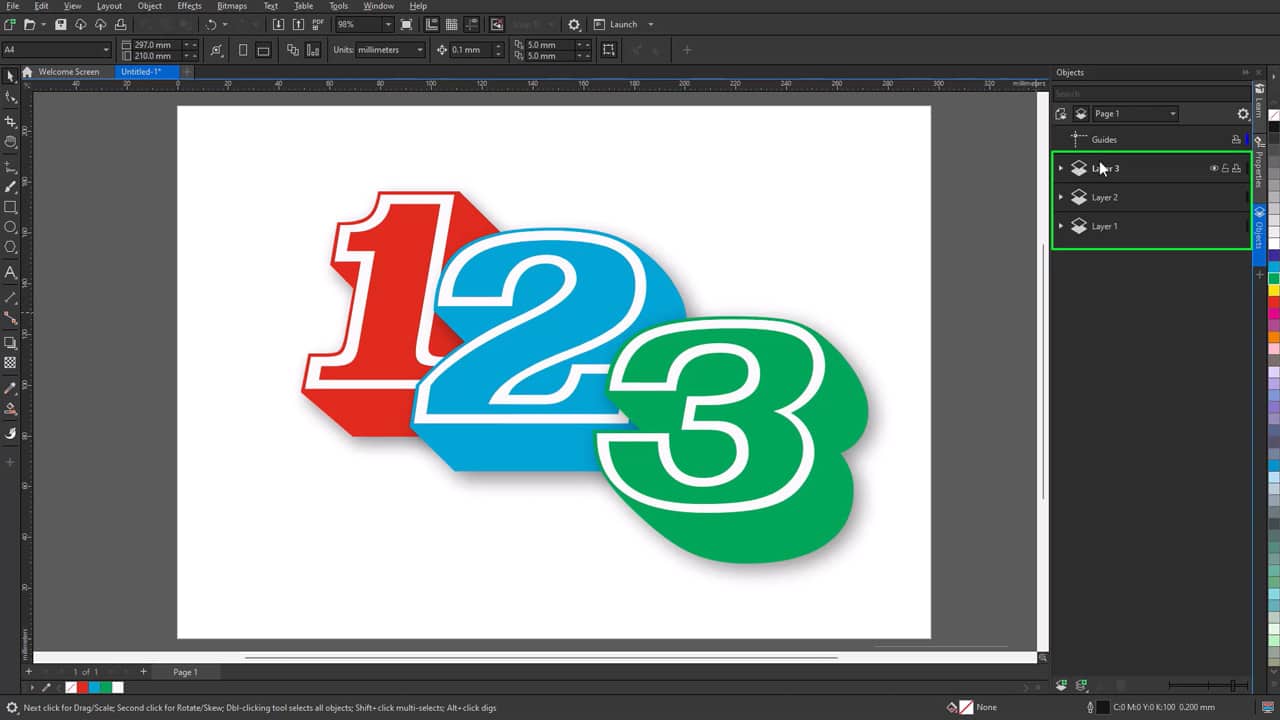
1. Understanding local layers vs. master layers
All content in CorelDRAW is placed in layers, which fall under two categories.
- Local layers contain content for a specific page
- Master layers contain content for multiple pages
This is useful for separating individual page elements from elements like headers, footers, or backgrounds that you want to repeat throughout a document.
2. Locating default layers in a new document
When you create a new file in CorelDRAW, you will see a series of default layers to help you start your layouts.
On each individual page, you’ll see:
- Guides: Page-specific guidelines for objects
- Layer 1: The default active layer where objects are placed
On the Master Page, you’ll see:
- Guides (all pages): A set of shared guidelines for objects
- Document grid: A layer that stays at the bottom of your document for lining up objects
- Desktop: A blank space that stores objects outside the page area
3. Creating and using layers
To create a layer:
- Open the Objects docker/=inspector
- Click New Layer or New Master Layer
- You can also manage this in Settings > Layers
To work on a layer, click on its name to make it active. Any new objects will be added to that active layer.
4. Viewing and navigating layers
The Objects docker give you multiple ways to view elements in your document.
- Display all pages and layers at once, or focus on a single page
- Expand and collapse layers, groups, and nested objects
- Use thumbnail previews to quickly identify items
Go from theory to practice with CorelDRAW
Put your new layer organization and editing skills into practice and start your free trial to CorelDRAW.