Watch this video tutorial to help you master object selection and transformation, or follow the written instructions below.
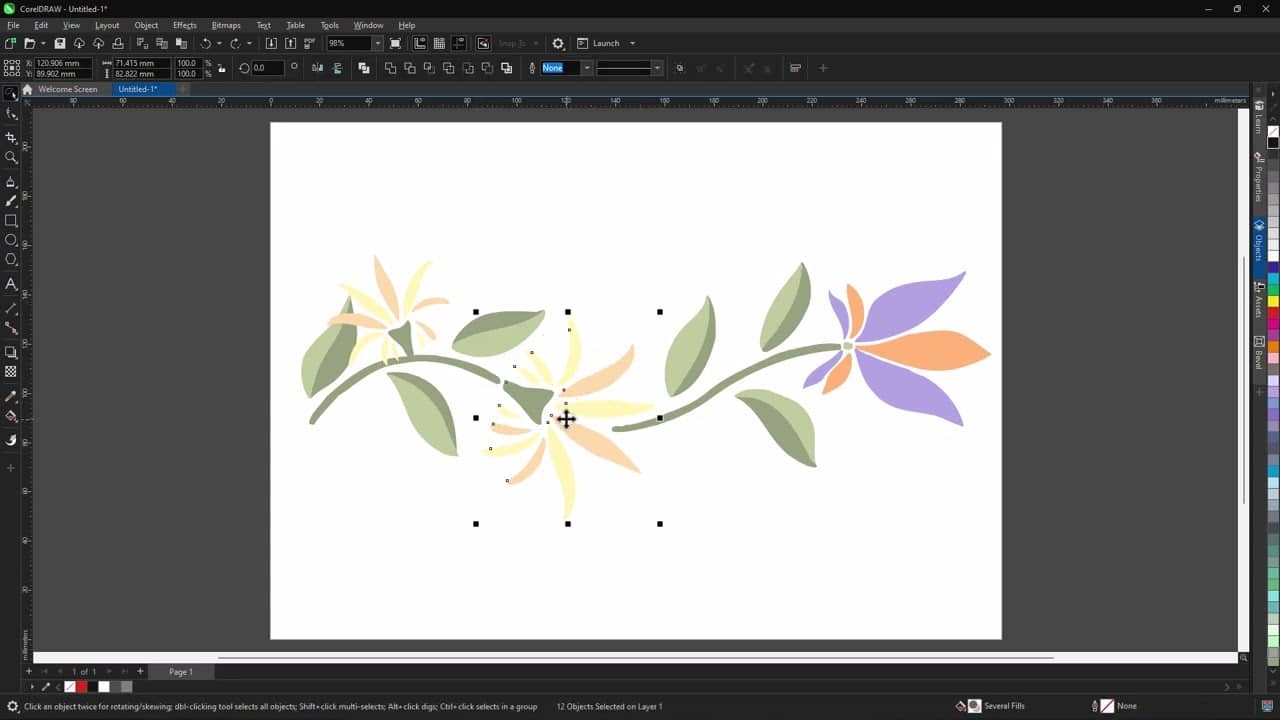
1. Select objects with the pick tool
You can use the pick tool to select one object or a group of objects.
- Click an object to select it
- Hold down the left mouse button and drag around multiple objects to select them
You can also quickly select objects without enclosing them.
- Hold Alt while dragging to select any object the cursor touches
The pick tool always selects within a rectangular area, making it ideal for general selection tasks.
2. Use the freehand pick tool
You can use the freehand pick tool to select objects that are close together or overlapping.
- Switch to the freehand pick tool
- Draw a custom selection shape around the objects
This gives you more control than the rectangular selection of the pick tool.
3. Select objects in groups and overlapping objects
You can also use the pick and freehand pick tools to navigate and select individual and hidden objects.
- Ctrl-click to select a single object inside of a group
- Alt-click to cycle through and select objects hidden beneath each other
4. Resize your objects
The pick and freehand pick tools help you resize objects in a few different ways.
- Drag a corner handle to resize the object proportionally
- Drag a side handle to adjust width or height
- Hold Shift while dragging to resize from the center of the object
5. Rotate and skew your objects
You can work with the pick and freehand pick tools to change your objects’ rotation and angles.
- Click once to select the object
- Click again (not a double-click) to reveal rotation and skew handles
You can also change the center of rotation.
- Drag the center of rotation to change the pivot point
- Double-click the center point to reset it
6. Switch between tools
Tap the spacebar to toggle between the pick tool and your last used tool.
7. Use the free transform tool
For more advanced transformations, you can use the free transform tool to rotate, skew, mirror, and scale objects.
The pick tool and freehand pick tools are essential in your day-to-day use of CorelDRAW.
Ready to start picking objects?
Put these features and more to the test with a free trial for CorelDRAW Graphics Suite.