Watch this video to learn how to work with curves and nodes or follow the written instructions below.
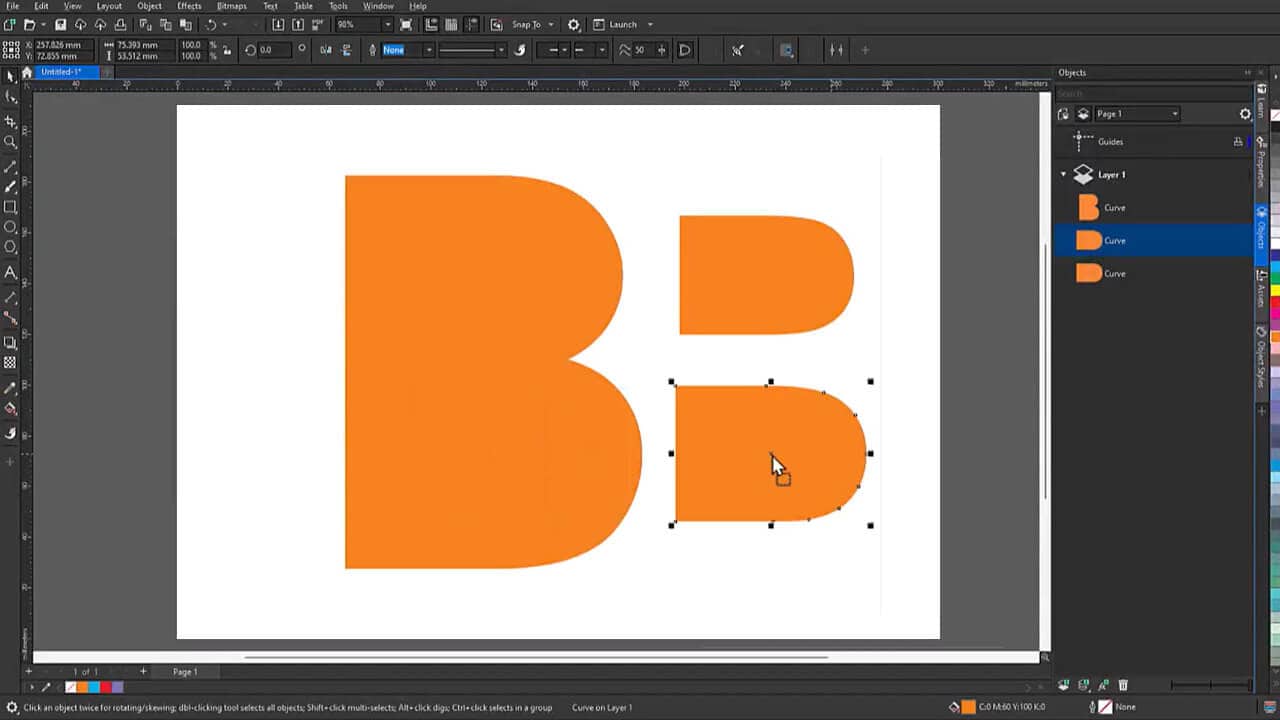
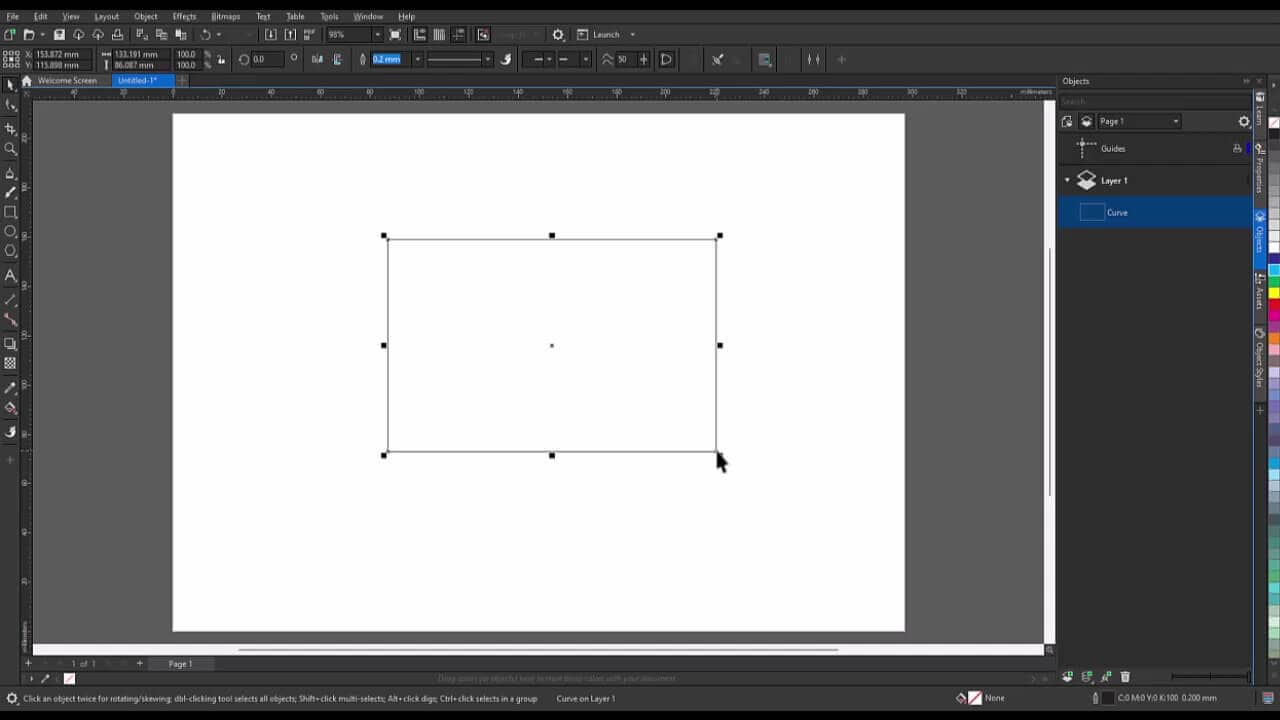
1. Convert objects to curves
Shapes like rectangles and ellipses aren't created as curves, so they have fewer nodes. Select the object, right-click to pull up the menu, and click Convert to Curve (Ctrl+Q) to unlock full node editing with the Shape tool.
2. Change node types
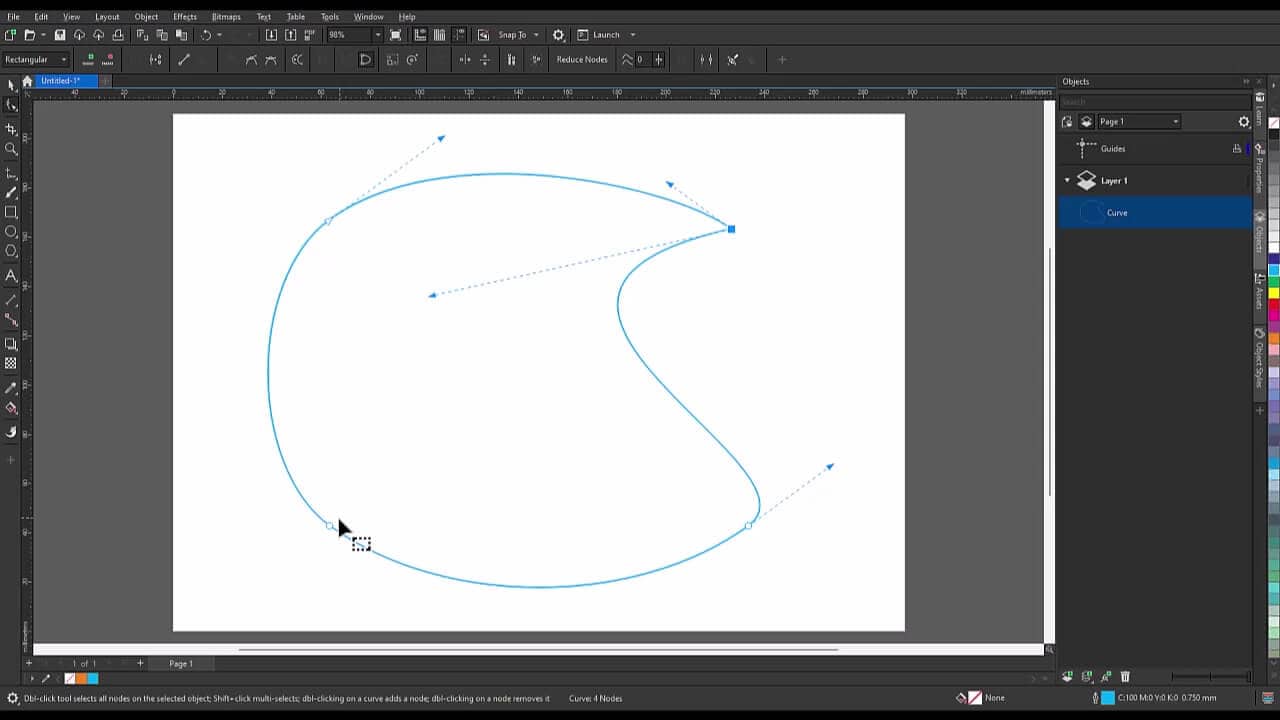
Every node is cusp, smooth, or symmetrical. Its type determines how the curve bends when you adjust its control handles. Right-click a node to change its type or to convert straight segments to curves first if you want to smooth out sharp corners.
3. Add, delete, and reshape nodes
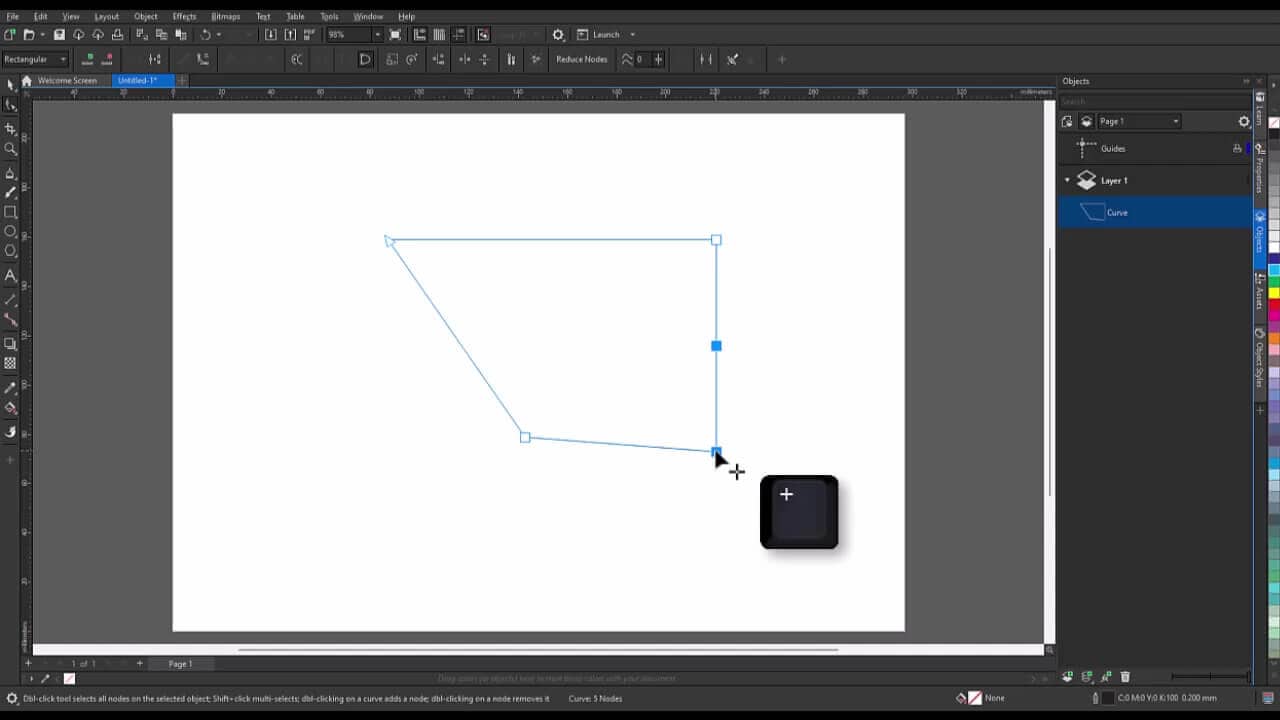
Double-click a path to add a node or double-click an existing node to delete it. Select a node and drag it or use its control handles to reshape the curve.
- Select a node and press + to add evenly spaced nodes along the segment
- Customize node size and color under Tools > Options > CorelDRAW > Nodes and Handles
4. Break, join, and reverse paths
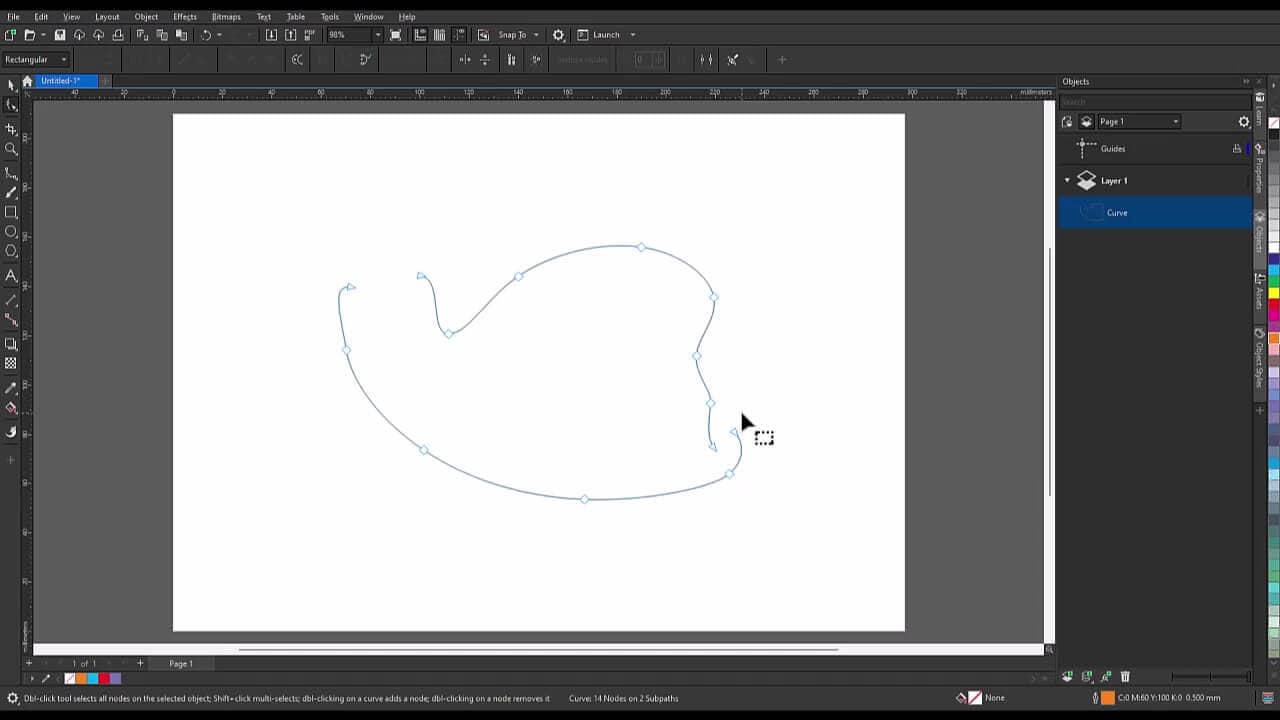
Use Break Curve to split a path at a node or Break Curve Apart (Ctrl+K) to separate it into two distinct objects. If a path isn't closed, use Join Two Nodes, Extend Curve to Close, or the Join Curves docker to control how the ends connect.
- Use Reverse Direction to flip a path's start and end points, along with arrowheads, tapered strokes, and text on a path
5. Align, distribute, and reflect nodes
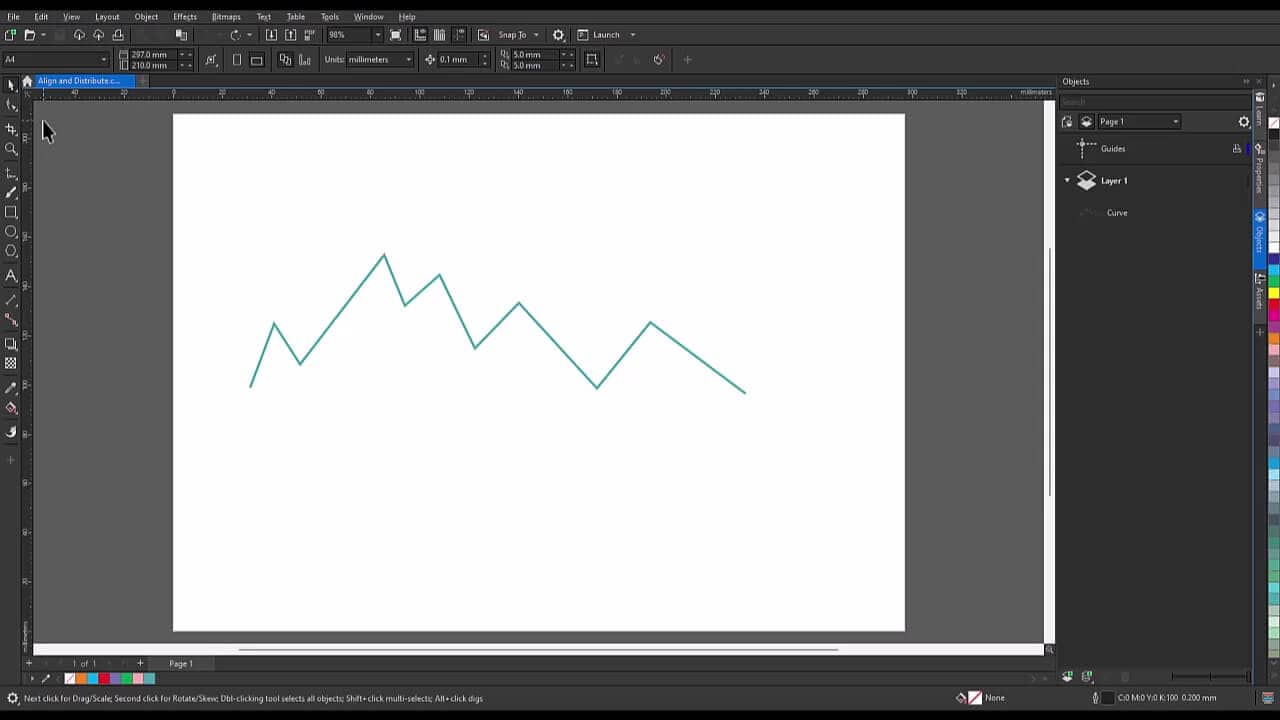
The Align and Distribute docker lets you line up and evenly space selected nodes. You can even snap them to the pixel grid for crisp web graphics. Reflect Nodes Horizontally or Vertically keeps your edits symmetrical.
- Turn on Elastic mode so multiple selected nodes move relative to their distance from each other for a more dynamic effect
6. Reduce nodes for cleaner curves
Objects converted from raster images often end up with too many nodes. Use Reduce Nodes for a quick cleanup, the Curve Smoothness slider for more controlled simplifying, or the Smooth tool to remove nodes precisely by hand.
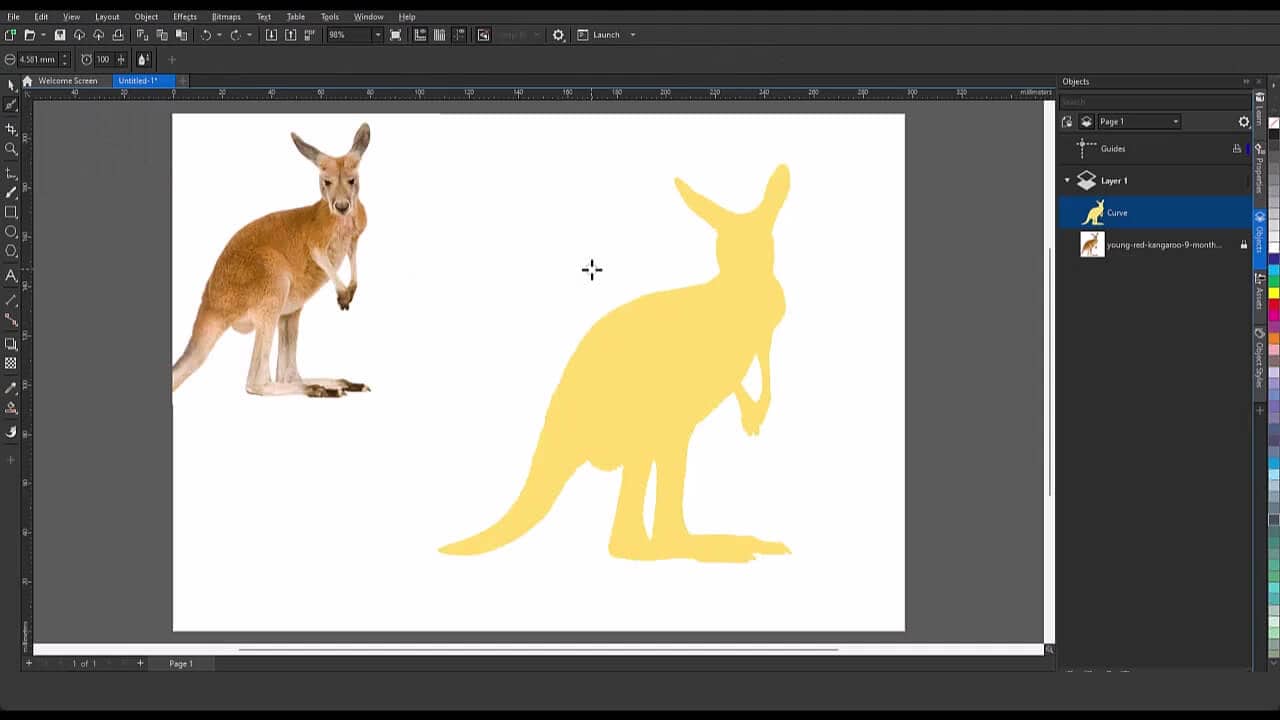
From converting basic shapes to fine-tuning individual nodes, these tools give you the control to take any curve exactly where you want it.
Ready to master your curves?
Start your free trial of CorelDRAW Graphics Suite and put these node-editing tools to work.