Watch this step-by-step tutorial to learn how to zoom, pan, and move around your workspace, or follow the written instructions below.
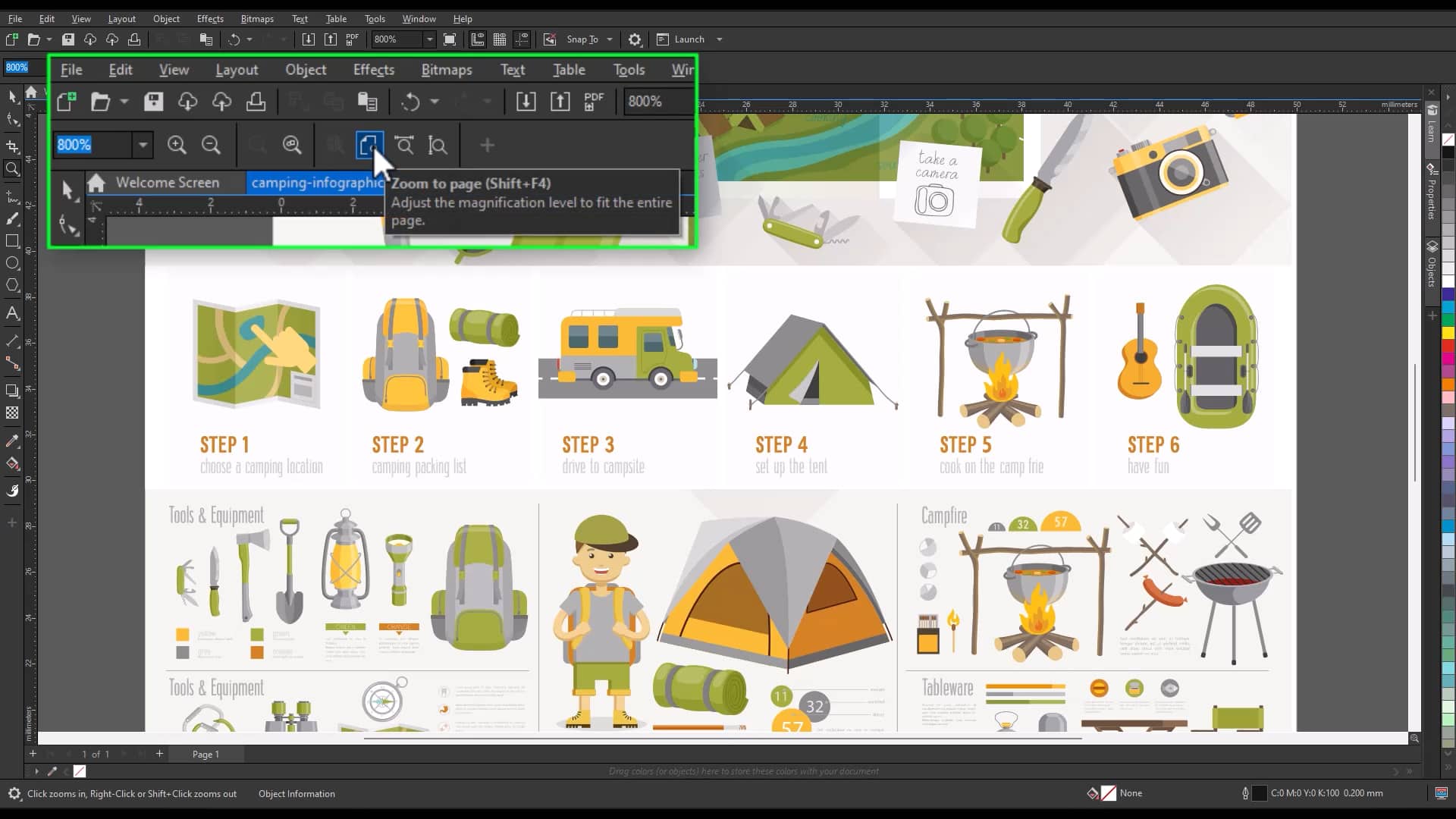
1. Zoom in and out of your document
Zooming lets you control how much of your design is visible on screen.
To zoom in or out:
- Select the Zoom tool from the toolbox
- Click in the drawing window to zoom in
- Right-click to zoom out
You can also zoom using your mouse:
- Scroll the mouse wheel forward to zoom in
- Scroll backward to zoom out
This makes it easy to quickly adjust your view while working.
2. Zoom to specific areas
You can zoom into a specific part of your design for more precise editing.
To zoom to an area:
- Select the Zoom tool
- Drag around the area you want to focus on
By default, CorelDRAW zooms in to fit the selected area in the window.
3. Use zoom levels and presets
CorelDRAW provides preset zoom levels to help you quickly adjust your view.
Common options include:
- Fit to page
- Fit to width
- Fit to selected objects
These options help you quickly switch between detailed editing and full-page views.
4. Pan across your document
Panning lets you move around your document without changing the zoom level.
To pan your document:
- Select the Pan tool
- Drag in the drawing window to move around
You can also press and hold the middle mouse button (or wheel) to pan quickly.
5. Use the Navigator
The Navigator helps you move around your document when zoomed in.
- Click the Navigator button to open it
- Drag within the Navigator to move to a different area
This is especially useful when working on detailed sections of your design.
6. Switch between pages
If your document contains multiple pages, you can move between them using the document navigator.
- Click page tabs or navigation controls
- Add or move between pages as needed
This helps you manage multi-page documents more efficiently.
7. Use keyboard shortcuts for navigation
Keyboard shortcuts can speed up navigation while you work.
For example:
- Press F2 to activate the Zoom tool
- Use shortcut keys to quickly switch tools and views
Using shortcuts helps you work faster without interrupting your workflow.
Navigate more efficiently
Combining zooming, panning, and navigation tools allows you to move through your design smoothly.
Whether you’re working on detailed edits or reviewing your full layout, these tools help you stay in control of your workspace.
If you’re new to CorelDRAW, you can explore these features with a free trial.