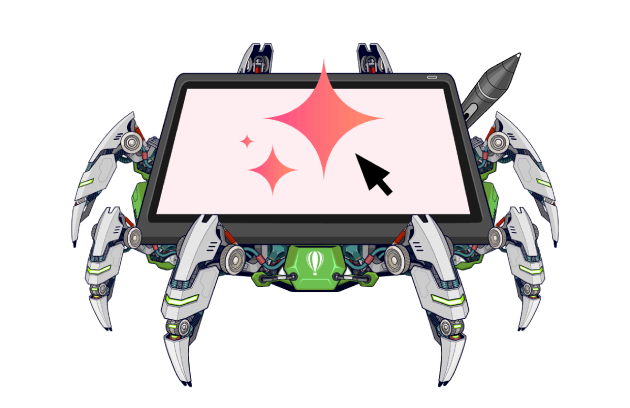
Artificial intelligence is becoming an essential part of every designer’s workflow—the proverbial intern to a creator’s head of design.
CorelDRAW includes the AI-powered tools you need to work more efficiently, no matter which CorelDRAW product you prefer, all while keeping full creative control firmly in your hands.
In this post, I’ll share some of our AI design tools for creators.
Why AI is your co-pilot, not the head designer
If you've ever felt the cold fear of AI takeovers gripping your heart, don't worry. We understand how you feel and are committed to keeping you in the driver's seat for your creative work.
We believe that AI is a tool. It's there to support what you're doing and help take the more repetitive (and perhaps less creative!) work off your hands.
After all, you're using CorelDRAW products because you have creative things to do—not because you want the software to do it for you.
How to use generative AI for images and vectors with CorelDRAW
As a designer, you know the drill. You get a request for a stock photo that doesn’t feature yet another smiling businessperson. Or for vectors and icons that don’t look like every other website out there.
But finding—or creating—those assets is a bigger ask than it seems, and by the time you’re done, it's over an hour later and you're behind on your deadlines.
That’s where AI Generate, a set of generative AI graphics creation and editing tools in CorelDRAW Graphics Suite and CorelDRAW Go, comes to the rescue.
Generate vectors with AI
Whether you’re working on an initial concept, want to expand on existing ones, or need to build out a brand kit from an approved design, the Text-to-vector AI feature in CorelDRAW can help you draft the vectors you’re looking for.
Start from scratch or add a reference graphic, type out your idea into the Create a vector prompt box in the AI Generate docker/inspector, choose if there’s a specific style you’d like for your vector, and watch completely editable, scalable vector objects take shape in front of you.
Try out text-to-vector AI for free—and check out this text-to-vector AI tutorial for ideas and inspiration.
Generate images with AI
If you need to find a photo featuring a “cozy mountain cabin at sunset,” just type it into CorelDRAW’s Create image prompt box. Bring your creative vision to life by choosing from popular AI models, selecting your aspect ratio and the number of images to generate, and applying optional preset styles and color palettes.
Have a reference image or object? You can also select or import it and let AI reimagine it.
Remix images with AI
Need to update an existing image? It’s easy with the AI Generate docker/inspector in CorelDRAW.
Whether you’re mocking up designs on merchandise, retouching old photos, swapping out elements in your images, or using the same subjects in different settings, head to the Remix Image tab.
There, you can edit, transform, and refine images using simple text prompts, like “Place this logo on a black cotton t-shirt, centered on the chest, with natural fabric folds and soft studio lighting.”
Powered by Nano Banana, this feature helps you iterate and create variations in no time.
You can try AI image generation and editing for free in CorelDRAW with a 15-day trial.
How to use intelligent tools in CorelDRAW for masking and removing backgrounds
Creating precise selections to remove backgrounds used to take time. But for users of CorelDRAW, background removal can happen in just a click.
With the AI-powered background removal tool, you can cut backgrounds from around subjects instantly with great results, even around tricky details like hair or fur.
And for those who want precise masking control, Corel PHOTO-PAINT’s AI-powered subject selection and clip masking tools handle the hard work for you, giving you the flexibility and precision to refine selections exactly the way you want.
Give AI background removal a try to see how quickly you can achieve clean, professional results without interrupting your creative flow.
2 methods to create editable vector artwork with AI
AI image generation is a powerful way to explore concepts and create visuals quickly. When you’re ready to take those images further, vector artwork gives you the flexibility to scale, edit, and refine your designs with confidence.
Method 1: Create an image, then trace it with PowerTRACE
With AI built directly into CorelDRAW’s PowerTRACE feature, including AI-powered image upsampling and artifact removal and AI background removal, you can enhance the quality of existing AI-generated images and convert them into clean, editable vector graphics. PowerTRACE sharpens edges, preserves detail, and analyzes shapes and colors to deliver accurate tracing results with minimal cleanup.
Check out our guide to AI design to learn how to convert your AI-generated images into scalable vector graphics, and try it yourself using Corel PowerTRACE.
Method 2: Create vectors with Text-to-vector AI
With the Text-to-vector feature in CorelDRAW, you can turn ideas into vectors and iterate on designs quickly. Whether you’re starting with a text prompt or reference content, CorelDRAW can produce fresh, completely editable vectors as a starting point for your creative work.
Learn all about text-to-vector AI and see how it works in CorelDRAW in this video tutorial.
AI in CorelDRAW Graphics Suite: What’s here and what’s to come
In addition to the innovative AI features outlined above, CorelDRAW Graphics Suite includes other powerful AI-assisted tools, helping creators in their day-to-day work:
- AI upsampling to improve the quality of low-resolution files without losing sharpness
- AI-powered artifact removal to clean up compressed images and restore details
- AI Art Style Effects to apply editable non-destructive effects to bitmaps or vectors modeled after the aesthetic of an artist or genre
And this is only the beginning. More AI-powered design innovations are on the horizon, waiting for their chance to help you improve your workflows while keeping your creativity front and center.
Try CorelDRAW Graphics Suite and CorelDRAW Go to test out AI tools today—and stay tuned for more announcements to come!
Meet the expert: Melanie Hyde
Melanie leads product marketing for Corel's graphics portfolio, including the award-winning CorelDRAW Graphics Suite. As a results-driven marketing professional with a keen eye for design, she focuses on connecting marketers, designers, and businesses with the tools they need to deliver creative projects at work.
Melanie’s formal education spans a range of Marketing Communications disciplines, holding diplomas and certificates in Integrated Marketing Communications, Copywriting, Web Design, Social Media, and Graphic Design.
Her commitment to continuous learning keeps her at the forefront of trends in digital design and creative software, fueling her impact in a rapidly evolving industry. Before joining Corel, Melanie spent over 10 years traveling the world while building her marketing career across industries such as Travel and Tourism, Finance, and Adventure Sports.