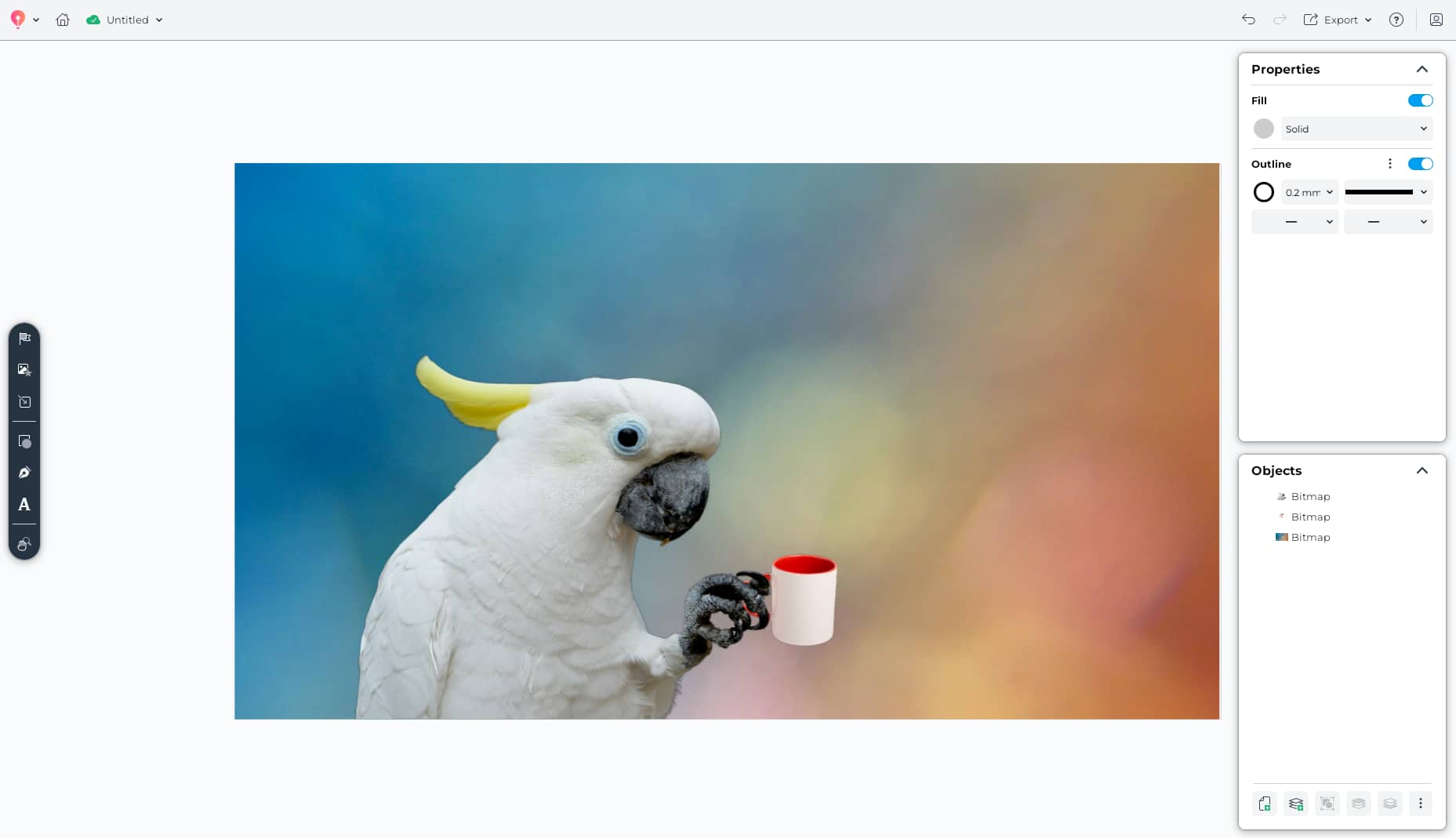
"CorelDRAW Go shows just how far web apps have come. It’s essentially a full graphic design toolkit that runs in your web browser."
Creative Bloq
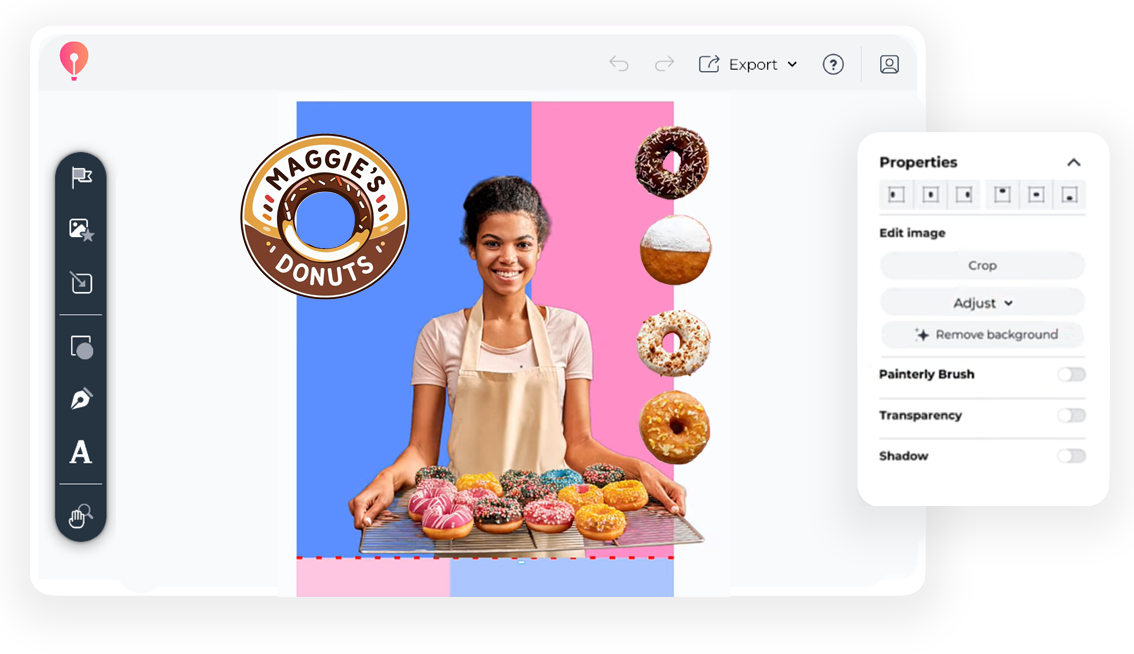
Have an image or headshot you love, but the background isn't great? We've all been there. Cut out the clutter—literally—with the AI background removal tool in CorelDRAW Go. Clean up marketing materials, create professional designs, and more with transparent cutouts made with one click.
Join millions of users across thousands of global organizations who use CorelDRAW.







With the AI background removal tool, you'll be ready to level up your photo editing in CorelDRAW Go with crisp, transparent PNGs. Here's how it works.
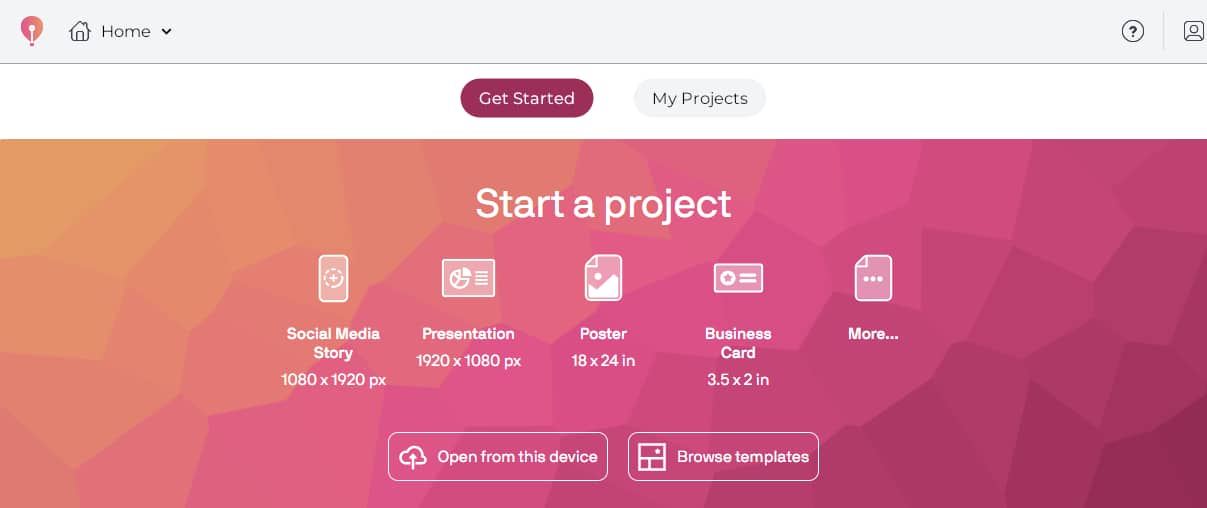
Open CorelDRAW Go and start a new project. You can do this from scratch with a blank canvas, using your own images, or from a template in the CorelDRAW Go template library.
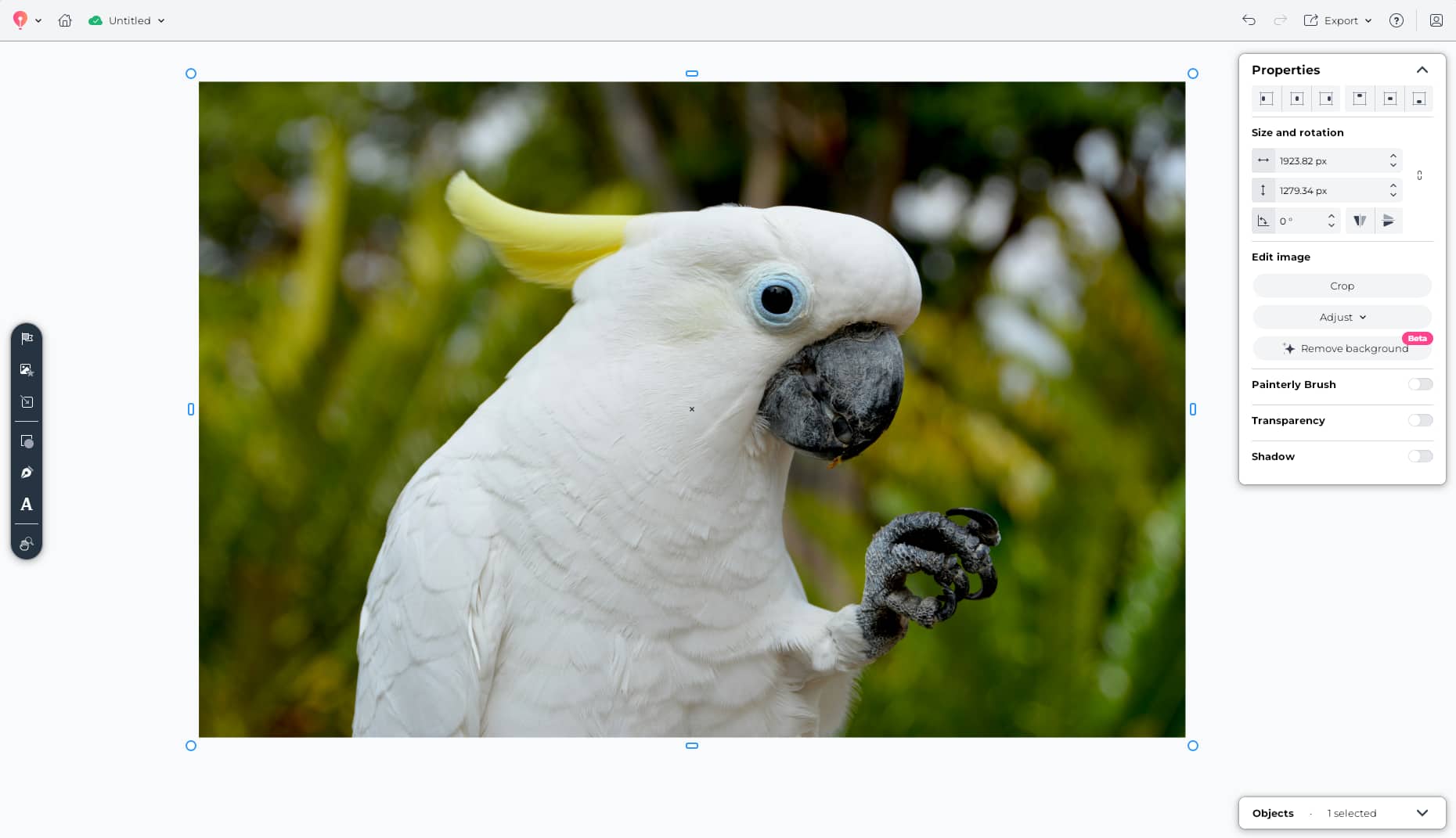
Using your canvas or the Objects menu, select the image you want to transform with a transparent background.
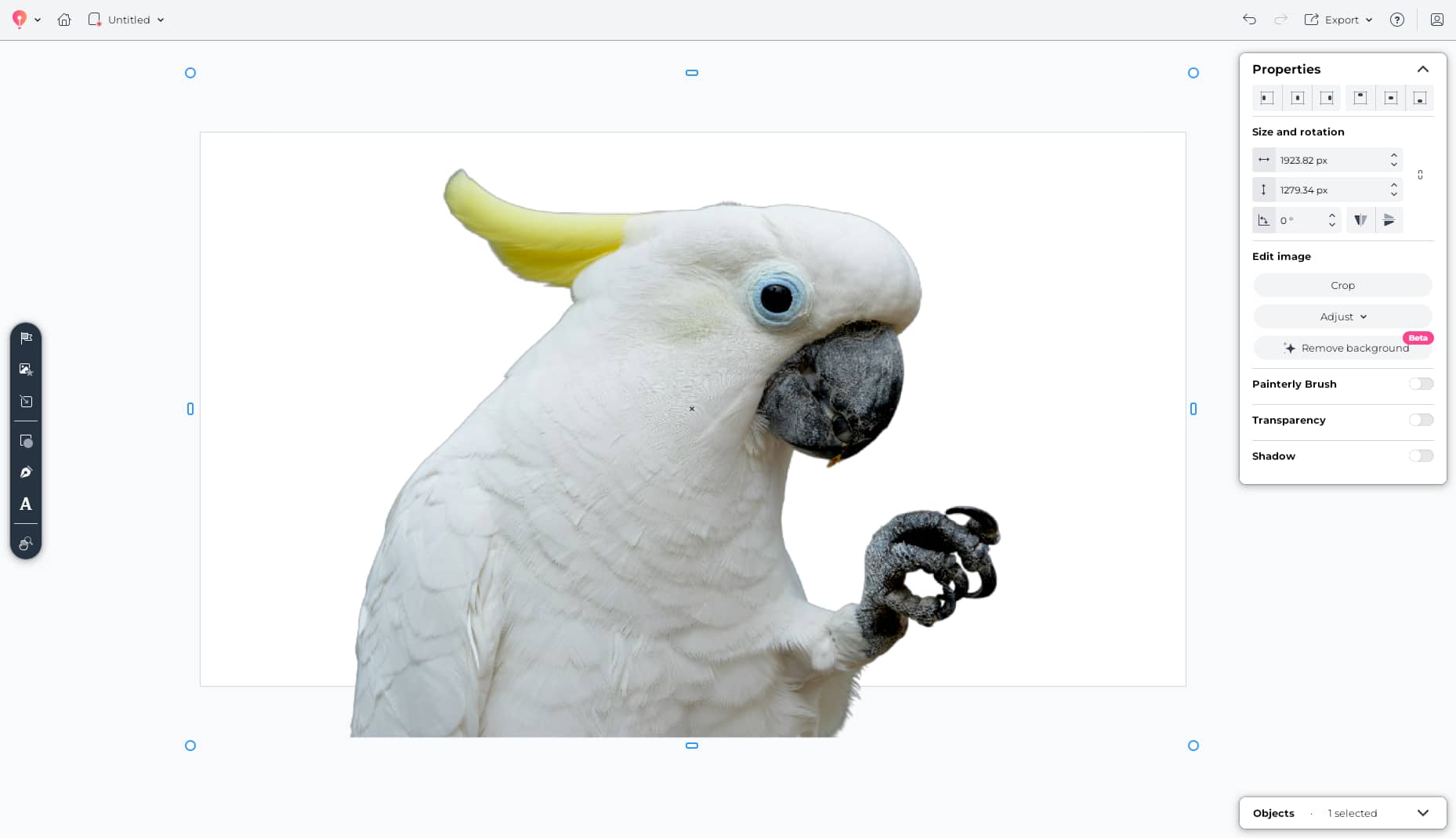
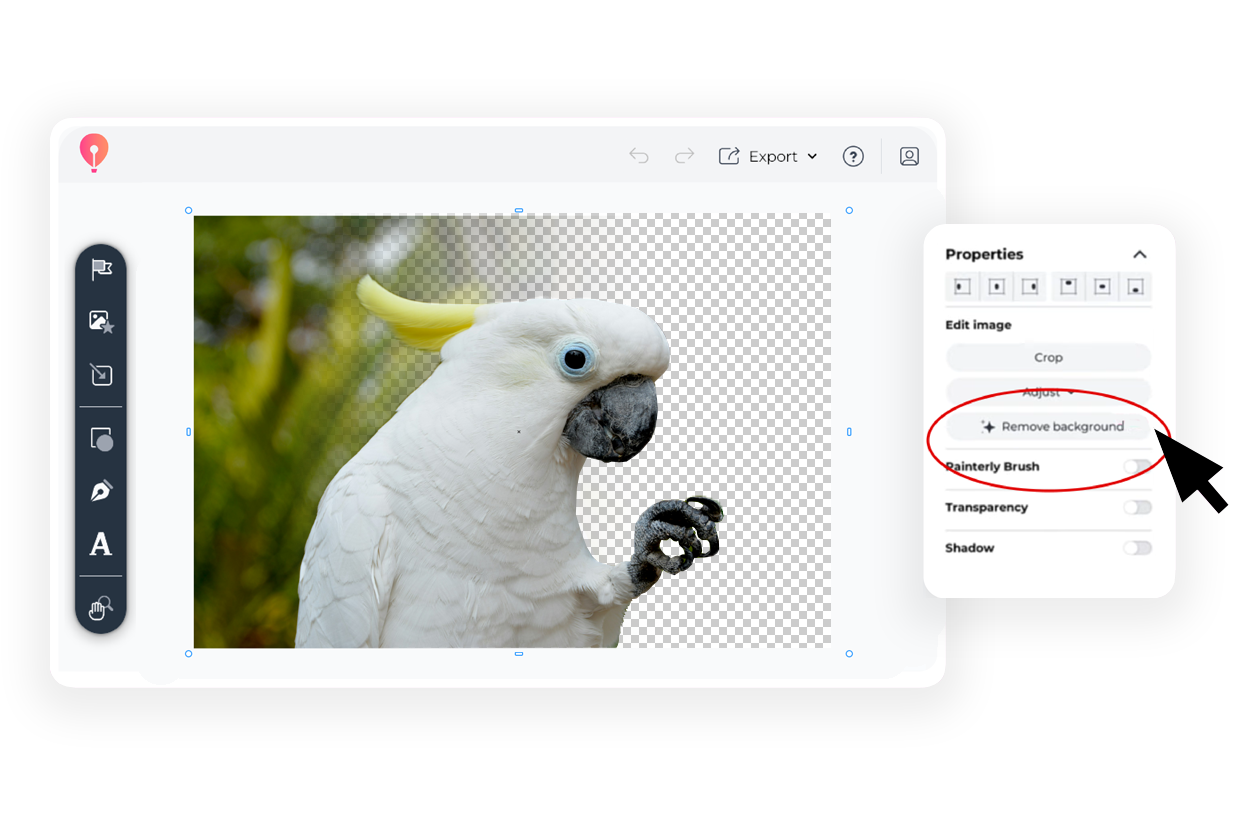
In your photo's Properties panel, click the Remove background button. CorelDRAW Go will identify your photo's subject matter and erase the background.
Layer your transparent image with the rest of your design to complete and finalize your work. You can also download it as a transparent PNG.
Ever wanted to make YouTube thumbnails with a reaction portrait? Layer images together for your newest Instagram story? Add your headshot to images with different dimensions for Facebook and X (Twitter)?
Bring your layered ideas to life with CorelDRAW Go’s background removal tool—just one click and AI will do the photo cleanup for you.
Have questions about using the AI background removal tool in CorelDRAW Go? Find answers here.
Yes! CorelDRAW Go’s background remover uses the power of AI to remove backgrounds around a subject in one click. It can even work around fine details like hair or feathers.
You can. When the AI background removal tool erases a background, it leaves your image transparent around the subject—so you can layer it easily or export it as a transparent PNG.
Yes, the AI background removal tool can help you change image backgrounds. Once you’ve removed the existing background, all you need to do is add your new background behind your transparent PNG.