






Edit your images like a pro

They say a picture’s worth a thousand words—and a beautifully edited one is worth even more. With CorelDRAW Go’s professional photo editing tools in your back pocket, you’ll be ready to show off your images’ best angles, color schemes, and personality.

15-day free trial, no credit card required!

hero

You’re in good company

Join millions of users across thousands of global organizations who use CorelDRAW.

Telefonica
Unilever
Daimler
Petrobas
Abbott
Glencore
Pfizer
Telefonica
Unilever
Daimler
Petrobas
Abbott
Glencore
Pfizer

How to edit photos with CorelDRAW Go

With the right photo editing techniques, your photos could go from the family album to Instagram’s front page. CorelDRAW Go has the tools to help them get there—from essentials like dimensions and brightness to unique vector effects and text.

Create new project

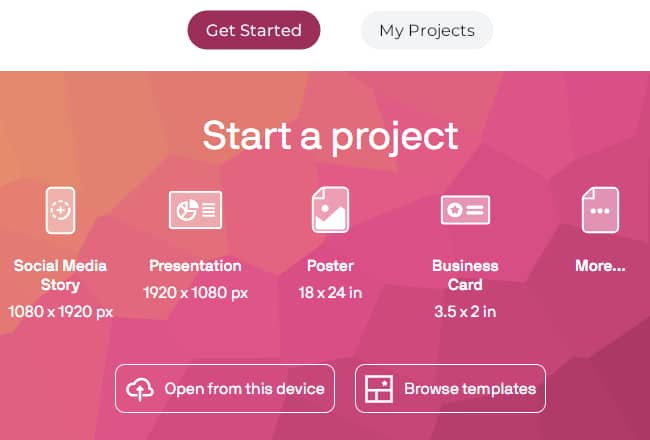
1. Create a new project and add your photo

In CorelDRAW Go, start a new project from a template or as a blank canvas. You can use the Import tool to upload your photo and add it to your project.

If you have a specific intent for your photo, like using it for a Facebook cover photo or an Instagram story, CorelDRAW Go includes templates that you can choose from and edit.
adjust settings

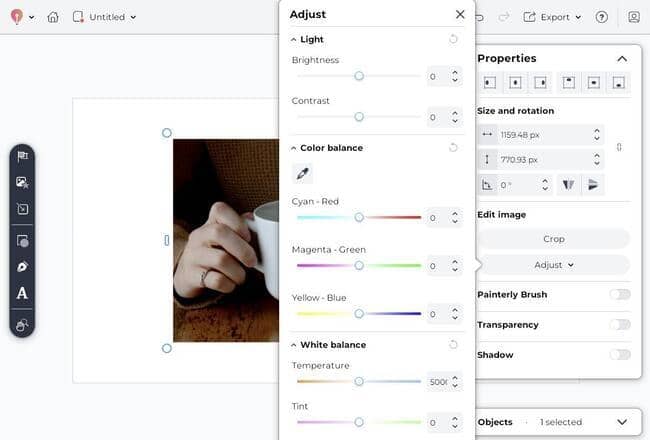
2. Use the Properties panel to edit settings

When you click on your photo, you’ll pull up the Properties panel, then open the Adjust menu. This is where you can find and adjust core aspects of your image, including dimensions, brightness, contrast, saturation, vibrancy, color balance, white balance, and cropping.

add personal flair

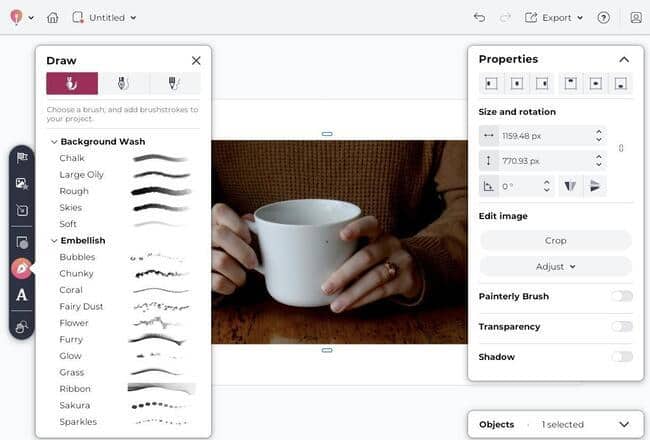
3. Add personal flair with vectors and effects

Have a particular vision for your photo? CorelDRAW Go includes specialized editing tools to help you turn color photos into black-and-white, add brush strokes and customizable vectors, and set up unique text effects.

add save and share

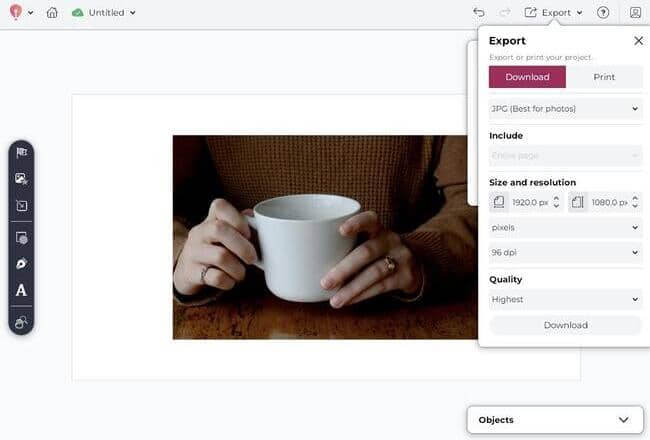
4. Save and share

Once you’re happy with the look of your photo, you can download it using CorelDRAW Go’s export menu and share it on your platform of choice.

See how to get started with CorelDRAW Go

See what the industry is saying about CorelDRAW Go

"CorelDRAW Go shows just how far web apps have come. It’s essentially a full graphic design toolkit that runs in your web browser."

- Creative Bloq

See more

"Creating and editing vector objects online with CorelDRAW Go gives real creative freedom.

- Ivanberg Moreira, Designer and Content Creator

See more
show off on social media

Show off your images on social media

With CorelDRAW Go, you’ve got the tools to make your photos tell a story. Adjust settings like saturation and light to create your own filter, then add details, draw viewers’ eyes to key features, and share your story on your social media platform of choice.

highlight personal style

Highlight your personal style

Love bokeh photos? Want to add a touch of nostalgia with sepia filters? Hooked on the newest HDR photo trends? Whatever your style, CorelDRAW Go can help you express it through your photos.

Photo editing FAQs

Have questions about editing photos in CorelDRAW Go? Find answers here.

You can! CorelDRAW Go is a beginner-friendly photo editor with essential editing tools to adjust image contrast and color, crop photos, blur photos, and add photo effects. You can upload your photos through the Import button in your toolkit on the left-hand side of the window.

Can I resize, crop, and change the dimensions of my photos in CorelDRAW Go?

Yes! In CorelDRAW Go, resizing or cropping your image is simple—just grab and drag the corners or use your Properties panel. You can also switch to cropping mode with the Crop button.

Can I add text to my photos with CorelDRAW Go?

You can! It’s easy to add text with the Text tool—and CorelDRAW Go has a unique ability to type on paths, too. You can learn more about how to add and edit text in this text customization guide or watch this video on how to edit text in CorelDRAW Go

Can I convert color photos to black and white with CorelDRAW Go?

You can—and it’s a straightforward process. In CorelDRAW Go’s Adjust menu (found in your photo’s Properties panel), you’ll see a toggle to switch pictures to black and white.

Can I add shadows or adjust the brightness of my photos with CorelDRAW Go?

CorelDRAW Go includes functionality to change your photo’s brightness in the Adjust menu. You’ll also see a toggle in your Properties panel to add shadows to your image.

Can I add special effects to my photos with CorelDRAW Go?

You can! CorelDRAW Go includes tools for unique effects on your photos—including customizable vector designs and brushstrokes, adding typography on paths, adjusting transparency and fill, and gradients.

Discover even more

LinkedIn banners

X Twitter headers

Facebook cover photos

Edit your photos like a pro with CorelDRAW Go

Try free

15-day free trial