Looking for real-world advice on the design challenges you're facing? You're in the right place.
The Corel team is working together with creators, designers, and artists around the globe to tackle the questions you and your peers are facing—and bring you new takes on techniques, processes, and workflows for your creations.
This article from graphic designer Angelo Borges takes a closer look at how grids in CorelDRAW Graphics Suite help with geometric shape design—from background layout to final product.
Let's dive in.
Want to get to know Angelo Borges better? Start with our Q&A with the designer!
First of all, it's important to say that not every brand symbol needs to be geometric. But when the design calls for this visual approach, I personally feel very comfortable using grids to refine symbols with reason and proportion to deliver harmony and balance.
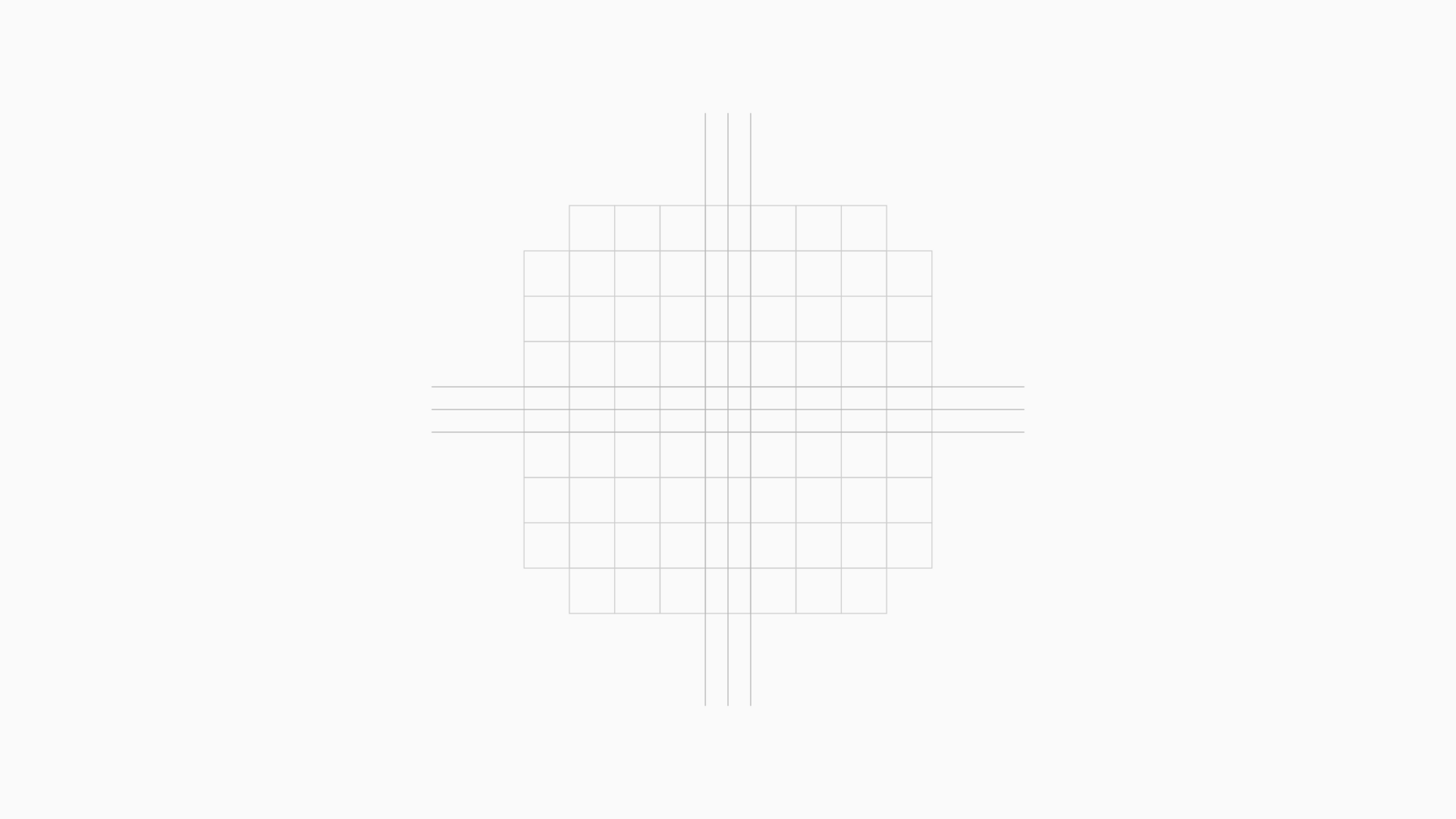
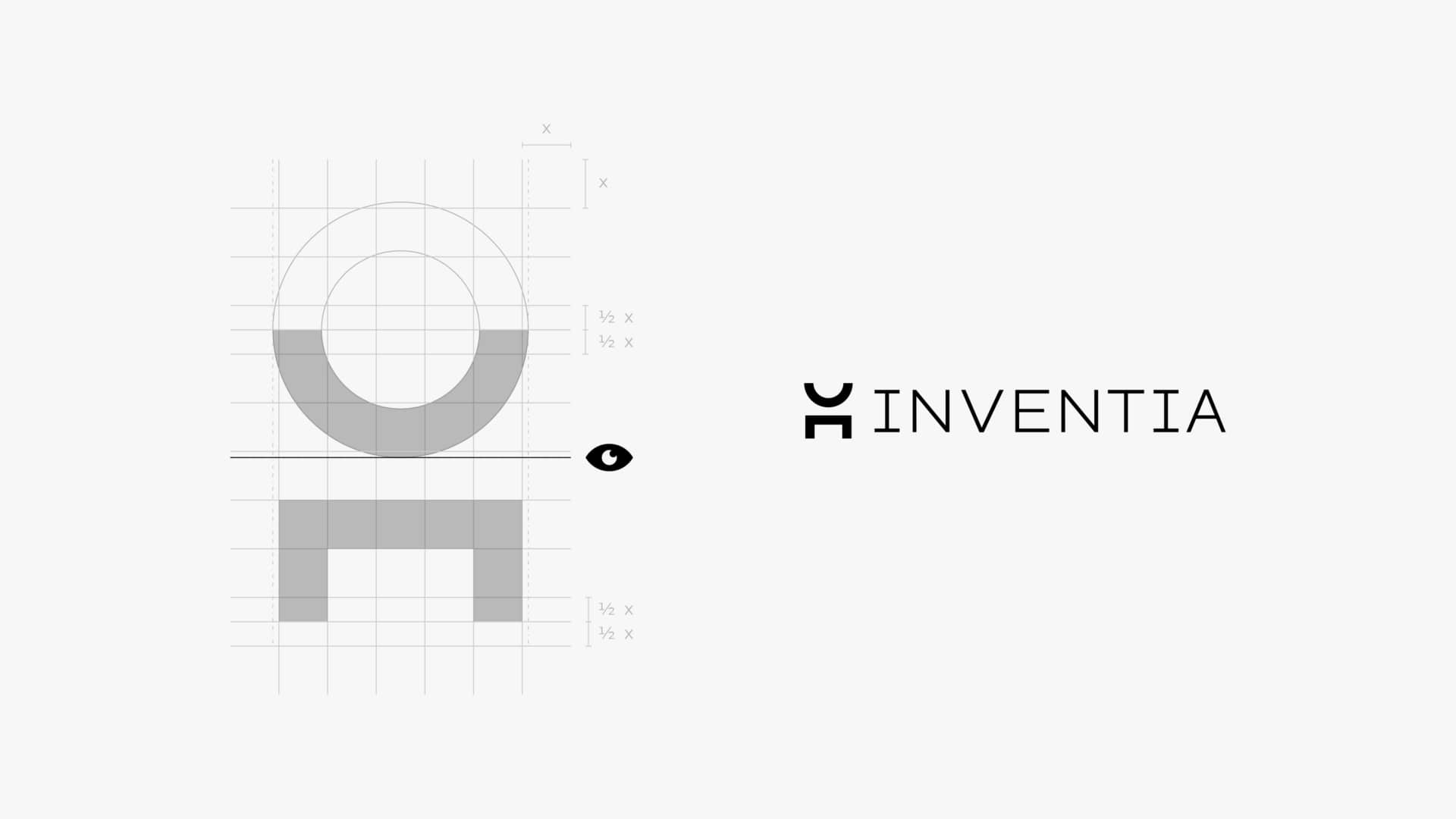
The most basic type of grid is the modular grid, where we use a set of squares to begin the process of building our visual element. Because its proportions are quite symmetrical and formed by 90-degree angles, the structure is highly useful for the creation of geometric symbols.
In the example below, the symbol is composed of the initials of the partners' names, but it's important to note that there's a slight rule-breaking in the endings of the letters "D" and "P," where they don't actually end in the center of the grid, creating a touch of personality for it.
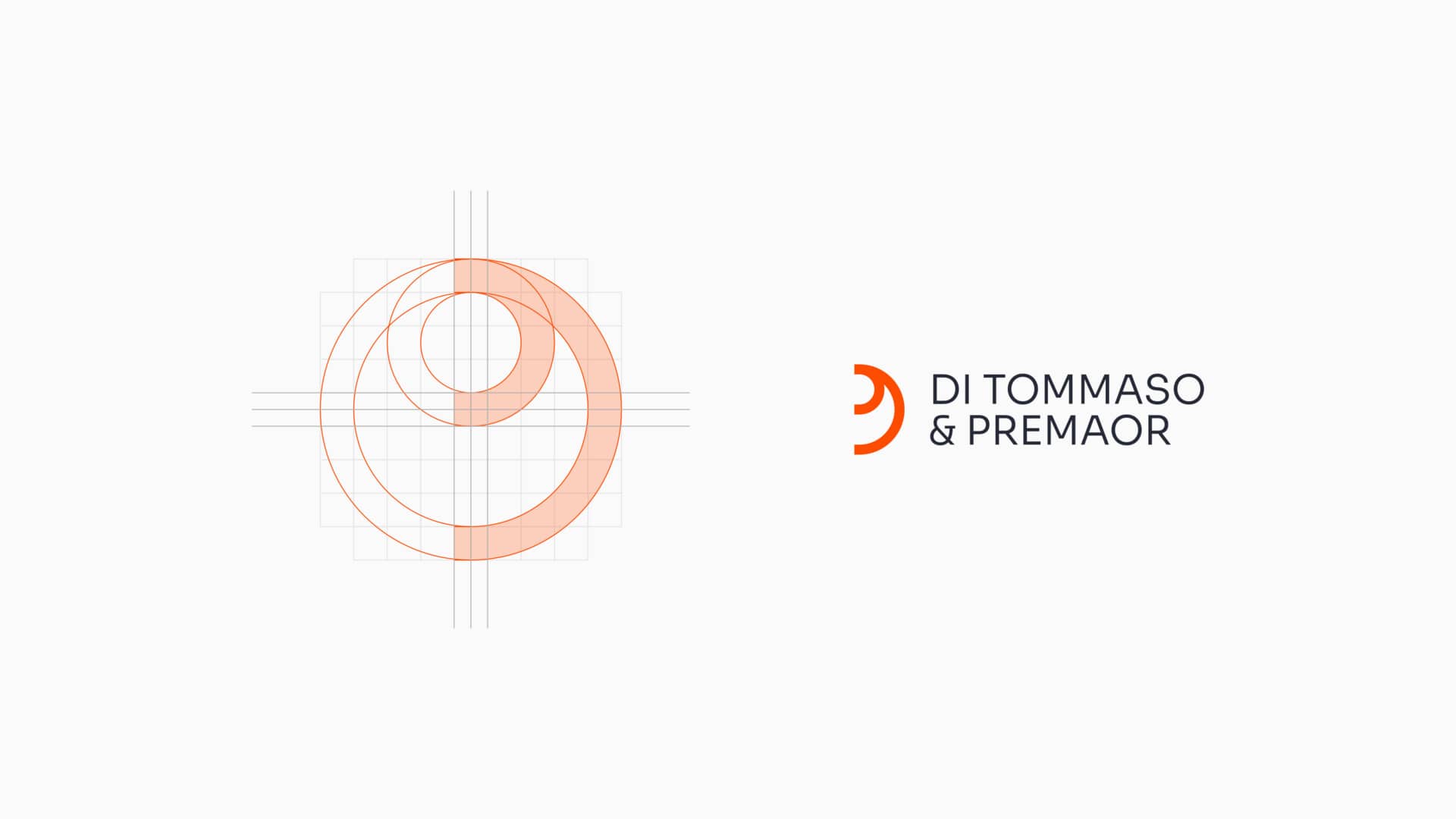
Another interesting way to think about creating geometric symbols is to use standard shapes and find objects with unique characteristics at their intersections. For the next symbol, I used squares and circles to create the basis for the brand symbol:
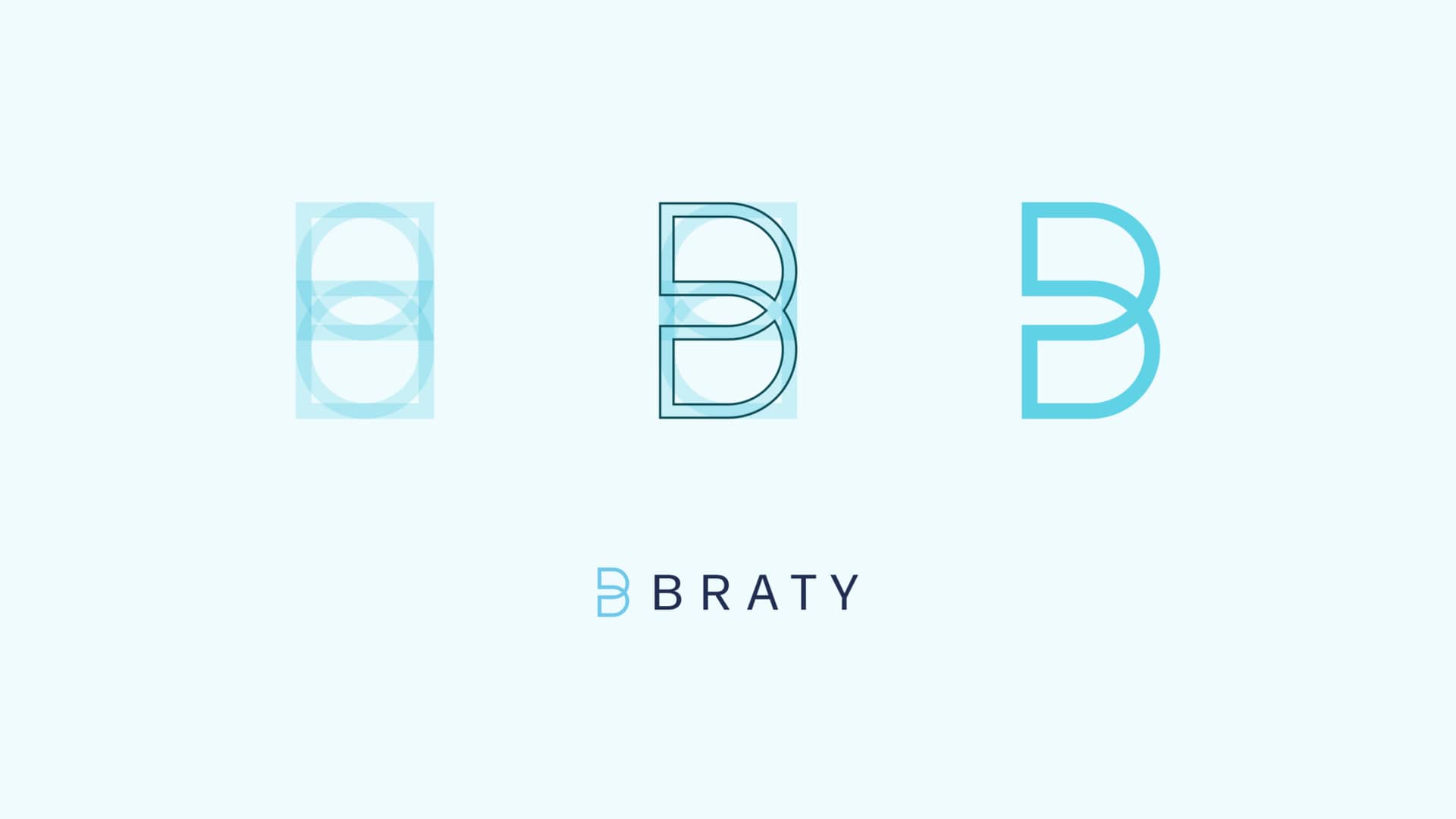
Geometric symbols require organization to be perceived positively, even if the grid is invisible to the eye. We perceive that everything is where it should be.
CorelDRAW's tools for creating geometric objects are extremely simple, intuitive, and precise for creating this type of graphic element—and if needed, its rulers and guidelines are helpful, too.
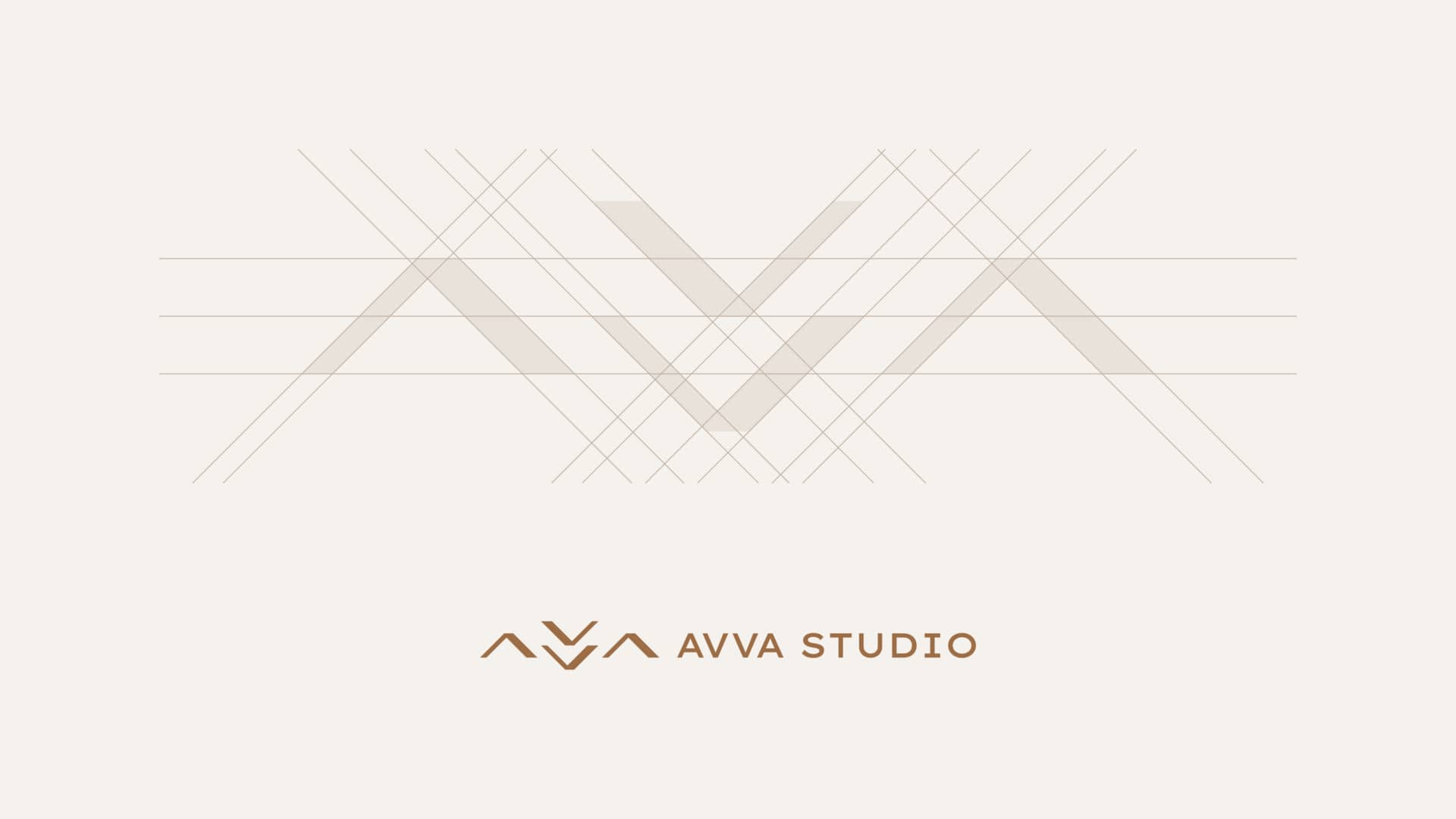
More open grids are also a possibility when creating symbols or elements like diagonals, which aren't based on 1x1 modules.
Even within this style, I like to maintain proportions so that they behave symmetrically. In the grid below, I didn't use a fixed base, but rather a ratio to align the elements in a balanced way:
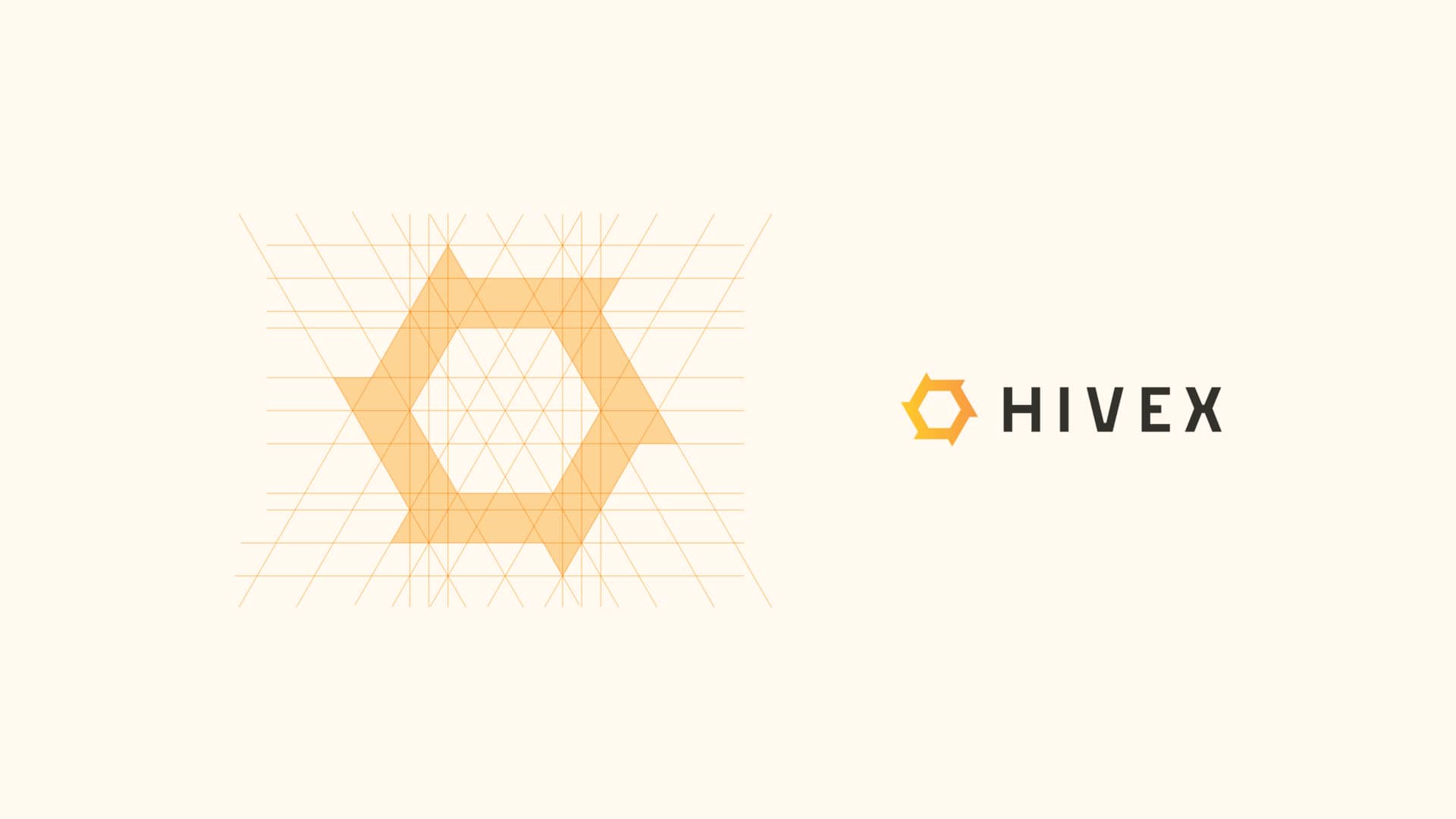
There are also symbols that, at the end of the process, seem simple, but their construction requires finding a coherent formula so that everything makes sense and is perfectly aligned, especially if symmetry is important to the project in question:
It is important to emphasize that not all geometric shapes behave in the same way. Squares, circles, and triangles, for example, have distinct shapes, and some adjustments must be made based on optical, not geometric, alignments.
When we bring a square and a circle closer together, we must know that if we leave their edges perfectly aligned by the grid, the optical sensation is that they are misaligned.
In the symbol below, we can see that the upper circular element is not perfectly aligned vertically, having a slight downward adjustment, with the intention of correcting the difference between these two objects:
These were some examples of how I work with different grids to create symbols for projects that require this style.
CorelDRAW is the ideal tool to ensure things turn out as planned, after the initial sketches on paper provide direction for the creative stage. Object alignment, shortcuts, intersections, welding, and other techniques are an efficient way to achieve a project's objectives.
Of course, studying compositions, structures, harmonies, and proportions is extremely important, but having software capable of executing your ideas makes it much easier to deliver a project to even the most demanding clients.
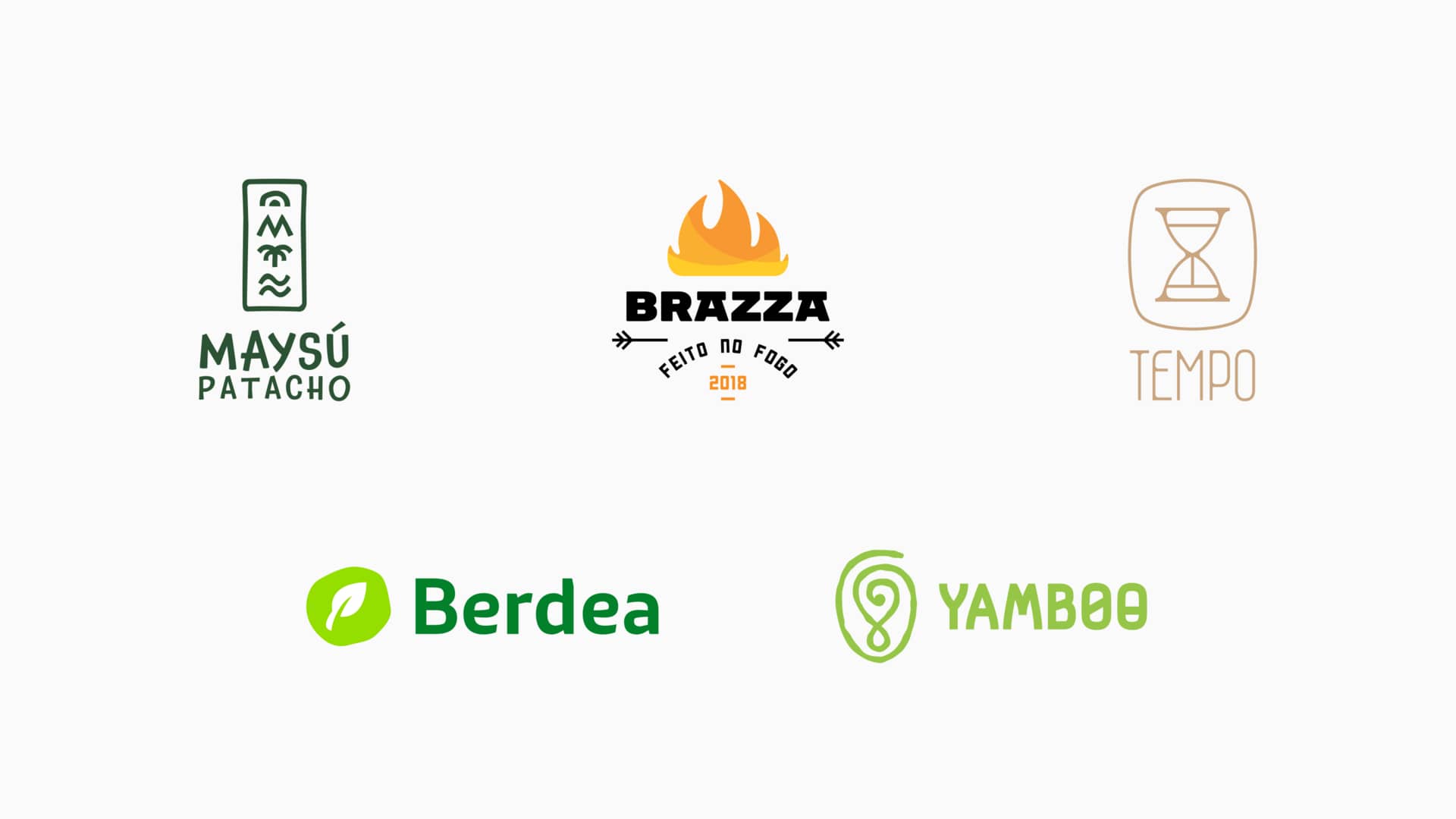
Finally, it is of utmost importance to note that not every project should follow the same style. Versatility and adaptability have always been intrinsic skills of designers. Grids and geometric symbols are a great way to deliver visual identities for some brands, but not for all.
Each project has its challenges and particularities, and we, as creatives, must non-negotiably fulfill the objectives of our clients' projects.
Angelo Borges is a branding and visual identity designer with over 23 years of experience across countries and industries.

How to use vectors to bring brand identity variations to life.
Learn moreHow Lukman Febrianto puts AI tools to work in CorelDRAW Graphics Suite 2026.
Learn more